On this page:
Structured vs. Unstructured Products
This feature is only available to Advanced and Enterprise users who are in the Beta program.
How It Works
With the AI Mockup Generator, you can easily design products by following the steps below:
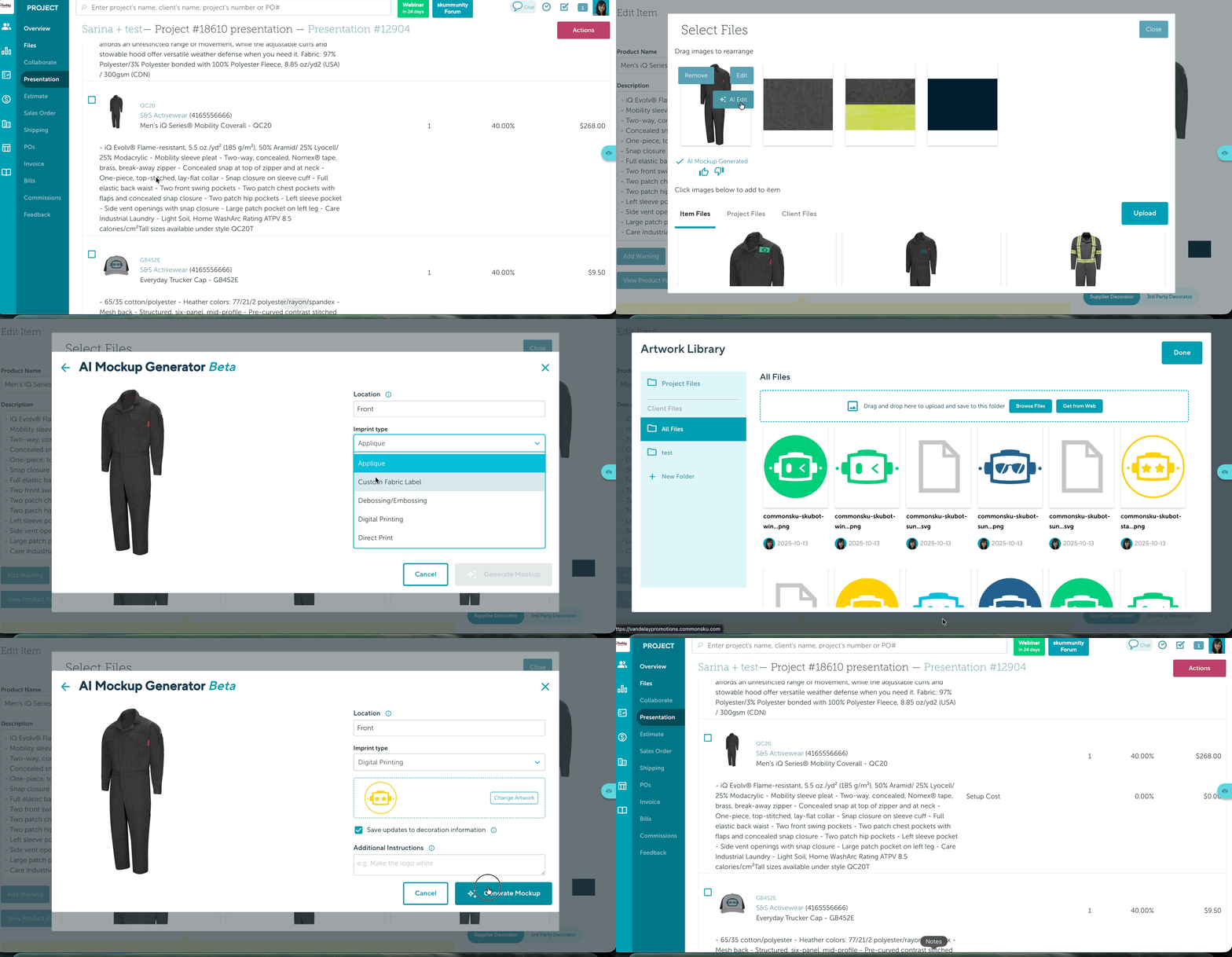
- Go to your project > click on Edit item.
- Then hover over the image and click on "Click to Edit."
- Choose the product image you want to add mochup and click on "AI Edit."
- On the location part, choose or write the Location based on the choice you have. Please refer to: Structured product / Unstructured Product
- Choose the Imprint Type from Drop Down menu
-
If you would like the decoration information to be saved on the Product Config page, please make sure the “Save updates to decoration information” checkbox is enabled.
- Click on Change Artwork > Choose your Art file
- Give any additional instructions like
-
“Make the lighting moody.”
-
“Place it on a wooden table.”
-
- Click on Generate Mockup. Then you can:
-
Click Done
-
Continue editing your product
-
Come back later to view the finished mockup“Save updates to decoration information”
-
Enabling "Save updates to decoration information" option will overwrite any existing decoration information previously saved on the Product Config page (if decoration details were already stored before the AI mockup was generated).
Please note that generation is only for the PromoStandard product and takes about 30 seconds to 1 minute.
The image is created in the background, so you don’t have to wait there.
Structured vs. Unstructured Products
We support two types of products:
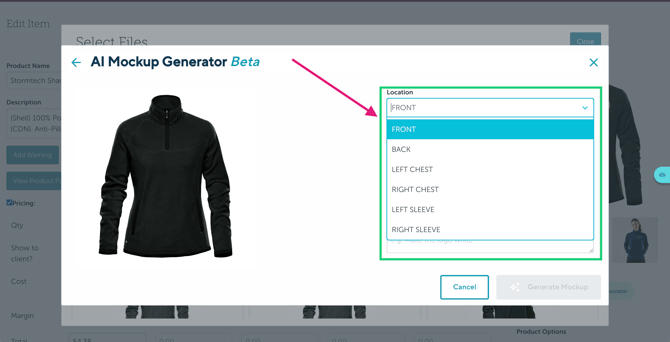
Structured Products
Typically, hard goods have predefined decoration locations and imprint methods.
The decoration locations are already built into the system, so you need to simply select from the available options.
Unstructured Products
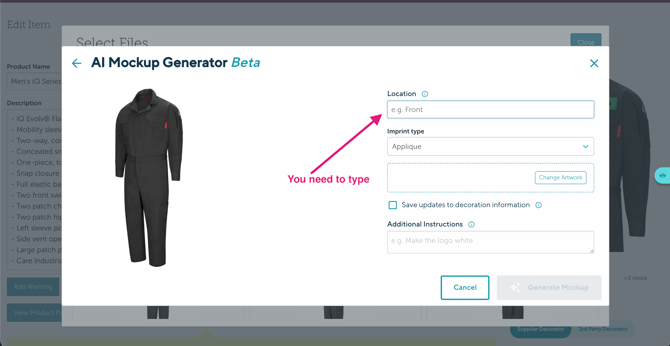
Typically, soft goods like apparel.
Instead of choosing from preset locations, you manually type the decoration location (for example: “Left chest” or “Full front”).
When the checkbox is selected, the decoration details are automatically saved in the product configuration page.
Review & Improve
Once your mockup is ready, you can:
 Give it a thumbs up
 Or thumbs down
Your feedback helps us improve the quality of future AI-generated images, so we highly recommend rating your results.
FAQs
Who can use the AI Mockup Generator?
How long does it take to generate a mockup?
Do I need to wait for the mockup to finish generating?
What’s the difference between structured and unstructured products?
What kind of artwork files can I upload?
What if I don’t like the generated image?
Can I give the AI specific instructions?
1. Who can use the AI Mockup Generator?
The AI Mockup Generator is currently available only to users in the Beta program.
2. How long does it take to generate a mockup?
Generation typically takes 30 seconds to 1 minute.
The image is created in the background, so you don’t need to stay on the page while it processes.
3. Do I need to wait for the mockup to finish generating?
No. You can:
-
Click Done
-
Continue editing your product
-
Come back later to view the finished mockup
4. What’s the difference between structured and unstructured products?
Structured products (usually hard goods) have predefined decoration locations built into the system. You simply select from available options.
Unstructured products (usually apparel/soft goods) require you to manually type the decoration location, such as “Left chest” or “Full front.”
5. What kind of artwork files can I upload?
You can upload your standard artwork files when selecting Change Artwork. For best results, use high-resolution files with a clear background.
6. What if I don’t like the generated image?
You can regenerate the mockup or adjust your instructions for a better result.
We also encourage you to use the Thumbs Up / Thumbs Down feedback option. Your feedback helps improve the quality of future mockups.
7. Can I give the AI specific instructions?
Yes! You can add instructions in the Additional Notes field.
Examples:
-
“Make the logo larger and centered on the front.”
-
“Keep the logo small and subtle on the left chest.”
Clear instructions usually produce better results.