On this page
How to manage your Automated Bills
How to access Automated Bills
To access your Automated Bills through the project:
- Go to the Bills tab in your project.
- Locate and select the electronic Purchase Order (ePo) you wish to review
- Click on Confirm bill to generate the bill number
- Next, click Review Bill button to open the bill details.
- Carefully verify that all information is accurate.
- When you have confirmed the details, click Confirm to complete the review process.
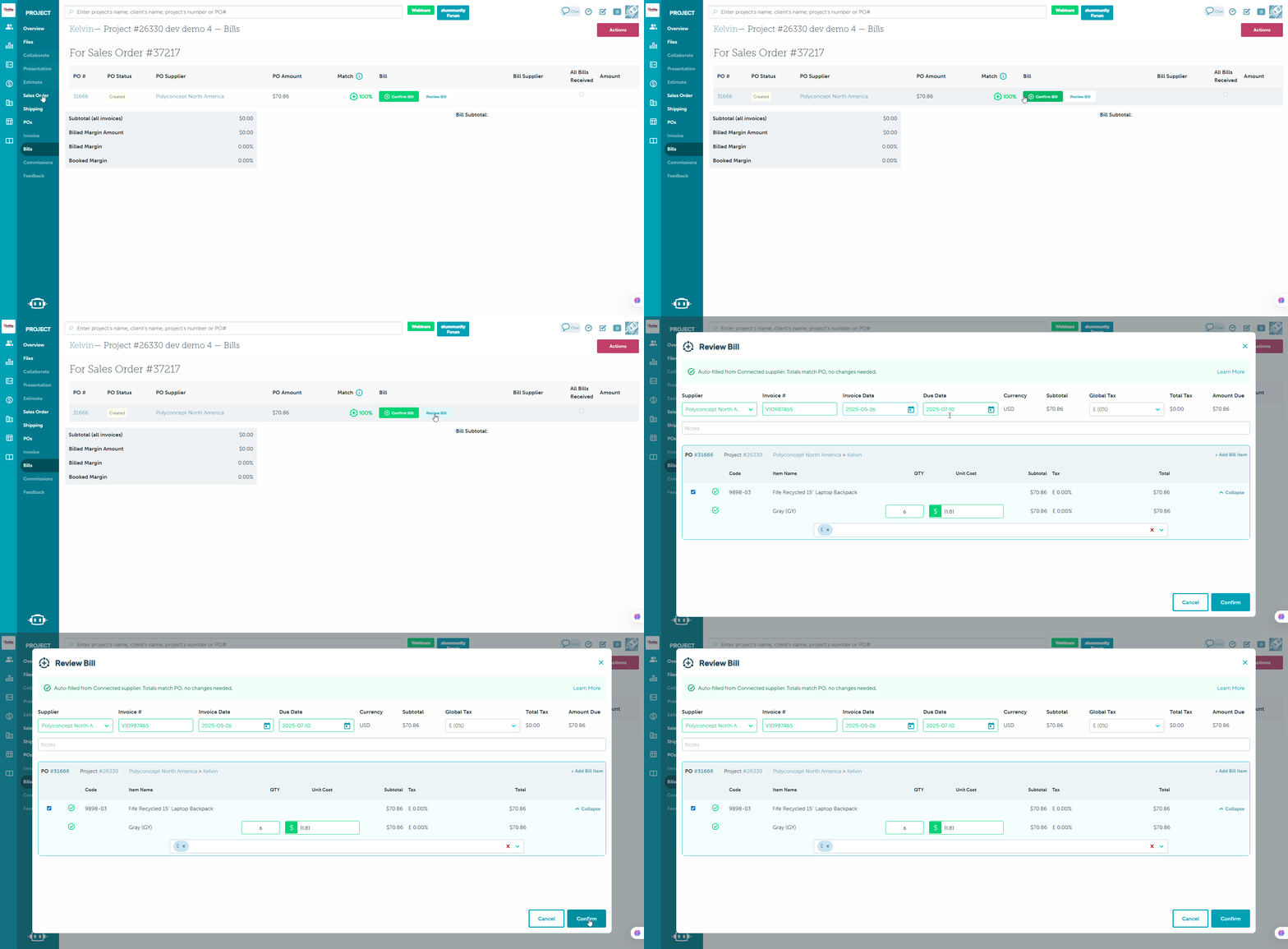
This feature is only available for users who are in the Beta program
To access your Automated Bills through the New Client Invoicing report:
- Go to the Finance tab > Billing > receive Bills
- Filter by Shipping Date, Supplier, Purchase Order or Project
- Locate and select the electronic Purchase Order (ePo) you wish to review
- Click on Confirm bill to generate the bill number
- Next, click Review Bill button to open the bill details.
- Carefully verify that all information is accurate.
- When you have confirmed the details, click Confirm to complete the review process.
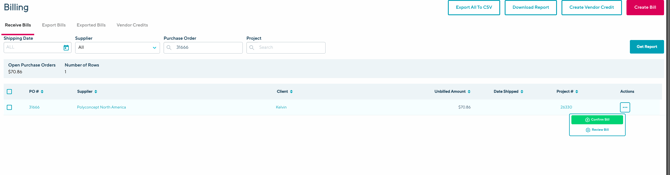
How to Manage your Automated Bills
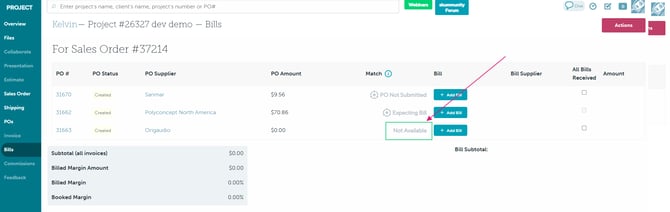
PO not submitted
PO not submitted refers to any ePos that are still waiting for your submission to the suppliers.

Expecting Bill
Expecting Bill indicates that an electronic Purchase Order (ePo) has been sent to a connected supplier, and we are currently anticipating the arrival of the corresponding bill. Once the supplier sends the bill, it will appear here for your review.

Not available
Not available refers to Purchase Orders (POs) that are not electronic Purchase Orders (ePos). For these POs, you will need to add your bills manually in this section.
You can add them manually through the steps below:
Create multiple bills for one PO
Create a bill against a project
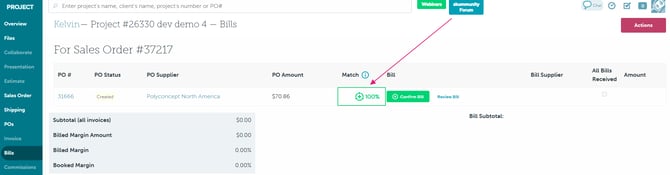
100% Matched
When a bill is 100% matched, it means all details on the bill have been automatically reconciled with the related purchase order. No further updates are necessary, simply review and click Confirm Bill to complete the process.
FAQ
- Why do some POs show as Not available for Automated Bills?
- How do I know if a bill is fully matched?
- Is this feature available for non Connected suppliers?
Why do some POs show as Not available for Automated Bills?
The Not available label appears for POs that are not electronic (not ePos). Automated Bills are only supported for ePos. For standard POs, you’ll need to upload or enter bill details manually.
How do I know if a bill is fully matched?
When a bill and its corresponding ePo align perfectly matching all required details and amounts it will show as 100% Matched. This signals that the isupplier bill is ready to be reviewed, approved, or paid.
Is this feature available for non Connected suppliers?
No. This feature is only available for Connected suppliers that offer ePos.
If you have further questions about this feature please contact the support team at support@commonsku.com