On this page
- Before you begin
- What is Automation Engine?
- How stalled documents are detected?
- What happens when an automation runs
- Access Automation Engine
- Enable or disable an automation
- Configure an automation
- Default automation settings
- Best practices
- Expected behavior
- FAQs
Automation Engine is available on the Advanced and Enterprise plans.
If your account is on another plan, you'll see an upgrade screen instead of the Automation Engine page.
Before you begin
Before using Automation Engine, make sure your account meets the following requirements.
|
Permissions Only Admin users can access and manage Automation Engine. |
Plan requirements Automation Engine is available on the Advanced and Enterprise plans. |
[back to top]
What is Automation Engine?
Automation Engine helps your team stay organized by monitoring documents (Presentation, Estimates, Sales Order, Purchase Order, Invoice, Bills) that haven't been updated within a specified number of days. When a document remains in a monitored status longer than your configured threshold, Automation Engine automatically creates an internal follow-up task so the appropriate team member can take action.
This helps reduce the chance of estimates, invoices, purchase orders, and other important documents being forgotten while your team focuses on day-to-day work.
Automation Engine monitors six document types:
| Document | When a task is created | Task assigned to |
|---|---|---|
| Estimate | The estimate remains in a specific status (for example, Client Review) longer than the configured number of days. | Order Rep/Client Rep |
| Presentation | The presentation remains in a specific status (for example, Client Review) longer than the configured number of days. | Order Rep/Client Rep |
| Sales Order | The sales order remains in a specific status (for example, Client Review) longer than the configured number of days. | Order Rep/Client Rep |
| Purchase Order | The purchase order remains in a specific status (for example, Client Review) longer than the configured number of days. | Order Rep/Client Rep / Production Rep |
| Bill | The bill remains in a specific status (for example, Client Review) longer than the configured number of days. | Order Rep/Client Rep |
| Invoice | The invoice remains in a specific status (for example, Client Review) status longer than the configured number of days. | Order Rep/Client Rep |
Note: If a project does not have an Order Rep assigned, the follow-up task is automatically assigned to the Client Rep instead.
Note: Automation Engine assigns follow-up tasks based on the user assigned to the project. If the assigned Order Rep or Client Rep is inactive, the task will still be assigned to that user. Automation Engine does not automatically reassign tasks to an active user.
Automation Engine creates internal tasks only. It does not send emails to clients or automatically update document statuses.
How stalled documents are detected
Each automation uses a configurable day threshold to determine when a document is considered stalled.
The timer begins as soon as a document enters one of the monitored statuses. If the document remains in that status for the configured number of days without any status changes, Automation Engine creates a follow-up task.
If the document's status changes before the threshold is reached, the timer resets. If the document later returns to a monitored status, a new timer begins.
Example
Suppose your Invoice automation is configured to create a task after 3 days.
- An invoice is sent to a client on Monday.
- If the invoice is marked Paid on Wednesday, no task is created.
- If the invoice is still in Sent to Client status on Thursday, Automation Engine creates a follow-up task.
This ensures tasks are created only for documents that genuinely require attention, while avoiding unnecessary reminders for documents that continue progressing through their normal workflow.
What happens when an automation runs
When an automation detects that a document has remained in a monitored status longer than the configured number of days, it automatically creates a follow-up task.
Each task includes:
- A descriptive task title using the format "Follow up with [Client Name] on [Project Name]", making it easy to identify which client and project require attention (for example, Follow up with Acme Co. on Invoice 10042).
- An assignee based on the automation’s configuration. The task can be assigned to either the Project Order Rep or the Project Client Rep, depending on how the automation is set up.
- A due date set one week from the date the task is created.
If a project does not have a Sales Rep assigned, the task is automatically assigned to the Client Rep instead.
Note: Automation Engine creates only one task for each stalled event. If the document remains unchanged after the task is created, additional reminder tasks are not generated.
If the document's status changes and later meets the configured trigger and conditions again, Automation Engine can create a new follow-up task based on the automation's current configuration.
To access Automation Engine:
Only Admin users on the Advanced or Enterprise plans can access Automation Engine.
You can access Automation Engine in one of the following ways:
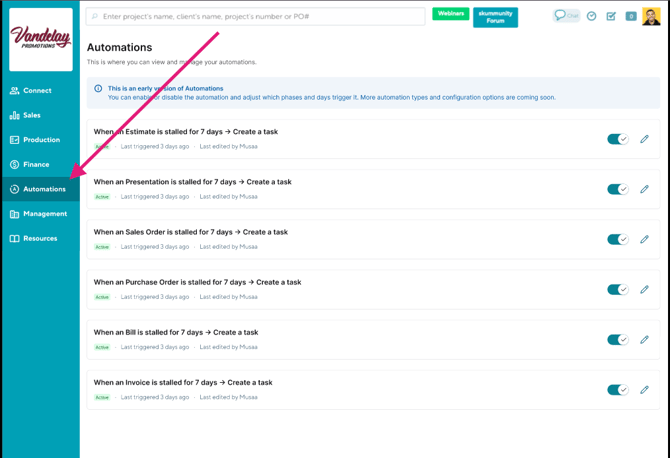
Option 1: From the left-hand navigation menu
- Log in to your commonsku account.
- From the left-hand navigation menu, click Automations.
- The Automations page will open and display the available automations.
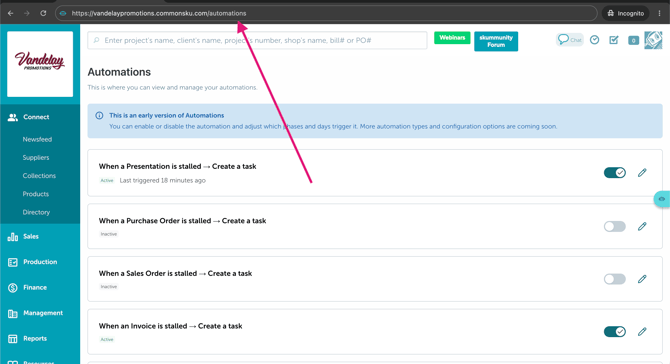
Option 2: Access the page directly by URL
- Log in to your commonsku account.
-
Add
/automationsto the end of your commonsku URL. - Press Enter.
For example:
https://vandelaypromotions.commonsku.com/https://vandelaypromotions.commonsku.com/automations
Enable or Disable an Automation:
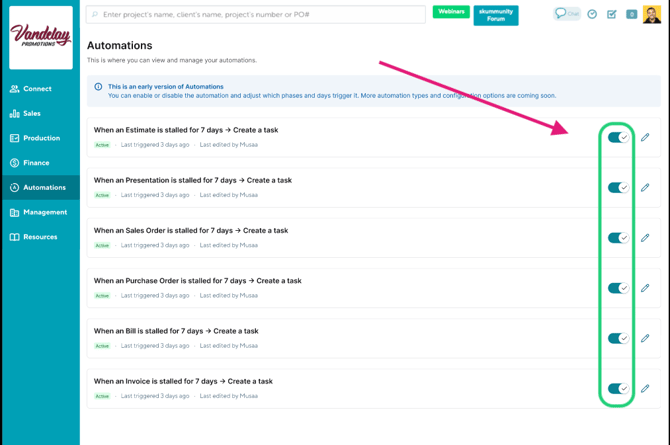
Automation Engine includes six built-in automations. Each automation can be enabled or disabled independently, allowing you to choose which document types you'd like Automation Engine to monitor.
To enable or disable an automation:
- Open the Automation Engine page.
- Locate the automation you want to manage.
- Use the toggle switch beside the automation to turn it On or Off.
When you enable an automation, it begins monitoring eligible document updates from that point forward. Enabling an automation does not automatically evaluate all existing documents that already meet the configured conditions.
When you disable an automation, it immediately stops creating new tasks. Any tasks that were previously created remain in your task list and are not removed automatically.
Configure an automation
Each automation can be customized to fit your team's workflow by configuring when it should run, which documents it should monitor, and what action it should take when the conditions are met.
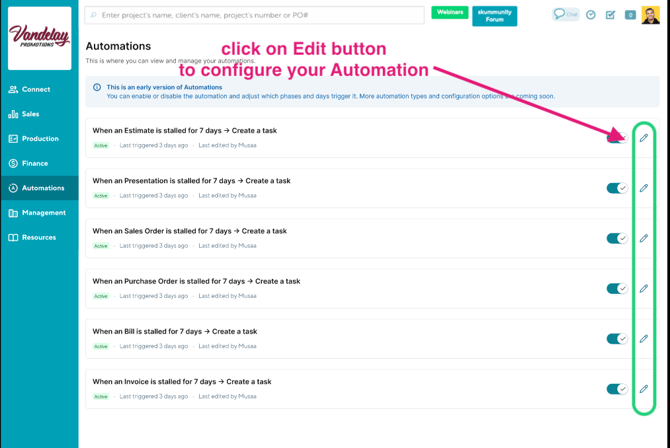
To configure an automation:
- Open Automations.
- Select the automation you want to edit.
- Configure the automation using the three sections described below:
- Click Save.
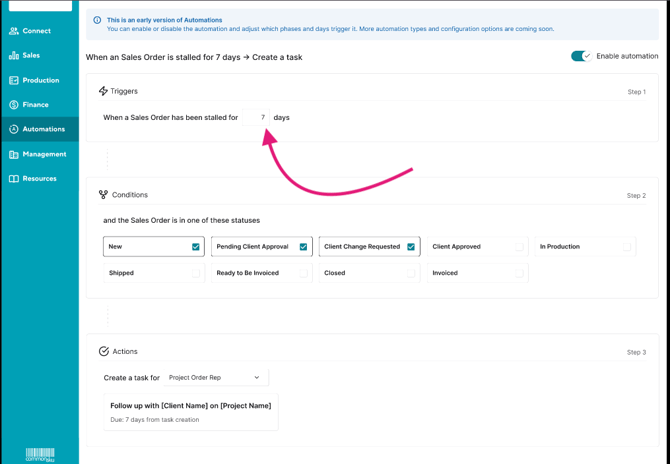
Step 1: Configure the trigger
The Trigger determines how long a document must remain inactive before the automation runs.
Enter the number of days the document must continue meeting the selected conditions after the automation is triggered before a follow-up task is created.
For example, entering 7 means that after an eligible document update triggers the automation, the document must continue meeting the selected conditions for 7 days before a follow-up task is created.
Tip: Choose a threshold that matches your team's normal workflow. A shorter threshold may create more tasks, while a longer threshold may delay reminders.
Step 2: Select the conditions
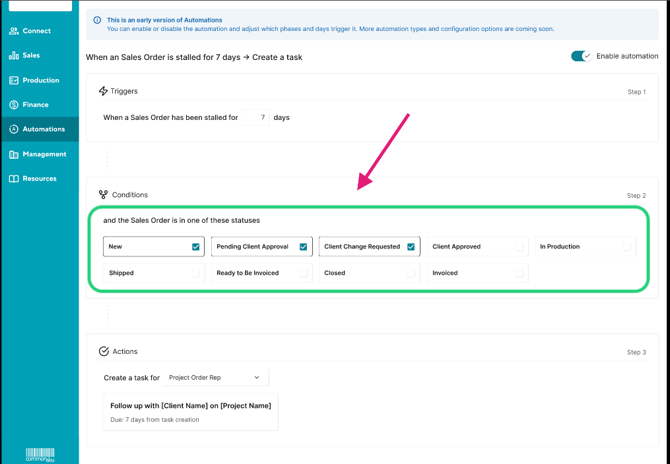
The Conditions determine which document statuses the automation monitors.
Select one or more statuses that should be considered "stalled."
For example, a Sales Order automation might monitor statuses such as:
- New
- Pending Client Approval
- Client Change Requested
Statuses that are not selected are ignored by the automation.
Choose the statuses that represent documents requiring follow-up from your team.
Step 3: Configure the action
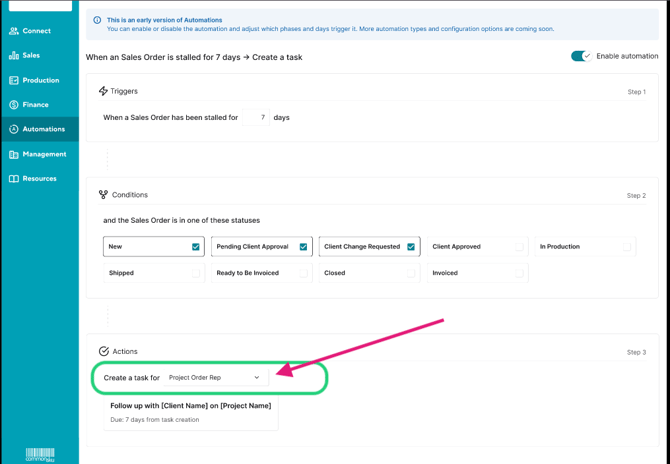
The Action determines what happens when the automation is triggered.
Currently, Automation Engine creates a task.
You can configure:
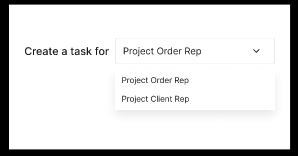
- Who the task is assigned to, such as the Project Order Rep or Project Client Rep.
- It shows:
- Created by skubot.
- Named "Follow up with [Client Name] on [Project Name]".
- Given a due date of 7 days from the date the task is created.
Note: If the selected assignee (such as the Project Order Rep or Project Client Rep) is inactive, the task will still be assigned to that user. Automation Engine does not verify whether the assigned user is active before creating the task.
If you enable an automation without modifying its settings, it uses the default trigger, conditions, and action configured for that automation.
Default automation settings
When you enable an automation for the first time, it automatically uses the default day threshold for that document type.
| Document | Default stale threshold | Monitored status(es) | Task assigned to |
|---|---|---|---|
| Presentation | 5 days | Client Review | Order Rep |
| Estimate | 5 days | Client View | Order Rep |
| Sales Order | 5 days | Pending Client Approval Client Change Requested Client Approved Ready to Invoice |
Order Rep |
| Purchase Order | 3 days | Submitted Shipped |
Order Rep |
| Invoice | 3 days | Sent to Client | Order Rep |
| Bill | 7 days | Open | Order Rep |
Note: The default thresholds are intended as a starting point. You can adjust each automation to better match your team's workflow.
Best practices
To get the most value from Automation Engine, consider the following recommendations:
- Use realistic thresholds. Configure the number of days based on how long documents typically remain in each stage. This helps reduce unnecessary tasks while ensuring important documents don't go unnoticed.
- Review your task list regularly. Automation Engine creates internal tasks to remind your team to take action. Checking your task list frequently helps ensure those reminders are addressed promptly.
- Use Automation Engine as a safety net. Automation Engine is designed to help catch documents that may have been overlooked. It complements your existing workflow but shouldn't replace regular project management and communication with your clients.
Expected behavior
Automation Engine is designed to help your team stay on top of documents that may require follow-up. Understanding how it works can help you know what to expect.
- Automation Engine monitors only the supported document types: Presentation, Estimate, Sales Order, Purchase Order, Invoice and Bills
- It creates one internal follow-up tasks only. It does not send emails or notifications to clients.
- Automation Engine does not automatically update a document's status.
- A follow-up task is created only when an eligible document update triggers the automation and the document continues to meet the configured conditions for the specified number of days.
- If the document no longer meets the configured conditions when the automation checks it again, the follow-up task is not created.
- The configured time period is measured from the automation trigger, not from the project's created date, in-hands date, or another project date field.
- Existing documents are not automatically evaluated simply because an automation is enabled.
- Only one follow-up task is created for each stalled event. If the document later changes status and becomes stalled again, a new task can be created for that new period of inactivity.
- Disabling an automation prevents it from creating new follow-up tasks. Existing tasks remain in your task list until they are completed or removed.
FAQs
-
Does Automation Engine automatically update document statuses?
-
Why didn't I receive another reminder for the same document?
-
I don't see Automation Engine in the navigation menu. Is something wrong?
-
Can I change the number of days before a follow-up task is created?
-
Does Automation Engine automatically check existing documents when I enable an automation?
Will my client receive an email when an automation runs?
No. Automation Engine only creates an internal follow-up task for your team. It does not send emails or notifications to your clients.
Does Automation Engine automatically update document statuses?
No. Automation Engine never changes the status of a document. It only monitors documents and creates follow-up tasks when the configured conditions are met.
Can I create my own custom automations?
Not at this time.
Automation Engine currently includes six built-in automations for:
- Estimates
- Presentations
- Sales Orders
- Purchase Orders
- Bills
- Invoices
Additional automation options may become available in future updates.
Who receives the follow-up task?
By default, the task is assigned to the Sales Rep associated with the project.
If no Sales Rep is assigned, the task is automatically assigned to the Client Rep instead.
Why wasn't a follow-up task created for my document?
There are several reasons why a task may not have been created:
- The document has not yet reached the configured day threshold.
- The document changed status before the threshold was reached, which reset the timer.
- The document is already in a completed status, such as a paid invoice or a closed estimate.
- The automation is currently disabled.
Why didn't I receive another reminder for the same document?
Automation Engine creates only one follow-up task for each stalled event.
If the document remains unchanged after the task is created, additional reminder tasks are not generated. A new task is created only if the document changes status and later becomes stalled again.
I don't see Automation Engine in the navigation menu. Is something wrong?
To access Automation Engine, your account must meet the following requirements:
- You must be an Admin user.
- Your account must be on the Advanced plan or higher.
If you meet these requirements, you can access Automation Engine in either of the following ways:
- From the left-hand navigation menu, click Automations.
- By entering the URL directly. Add
/automationsto the end of your commonsku URL. For example:https://vandelaypromotions.commonsku.com/https://vandelaypromotions.commonsku.com/automations
If you meet the requirements above but still can't access Automation Engine, contact your commonsku representative to confirm that the feature has been enabled for your account.
I can't access Automation Engine. Why?
Automation Engine is available only if:
- You are an Admin user.
- Your account is on the Advanced or Enterprise plan.
If you meet these requirements and still cannot access the feature, contact your commonsku representative for assistance.
Can non-admin users access Automation Engine?
No. Only Admin users can view and manage Automation Engine.
What happens if I disable an automation?
Disabling an automation stops it from creating any new follow-up tasks.
Tasks that were created before the automation was disabled remain in your task list and are not removed automatically.
Can I change the number of days before a follow-up task is created?
Yes. Each automation can be configured with its own day threshold, allowing you to choose how long a document can remain in a monitored status before a follow-up task is created.
Does Automation Engine automatically check existing documents when I enable an automation?
No. Enabling an automation does not automatically review all existing documents that already meet its configured conditions.
Automation Engine is triggered by eligible document updates. This means a document that was already in a monitored status before the automation was enabled will not create a follow-up task simply because it reaches the configured number of days.
If that document is later updated and still meets the automation's conditions, that update can trigger the automation and begin the configured monitoring period.
The automation does not use the project's created date, in-hands date, or the amount of time the document had already spent in the status before the trigger to calculate this period.