On this page:
- Before you start
- How to access Build with skubot
- How to build your Presentation with skubot
- How to add specific products
- How to refine your Presentation
- Review and manage your Presentation
- Understanding how skubot works
- Tips and best practices
- FAQs
Note: This feature is currently in beta and is available to accounts on the Advanced plan or higher, as long as the feature has been enabled for their account.
Before you start
Before using Build with skubot, here's what you should know:
- Product availability: skubot currently searches Connected+ products only.
- Existing and new Presentations: You can use skubot when creating a new Presentation or when working on an existing one.
- Product management: Once skubot has added products to your Presentation, you can edit their details, update pricing, or remove them using the regular Presentation Build tools.
- Locked Presentations: The skubot chat is unavailable for locked Presentations.
Important: skubot adds products directly to your Presentation. There is no separate approval step before skubot adds products.
How to access Build with skubot
There are two ways to start building a Presentation with skubot.
Option 1: From an existing Presentation
If you've already created a Presentation, you can use skubot to add more products without starting over.
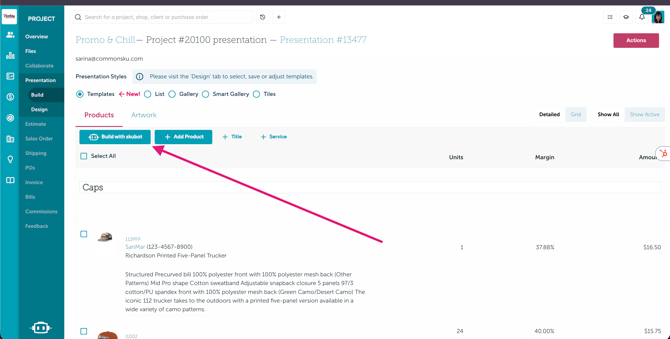
- Open the Presentation you want to work on.
- Go to the Build tab.
- In the Products toolbar, click Build with skubot.
- The Presentation Builder will open, allowing you to start chatting with skubot.
Option 2: When creating a new project
You can also choose skubot when starting a new project.
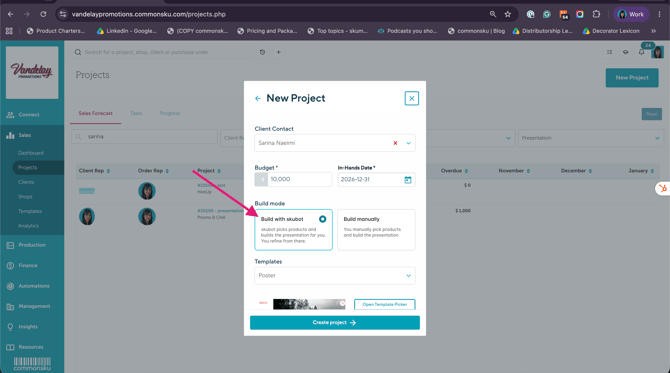
- Create a New Project.
- Enter the project details, such as your client contact, budget, and in-hands date.
- Under the Build options, select how you want to create your Presentation:
- Build with skubot: skubot picks products and builds the Presentation for you. You can refine it afterward.
- Build manually: You select and add products yourself using the regular Presentation tools.
- Select Build with skubot.
- Continue creating your project.
Your project will be created, and skubot will open with an empty Presentation ready for you to start building.
Note: Build with skubot is currently in beta, so the option will only appear if the feature has been enabled for your account.
How to build your Presentation with skubot
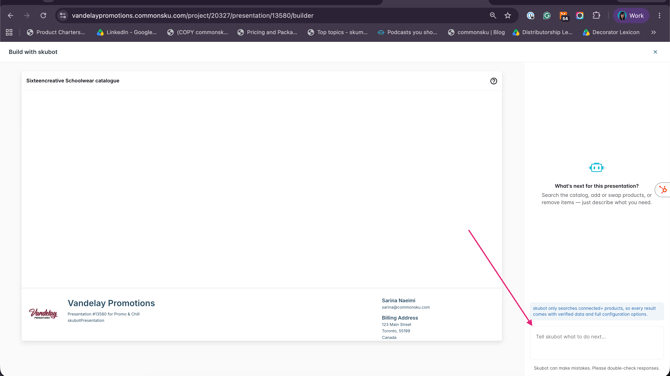
Once you open Build with skubot, you'll see two main areas:
- Presentation preview (left): Displays the products in your Presentation as they're added.
- skubot chat (right): Allows you to describe the products you're looking for and continue the conversation.
Step 1: Tell skubot what you're looking for
In the chat box, describe the type of products you want skubot to find.
You can include details such as:
- Product category: Drinkware, apparel, bags, office supplies, etc.
- Budget: How much you'd like to spend per product.
- Audience: Employees, customers, event attendees, etc.
- Event or purpose: Corporate events, employee appreciation, trade shows, or welcome kits.
- Style or preferences: Colors, product types, or other requirements.
For example:
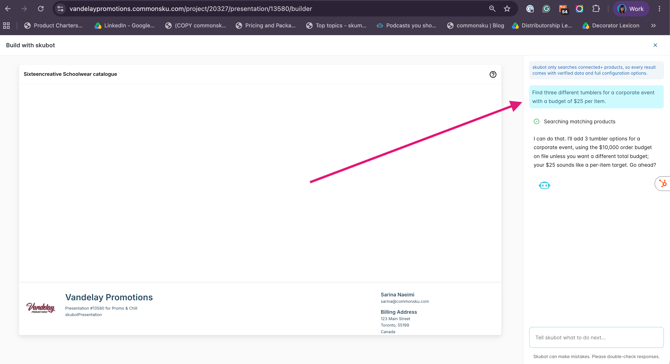
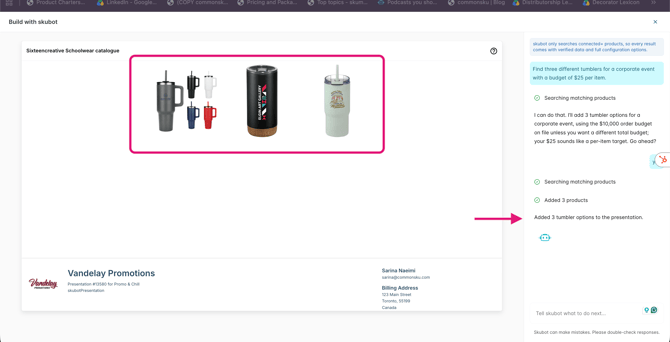
Find three different tumblers for a corporate event with a budget of $25 per item.
Or:
I'm putting together a welcome kit for new employees. Suggest some products with a budget of $50 per person.
Or:
Find five promotional products for a summer outdoor event.
skubot uses your request to find suitable Connected+ products.
For broader requests, skubot may help brainstorm ideas or ask questions to better understand what you're looking for.
Step 2: skubot searches for products
After you send your message, skubot starts searching Connected+ for products that match your request.
While it works, you'll see progress updates in the chat, such as:
- Searching for products
- Adding Connected+ products
Once completed, the progress indicators show which steps were successful and how many products were added.
skubot considers your budget and the type of products you're looking for. It also tries to provide a variety of suitable options rather than selecting very similar products.
Step 3: Review the products added to your Presentation
As skubot selects products, they're added directly to your Presentation.
The preview on the left updates to show the products, allowing you to review the results without leaving the builder.
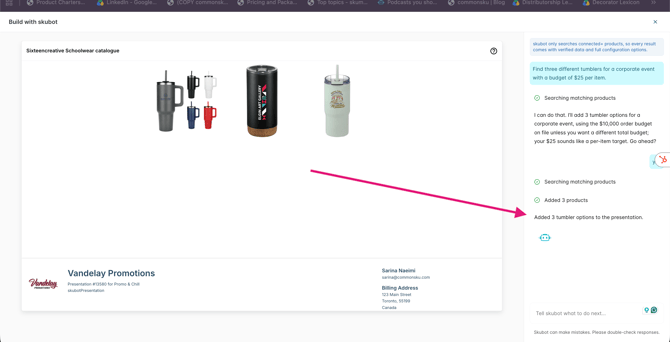
Important: Products are added directly to your Presentation, not to a temporary draft. Closing the builder will not remove any products that were already added.
How to add specific products
If you already know which product you want, you can ask skubot to find it using its SKU.
For example:
Add product ABC123 to my Presentation.
skubot will search Connected+ for the matching SKU and add the product if it's available.
This can be helpful when you already have a product in mind and don't want to search for it manually.
Note: The product must be available in Connected+ for skubot to find it.
How to refine your Presentation
You don't need to provide all your requirements in your first message.
You can continue chatting with skubot to add more products and build on the selection already in your Presentation.
For example, after adding drinkware products, you can say:
Add three apparel options under $30.
Or:
Find two more budget-friendly options.
Or:
Add some bags that would work well with these products.
skubot uses the context from your current conversation to understand your requests and continue adding products.
It also checks the products already in the Presentation to avoid adding the same products again.
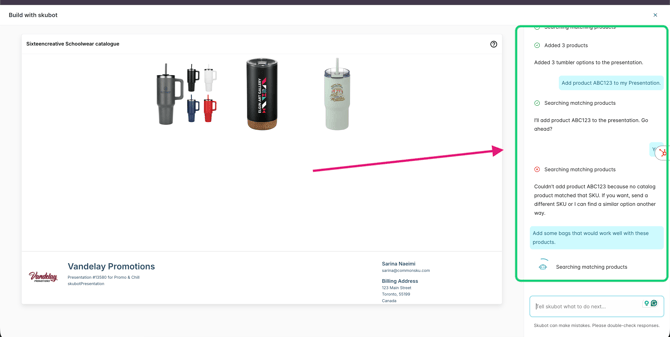
Note: skubot can help you refine the product selection by adding more products. To remove, reorder, or make changes to existing products, use the regular Presentation Build tools.
Review and manage your Presentation
Once skubot has added the products you need, you can continue working on your Presentation using the regular Build tools.
You can:
- Review and edit product information.
- Update product pricing.
- Add descriptions and other product details.
- Remove products you don't want.
- Rearrange products.
- Manually add more products.
- Complete the Presentation before sharing it with your client.
skubot helps you find and add products, but you're still responsible for reviewing and finalizing the Presentation.
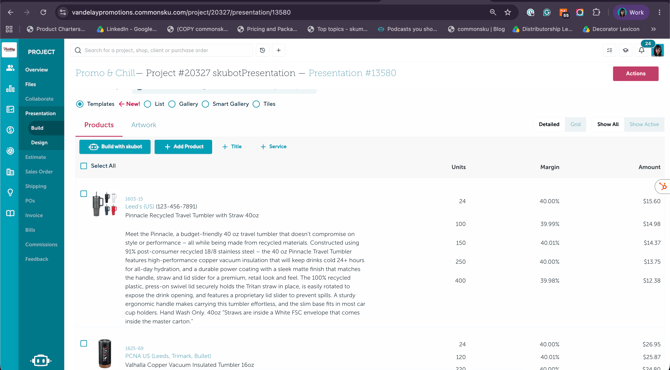
Important: Any products skubot adds will remain in the Presentation even if you close the skubot window.
Understanding how skubot works
Product searches
skubot currently searches products from Connected+.
It uses information in your request, such as the product category, budget, and intended use, to identify suitable options.
When selecting products, skubot aims to provide a useful variety of products instead of multiple nearly identical options.
Product availability
Not every product you ask for will necessarily be available through Connected+.
If skubot can't find a suitable match, it may let you know that no matching products were found.
You can try adjusting your request or manually adding a product using the regular Presentation tools.
Products are added automatically
Products selected by skubot are added directly to your Presentation.
You don't need to approve each product before it's added.
Conversation history
skubot remembers the context of your conversation while you're working in the same builder session.
However, each time you close and reopen Build with skubot, a new conversation starts.
Your previous chat is not remembered, but the products already added to your Presentation remain there.
Working with locked Presentations
The skubot chat is unavailable when a Presentation is locked.
Current limitations
There are some things skubot cannot do directly from the Presentation Builder chat:
- Search SAGE, ESP, or custom products.
- Search products from previous Presentations or your client catalog.
- Remove or rearrange products through chat.
- Create or manage Presentation titles and sections through chat.
- Automatically generate mockups or rewrite product descriptions through chat.
- Set your final product pricing through chat.
You can still use the regular Presentation tools for supported manual actions.
Tips and best practices
Here are a few tips to help you get better results when using skubot.
1. Be specific with your requests
The more information you provide, the easier it is for skubot to find products that fit your needs.
Instead of:
Find some products.
Try:
Find five promotional products for a company holiday party with a budget of $30 per person.
2. Include your budget
Adding a budget helps skubot focus on products that are more suitable for your project.
3. Ask for different product options
If you want a variety of ideas, specify how many products or categories you'd like skubot to explore.
For example:
Suggest two drinkware products, three apparel products, and two bags for a welcome kit.
4. Build your Presentation in stages
Start with your main product requirements and continue adding products through follow-up messages.
5. Review your products before sending
Always double-check product details, pricing, decoration options, and other information before sharing the Presentation with your client.
FAQs
Who can use Build with skubot?
Can I use skubot with an existing Presentation?
Can skubot create a Presentation from scratch?
Does skubot automatically add products to my Presentation?
Can I tell skubot exactly which product I want?
Can skubot add products from SAGE, ESP, or other suppliers?
Can I ask skubot to add more products after the first search?
Can I remove products that skubot added?
Can skubot update pricing or create mockups for the products?
Will skubot add duplicate products?
What happens if skubot can't find a matching product?
Does skubot remember my previous conversations?
Will I lose the products skubot added if I close the builder?
Can I still edit my Presentation manually after using skubot?
Can I use skubot on a locked Presentation?
Why don't I see the Build with skubot button?
Who can use Build with skubot?
This feature is in beta and it's not available to teams subscribed to commonsku's Essentials plan. The Advanced plan or higher is required in order to use this tool.
Can I use skubot with an existing Presentation?
Yes! Open your Presentation, go to Build, and click Build with skubot to start adding products.
Can skubot create a Presentation from scratch?
Yes. When creating a new project, select Build with skubot. You can then describe what you're looking for, and skubot will help find products and add them to your Presentation.
Does skubot automatically add products to my Presentation?
Yes. Once skubot selects matching products, they're added directly to the Presentation without a separate approval step.
Can I tell skubot exactly which product I want?
Yes. You can provide a product SKU and ask skubot to add it, as long as the product is available through Connected+.
Can skubot add products from SAGE, ESP, or other suppliers?
skubot currently searches Connected+ products only.
If you need products from other sources, you can add them manually using the regular Presentation tools.
Can I ask skubot to add more products after the first search?
Yes! You can continue chatting with skubot to request additional products or explore other categories during the same session.
Can I remove products that skubot added?
Yes. Once products are added, you can remove them using the regular Presentation Build tools.
You cannot currently ask skubot to remove products directly through the chat.
Can skubot update pricing or create mockups for the products?
Not through the Presentation Builder chat.
After skubot adds products, you can use the regular Presentation tools to manage pricing and use any available mockup features separately.
Will skubot add duplicate products?
skubot checks the products already in your Presentation and is designed to avoid adding the same products again.
However, you should still review your product selection before sharing it with your client.
What happens if skubot can't find a matching product?
If skubot can't find a suitable product in Connected+, it may tell you that no good match is available.
Try adjusting your request by changing the product type, budget, or other details. You can also manually add products using the regular Presentation tools.
Does skubot remember my previous conversations?
No. skubot remembers your conversation only during the current builder session.
When you close the builder and open it again, you'll start a new conversation.
Will I lose the products skubot added if I close the builder?
No. Products are added directly to your Presentation and remain there even after you close the builder.
Can I still edit my Presentation manually after using skubot?
Yes! You can continue editing and managing your Presentation using the regular Build tools, just as you would with any other Presentation.
Can I use skubot on a locked Presentation?
No. The skubot chat is unavailable for locked Presentations.
Why don't I see the Build with skubot button?
This feature is in beta and it's not available to teams subscribed to commonsku's Essentials plan. The Advanced plan or higher is required in order to use this tool.