commonsku's Zapier integration has 3 outbound Triggers and 2 Actions that will pass information like project name and numbers, assigned reps, budgets, and sales order status.
This feature is not available to teams subscribed to commonsku's Essentials plan. The Advanced plan or higher is required in order to use this tool.
On this page:
Overview
Zapier is an automation tool that connects different apps together. It allows you to create automated workflows (called Zaps) so that when something happens in one app, another app automatically takes action.
For example:
-
When a new order is created in commonsku → Create a task in Asana
-
When a project is updated in commonsku → Send a Slack notification
-
When a new contact is added → Add them to Mailchimp
No coding required.
With Zapier, you can connect commonsku to thousands of other apps, including:
-
Slack
-
Google Sheets
-
HubSpot
-
Mailchimp
-
QuickBooks
-
And many more
This helps you:
-
Reduce manual work
-
Improve team visibility
-
Keep systems in sync
-
Automate repetitive tasks
How it works:
Zaps are workflows that connect your apps. A Zap has two parts:
-
Trigger – Something happens in commonsku
-
Action – Another app does something automatically
Example:
Trigger: New Project in commonsku
Action: Create a new row in Google Sheets
That’s it.
What is a Trigger?
A Trigger is the event that starts the automation. It’s something that happens inside commonsku.
When that event happens, Zapier begins the workflow. Think of it as the starting point.
In commonsku, we have three triggers:
What is an Action?
An Action is what happens next in another app. After the trigger happens in commonsku, Zapier tells another app to do something automatically.
This is the result of the trigger.
Examples of actions:
-
Send a Slack message
-
Create a new row in Google Sheets
-
Send an email
The action happens automatically (no manual work needed).
How to connect to Zapier
You will need the following to connect to Zapier:
- An Advanced or Enterprise subscription
- An Admin role in commonsku
Once you have the following, you can find commonsku in Zapier's connected apps to be connected.
To connect to Zapier:
- Start by creating an account on Zapier and logging in to your account.
- Create a new Zap and select commonsku beta as the application for your Trigger.
- Choose the Trigger event you wish to use, then select your commonsku account. (Ensure you are logged into commonsku first; if not, you will be prompted to log in.)
- Click the option Allow to grant Zapier permission to integrate with commonsku.
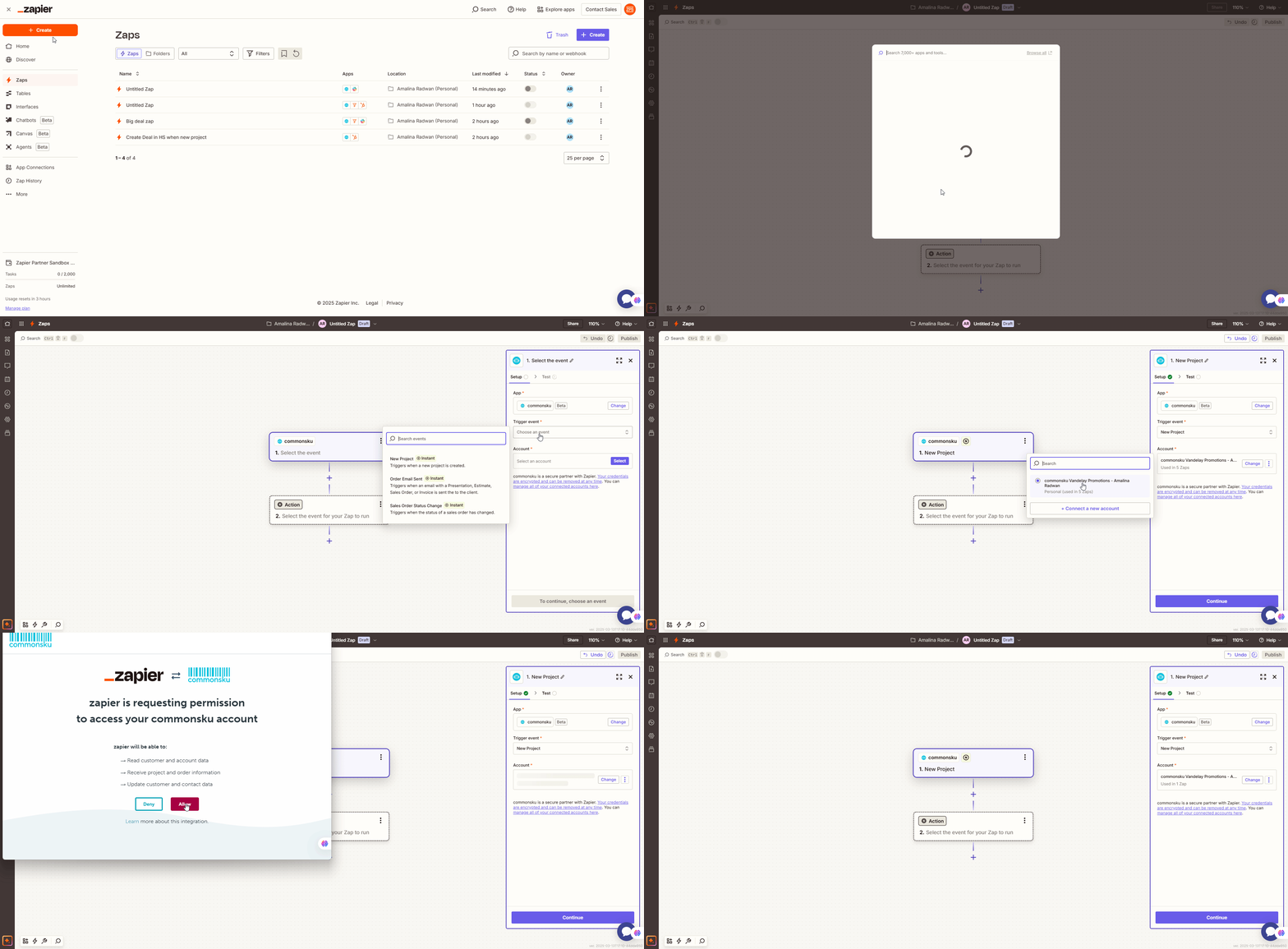
To ensure a smooth login to Zapier, it is recommended that you use the same browser in which commonsku is connected. Additionally, it is advisable to log into commonsku before attempting to create a trigger.
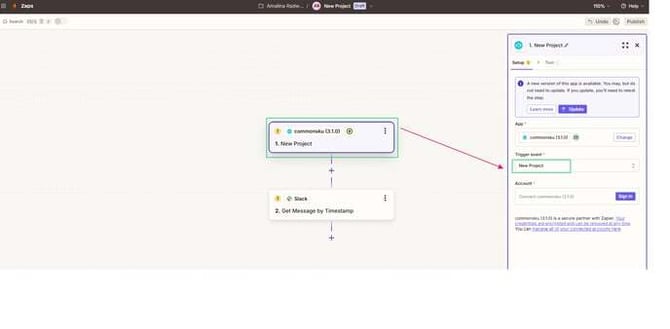
New Project Trigger
The New Project Trigger runs whenever a new project is created in commonsku.
As soon as a project is created, Zapier detects that activity and starts the automation (your Zap). commonsku then sends the project details — such as project name, client information, sales rep, revenue, and other available fields — to Zapier. From there, Zapier can automatically send that information to the other apps you’ve connected, such as Slack, Google Sheets, HubSpot, and more.
📘 Detailed Guide Available: For a full step-by-step setup guide and a complete list of available data fields, see: Using the New Project Trigger in Zapier
*Best Practice
When setting up your Zap, we recommend mapping the Project Number to a field in the other app.
This makes it much easier to reference the exact project later, especially when reviewing records in tools like Slack, Google Sheets, or your CRM.*
Order Email Sent Trigger
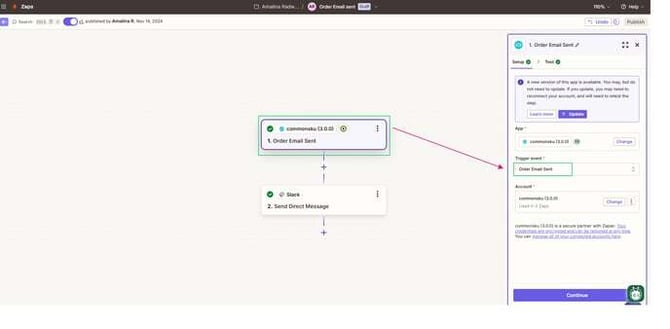
The Order Email Sent Trigger runs when certain order-related emails are sent from commonsku to your client. As soon as one of these emails is successfully sent, Zapier detects the activity and starts your automation.
This trigger applies to the following email types:
-
Presentation Email
-
Estimate Email
-
Sales Order Email
-
Invoice Email
When one of these emails is sent, commonsku passes the related order information to Zapier. You can then use that data to trigger actions in other apps — like sending a Slack notification, updating a CRM, or logging activity in a spreadsheet.
📘 Detailed Guide Available: For a full step-by-step setup guide and a complete list of available data fields, see: Using the Order Email Sent Trigger in Zapier
Sales Order Status Change Trigger
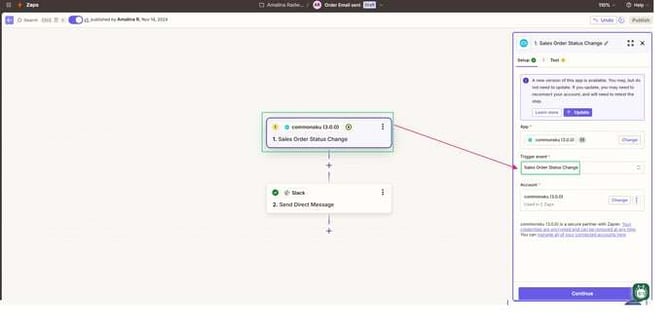
The Sales Order Status Change Trigger runs whenever the status of a Sales Order is updated in commonsku. For example, if a Sales Order moves from created to Sent to client, or from Sent to client to Approved, this trigger will activate and start your Zap.
This is commonly used to keep other systems in sync as an order progresses. You will likely have to use logic actions such as Filter or Path to ensure that the deal stage updates appropriately based on the sales order status in commonsku.
📘 Detailed Guide Available: For a full step-by-step setup guide and a complete list of available data fields, see: Using the Sales Order Status Change Trigger in Zapier
Actions
In addition to the ability to create triggers in commonsku, you can also initiate actions from other applications directly into commonsku. Unlike triggers, which start a workflow, actions represent the results or outcomes of a workflow. Currently, there are 2 Actions available for use from Zapier into commonsku, allowing you to perform specific tasks on your project from an external system:
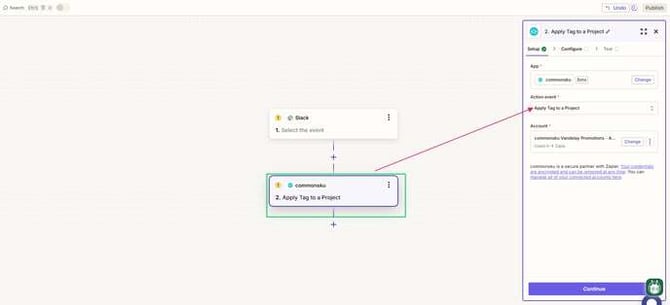
Add a Tag to a Project
This action allows you to set a tag on a project from outside commonsku. This could be a first time purchaser tag or for program work. This could also be campaign association so that you don’t have to remember to do this manually.
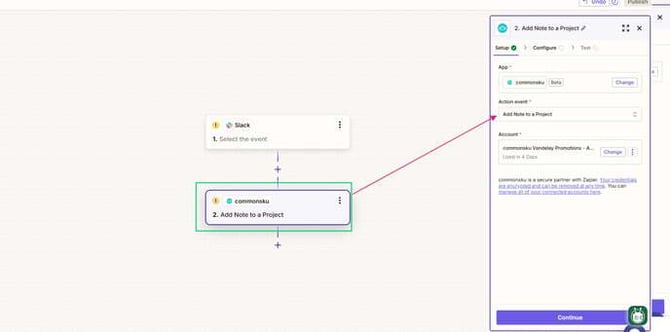
Add a Note to a Project
This action allows you to add a comment to a project from outside of commonsku. This could be important information that you receive in HubSpot about the client or order and keeps your communication in both places.
Understanding Logic in Zapier
When setting up automations, understanding the logic behind your workflow is important. Logic helps control when your Zap continues and what happens next. Without it, your automation might run more often than you intended.
In Zapier, there are two main tools used to control logic:
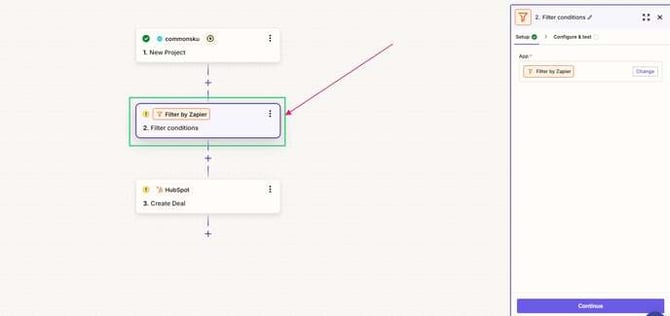
1. Filters, which allows your Zap to continue only if certain conditions are met (Think of it as a gate).
If the condition is true → the Zap continues.
If the condition is not true → the Zap stops.
Example:
If Sales Order Status = “Approved” > Continue and update HubSpot
If it’s anything else > Stop the Zap
This is useful when you only want your automation to run at a specific stage.
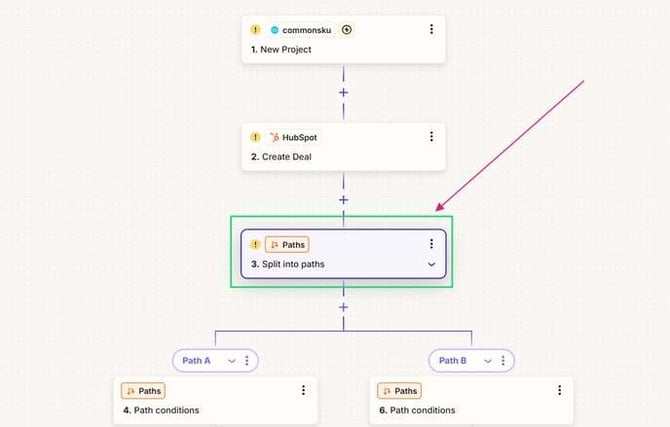
2. Paths, which allow your Zap to take different actions depending on different conditions (Think of it like multiple routes).
Example:
If Order Type = “Estimate” > Update HubSpot deal stage to “Estimate”
If Order Type = “Sales Order” > Update HubSpot deal stage to “Closed Won”
Paths are helpful when you need different outcomes based on different values.
These can help automate and sync two systems, but can be more challenging to set up. Take your time, test your Zap, and make small adjustments as needed. Once configured correctly, these tools can significantly improve how your systems stay in sync.
FAQ
- Do I need specific permissions to access Zapier?
- Can we use Zapier to pass information from a third-party app back to commonsku?
- Do you have a Zapier contact?
Do I need specific permissions to access Zapier?
This feature is only available for the Advanced or Enterprise package. The user would also need the Connect Zapier permission to use this feature.
Can we use Zapier to pass information from a third-party app back to commonsku?
We have 3 outbound triggers and the 2 actions inbound. We do plan on expanding this over time and would love your feature requests and suggestions which you can submit in Zapier.
Do you have a Zapier contact?
While we do not have a main point of contact from Zapier, you can access their help articles or reach out to their Support team. We also have a partnership with PromoPilot who can help you with automation journey with Zapier!