On this page:
Search the ESP database in commonsku
How to Connect ESP
Each user must have their own ESP Web license to access the ESP database from commonsku.
To connect your profile to the ESP database:
- Click your Profile icon (top right corner of commonsku) > Settings
- Under the My Settings tab, click ESP
- Enter your ASI number, username, and password
- Select your default market (USA or CAN)
- Click Save
- Click Done
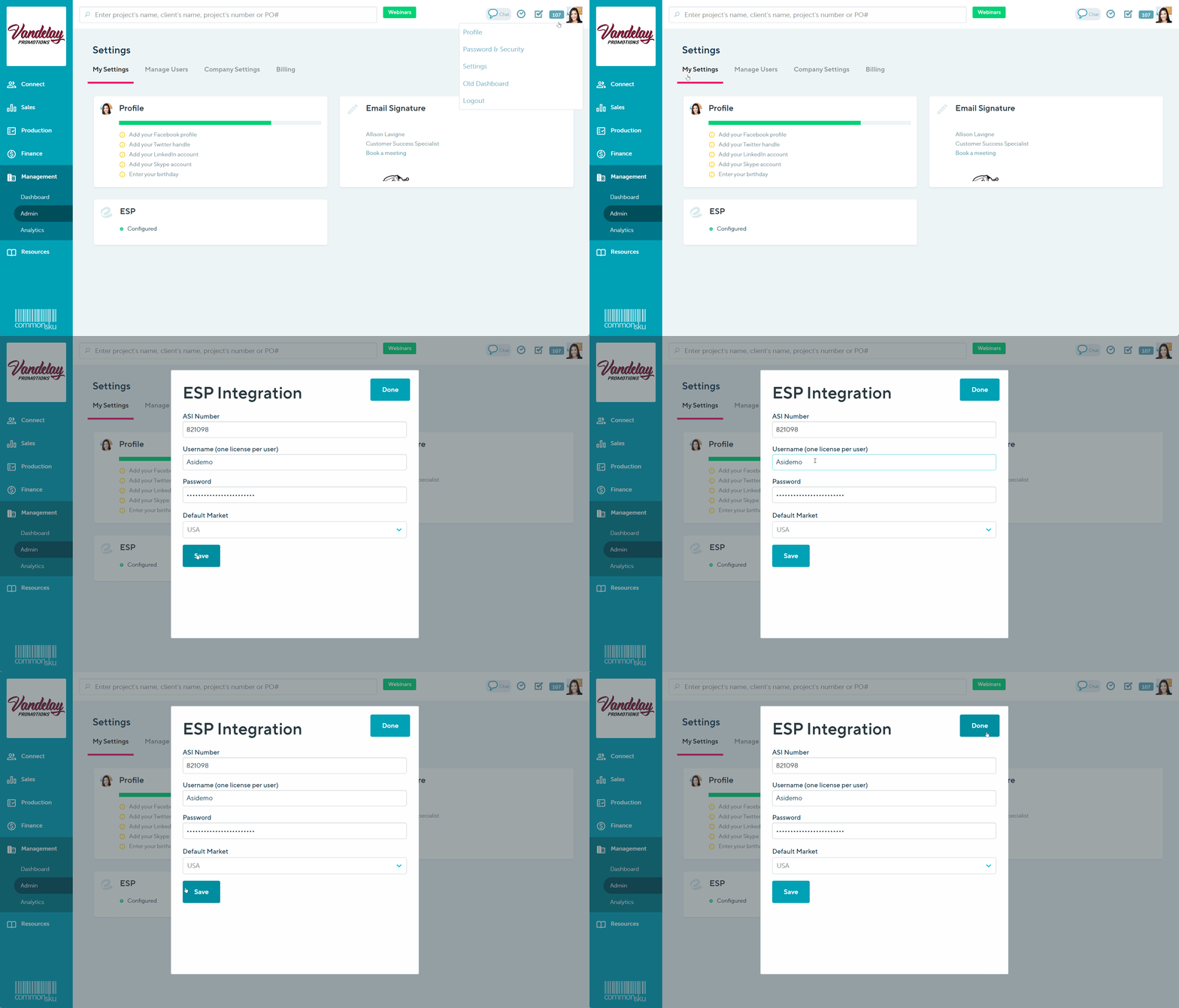
The Default Market setting will automatically filter the products in your search by whichever currency you've selected as your default.
If you do not already have an ESP account, click here to connect with ESP directly.
Search ESP in commonsku
commonsku's ESP integration allows you to pull products directly from the entire ESP database and add them to your commonsku forms and shops. Products will display in order of ESP's sponsored suppliers, your preferred suppliers, then products from remaining suppliers.
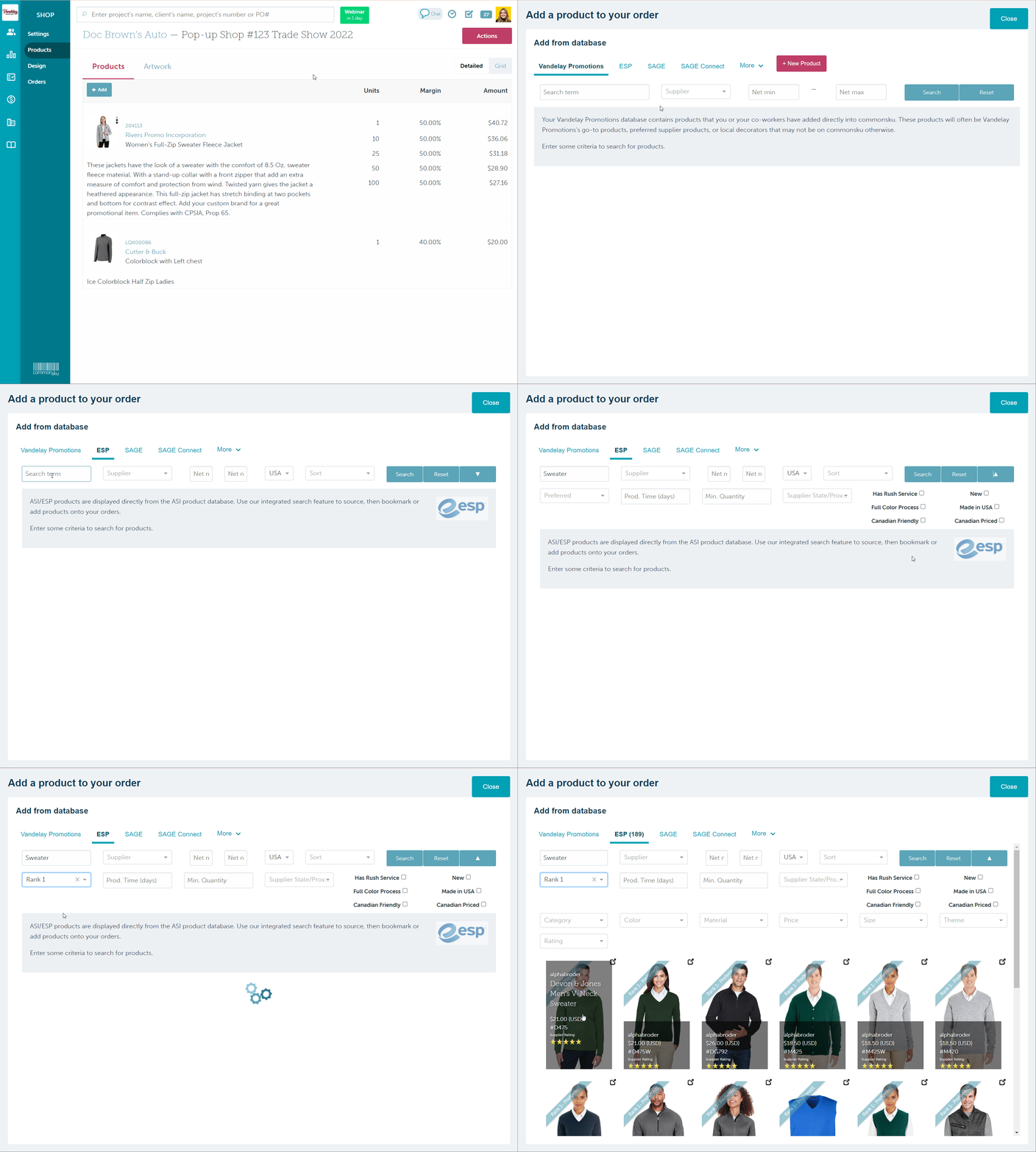
To search for a product from a client form (presentation, estimate, sales order, or invoice):
- Click + Add > Product
- Select the ESP database
- Type a keyword or SKU number into the "Search term" field
- Select a supplier from the "Supplier" drop-down, filter based on net pricing, or click the "Sort" drop-down to sort the results (optional)
- Click Search
- Filter the products (optional)
- Select the product(s) you'd like to add to your form; the product's background will turn blue once it's added to the form
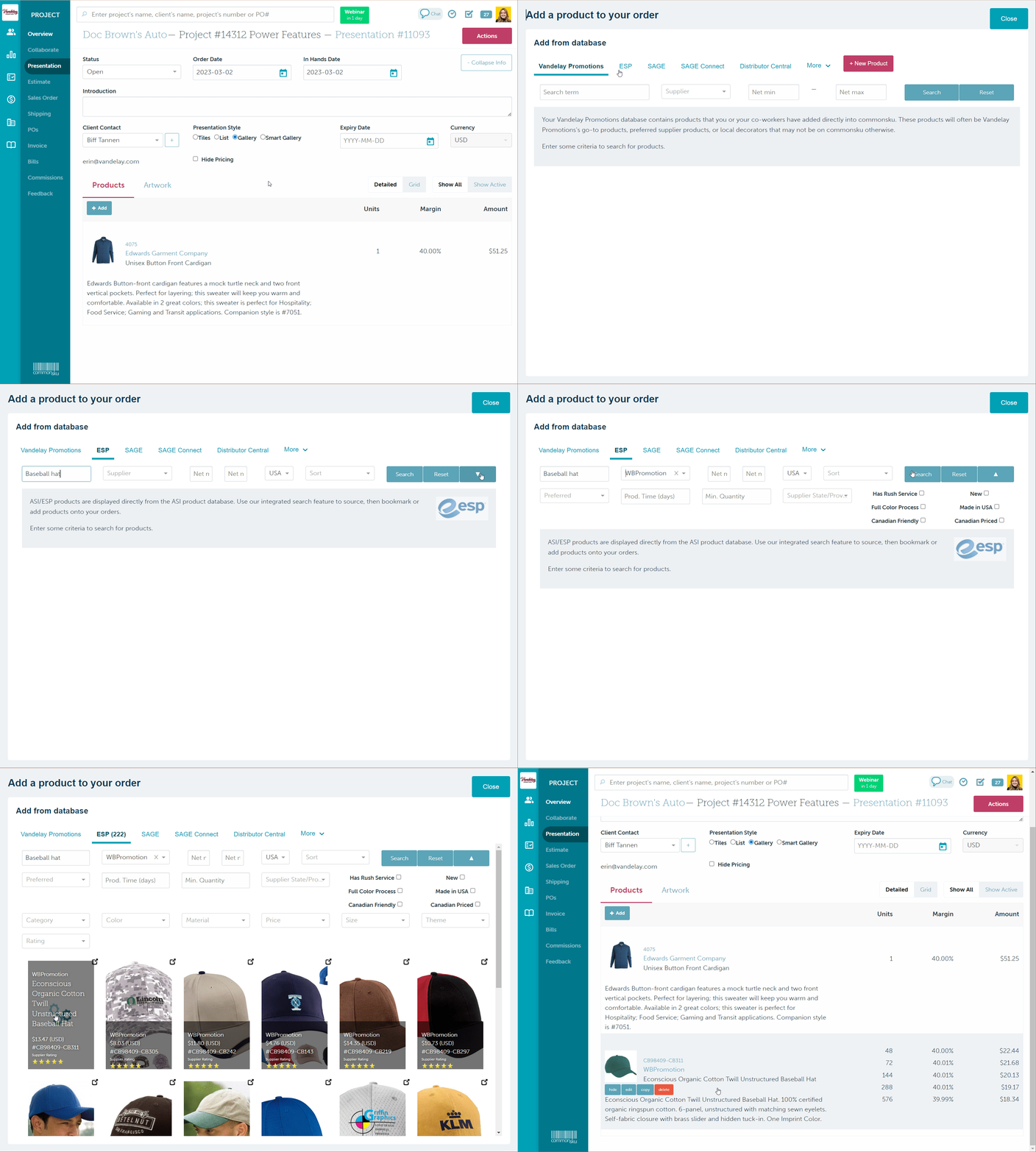
If you do not see the ESP database listed on the product database screen, click the More dropdown menu and select it. You can click Customize in the dropdown menu to make ESP one of your default databases moving forward.
To search for a product from a shop:
- In the Products tab, click + Add > Product
- Select the ESP database
- Type a keyword or SKU number into the "Search term" field, select a supplier from the "Supplier" drop-down, filter based on net pricing, or click the "Sort" drop-down to sort the results (filtering based on cost and sorting is optional)
- Click Search
- Filter the products (optional)
- Select the product(s) you'd like to add to your form; the product's background will turn blue once it's added to the shop
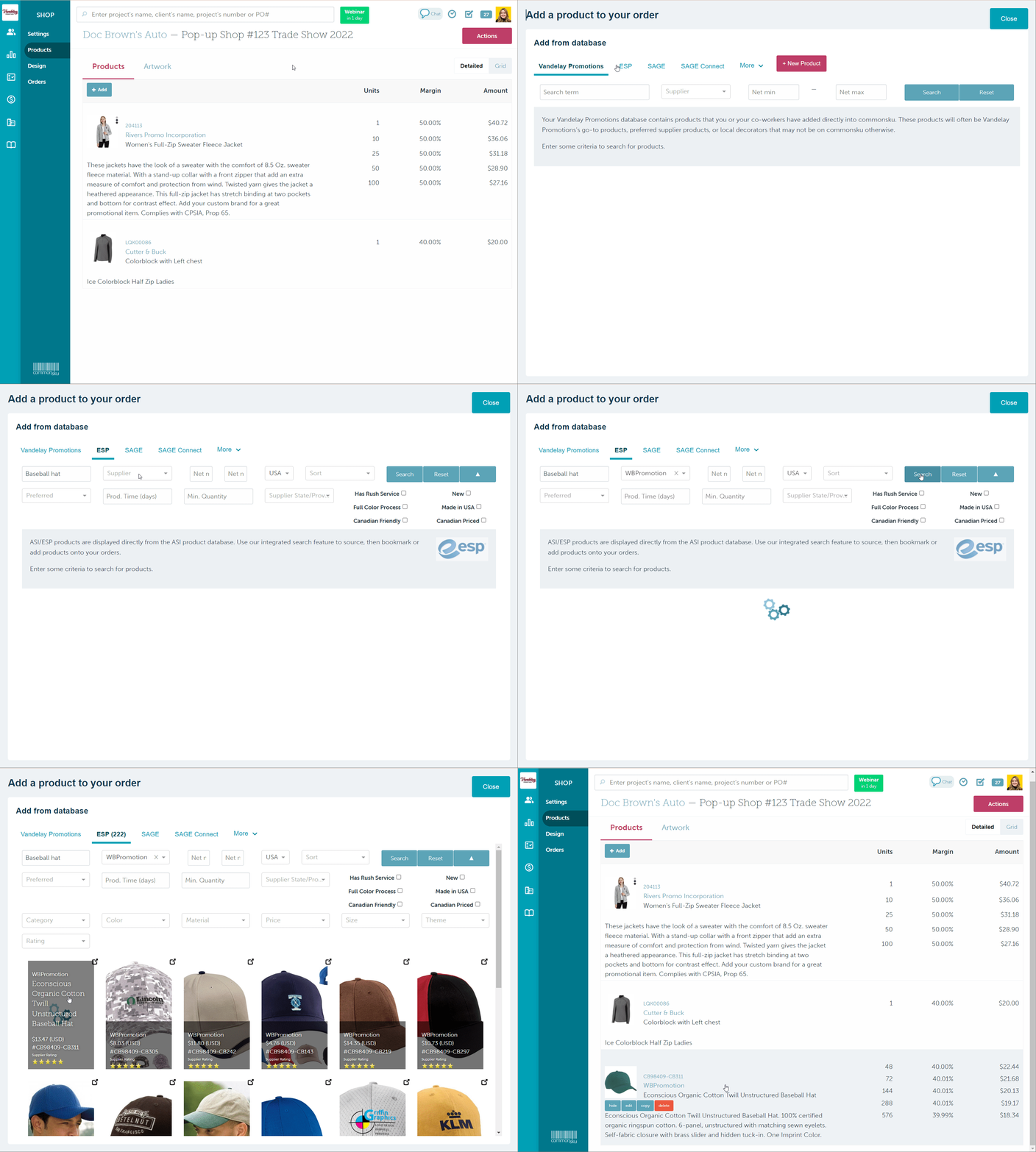
The "Country" field defaults to the same country as your ESP Web account. The USA and Canada databases must be searched one at a time, meaning you can't pull products from both countries' databases simultaneously.
Search Filters
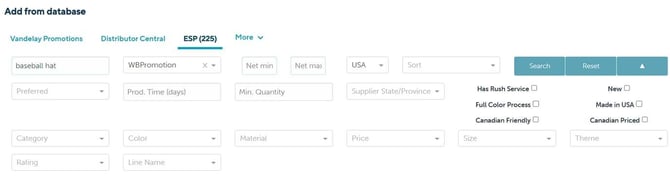
ESP's integration offers a variety of search and sort filters.
Click the Arrow button to select all filters, including:
- Search term
- Supplier
- Net cost
- Market (US or CAN)
- Sort
- Preferred
- Prod. Time (days)
- Min. Quantity
- Supplier State/Province
- Has Rush Service
- Full-Color Process
- Canadian Friendly
- New
- Made in USA
- Canadian Priced
- Category
- Color
- Material
- Price
- Size
- Rating
- Line name
Beyond simple keyword searches, you can perform more advanced searches by using the parameters outlined below:
|
EXAMPLE |
FINDS PRODUCTS |
|
ceramic mug |
containing both "ceramic" and "mug" - this is the default search |
|
"ceramic mug" |
containing the exact phrase "ceramic mug" |
|
cup OR mug |
containing either "cup" or "mug" (or both) |
|
mug -ceramic |
containing "mug" but not "ceramic" |
|
asi:33020 |
which are products of a supplier whose ASI # is 33020 |
|
shape: heart |
which are available in the shape of a heart |
|
theme:golf |
that relate to the theme "golf" |
|
green mug theme:golf material:ceramic |
containing "green" and "mug," related to the theme "golf" and made of the material "ceramic" |
The number of products returned in a single search depends on how broad, or narrow, you make your search terms.
Sort
Click the Sort drop-down to sort your search results by:
- Product cost: Low to High
- Product cost: High to Low
- Supplier Rating
- New Product
- Canadian Priced
- Canadian Suppliers
- Price: Low to High
- Price: High to Low
- Confirmed Product
-png.png?width=670&height=374&name=Doc-Brown-s-Auto-Project-14312-Power-Features%20(1)-png.png)
Preferred Suppliers
Create a "Preferred Suppliers" in ESP Web list use it as a filter in your commonsku products searches.
You'll need to:
- Create a Preferred Suppliers list
- Assign users
- Add suppliers to the list
- Apply ranking and pricing (optional)
Then, you can search your Preferred Suppliers within commonsku.
To create a Preferred Suppliers list:
- Log into ESP Web > click your user icon in the top right-hand corner > click Preferred Supplier & Notes Admin
- Click Create a Preferred Supplier List
- Give the list a name
- Click Create List
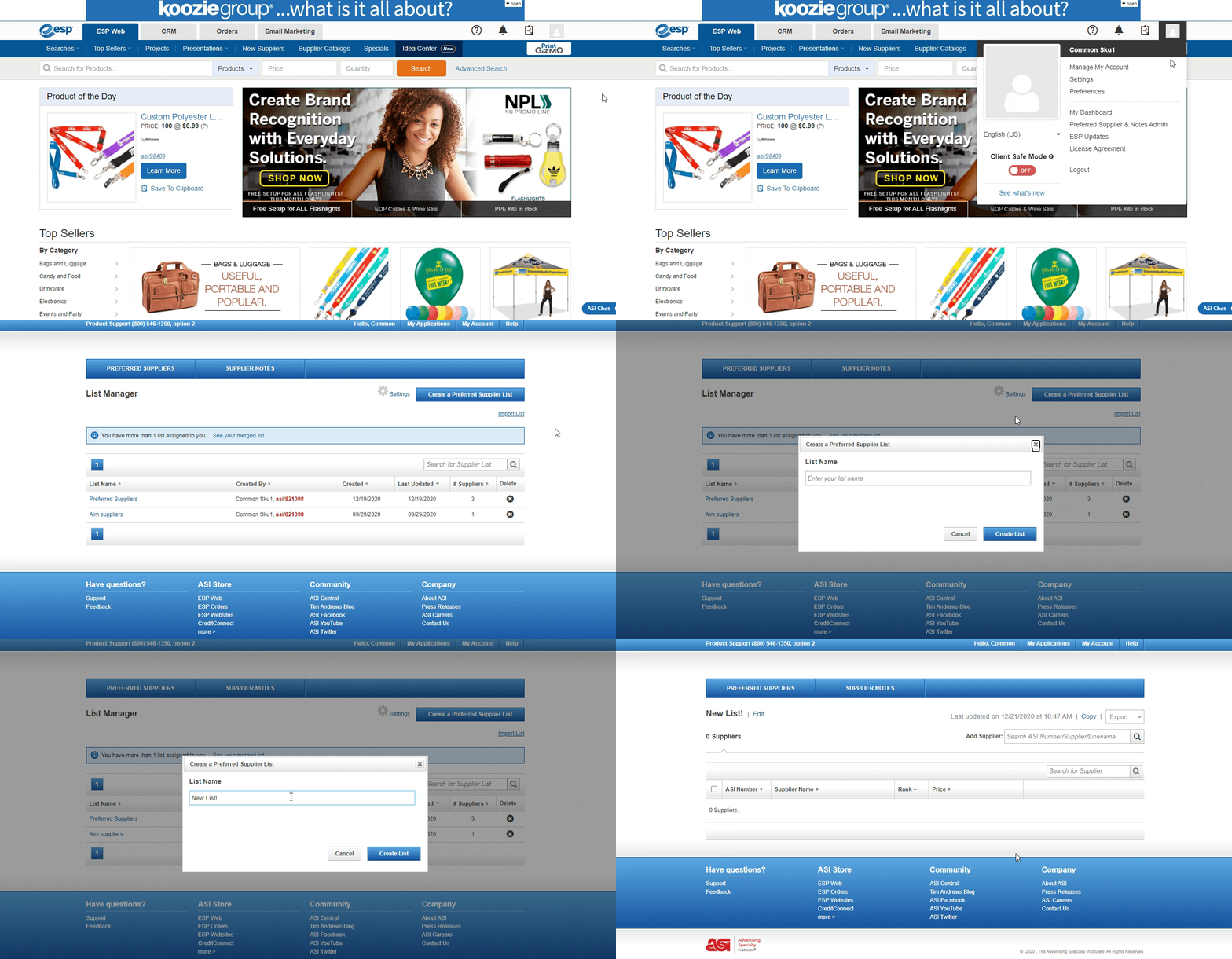
To assign users:
- Click the 0 Users link at the top of your ESP lists
- Use the "Search for Users in list" box to search for your team members
- Click the + Add button beside the user you'd like to add to your list
- Select the checkbox beside "Automatically assign this list to newly license ESP Web users" to automatically add all new ESP users to the list (optional)
To add suppliers to your list:
- Click into the "Add Supplier" field
- Enter the supplier's ASI number, name, or linename
- Click the search icon
- Click + Add next to the supplier
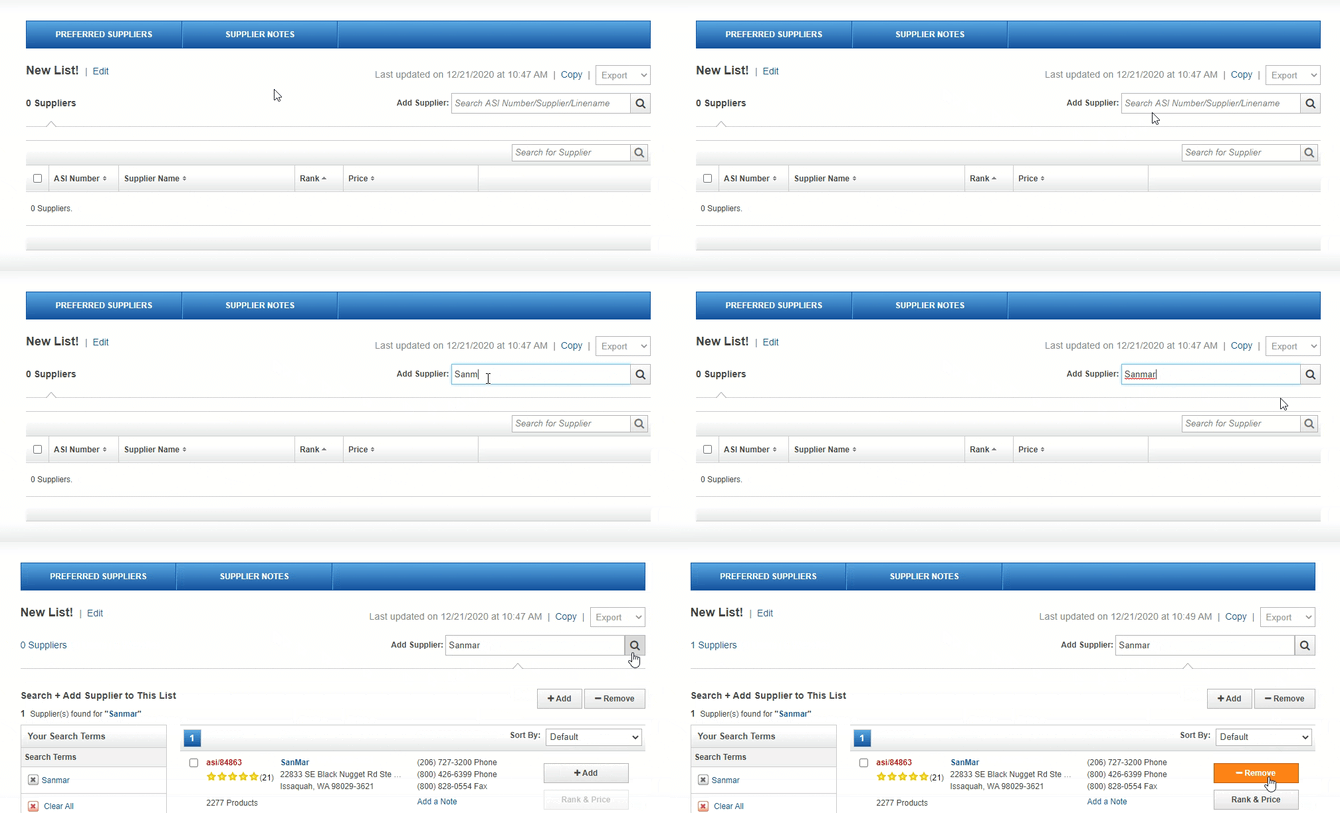
You must be an ESP Web Admin to create Preferred Supplier Lists.
Supplier Ranking and Pricing
You can assign the suppliers in your preferred supplier list a rank ranging between 1-5.
To assign a rank to a supplier in your list:
- In the Preferred Suppliers list, click the Rank & Price button next to the relevant supplier
- On the left side of the pop-up, select a rank between 1-5
- On the right side of the pop-up, enter your pricing details
- Click Save
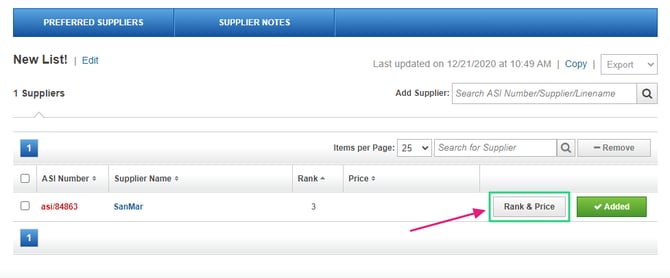
Search your ESP Preferred Suppliers within commonsku
To search your ESP Preferred Suppliers from a client form:
- Click + Add > Product
- Click the ESP database
- Type a keyword or SKU number into the "Search term" field, select a supplier from the "Supplier" drop-down, filter based on net pricing, or click the "Sort" drop-down to sort the results (filtering based on cost and sorting is optional)
- Click the Arrow to expand your search filters
- Click the Preferred drop-down
- Select All or a specific rank
- Click Search
- Select the product(s) you'd like to add to your form; the product's background will turn blue once it's added to the form
The product results will show a label indicating their rank.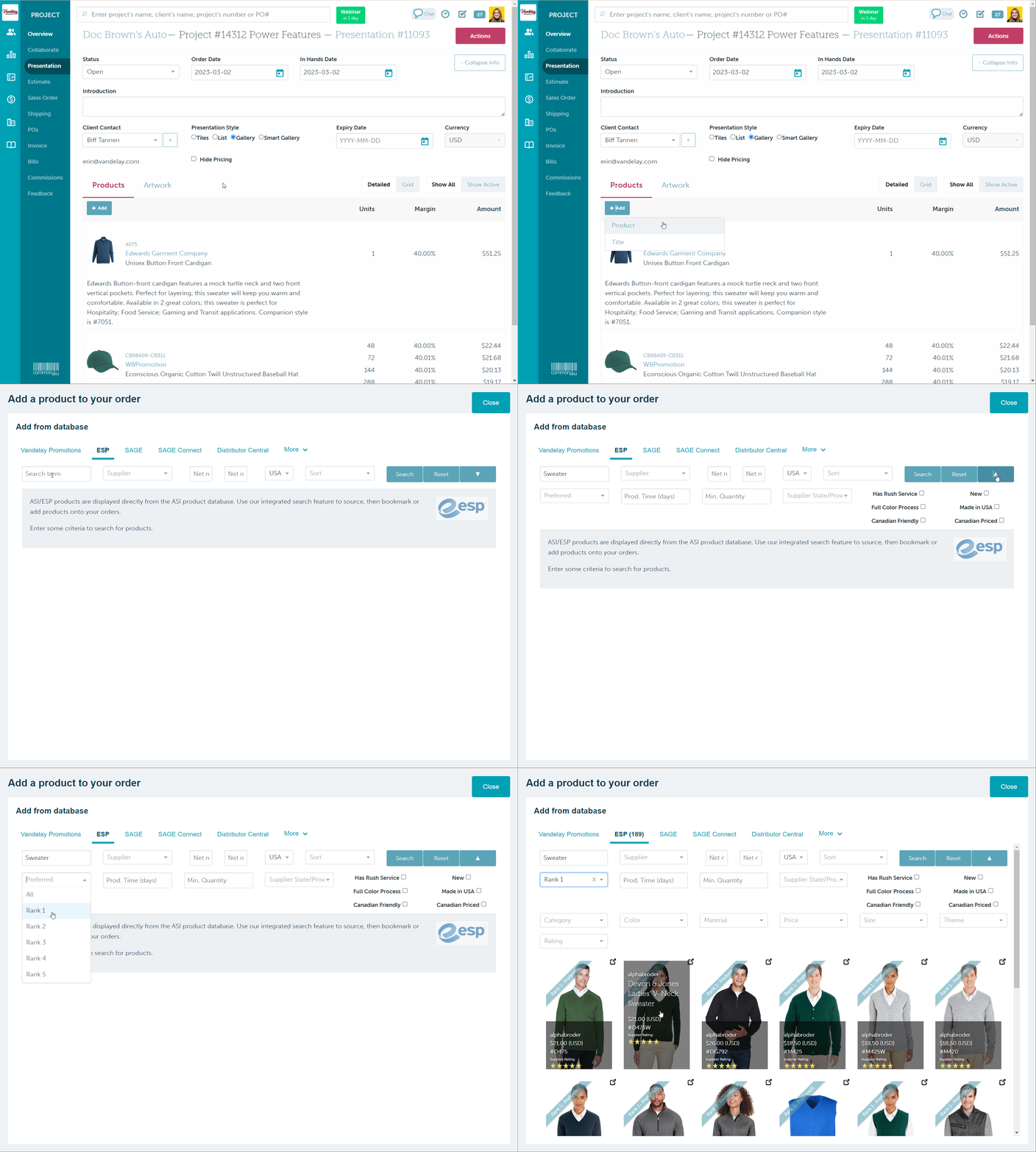
To search your ESP Preferred Suppliers from a shop:
- In the Products tab, click + Add > Product
- Select the ESP database
- Type a keyword or SKU number into the "Search term" field, select a supplier from the "Supplier" drop-down, filter based on net pricing, or click the "Sort" drop-down to sort the results (filtering based on cost and sorting is optional)
- Click the Arrow to expand your search filters
- Click the Preferred drop-down
- Select All or a specific rank
- Click Search
- Select the product(s) you'd like to add to your form; the product's background will turn blue once it's added to the shop
FAQ
-
Why do I see an error message when I try to enter my credentials?
- Where do the supplier's rating come from?
Why do I only see a limited amount of product results?
If you see a product source count at the top of the search page (for example, ESP (289)) but only a small number of products are actually displayed, your ESP connection may need to be reauthenticated.
ESP requires users to periodically reconnect their account by resubmitting their login credentials. When the connection expires, commonsku may be unable to retrieve the full set of product results from ESP.
How to Reconnect Your ESP Account
- In commonsku, click your profile photo in the top-right corner.
- Select Settings > My Settings.
- Open the ESP section.
- Re-enter your:
- ASI Number
- ESP Web Username
- ESP Web Password
- Click Save.
If the connection is successful, you'll see a “Saved Successfully” message in the top-right corner of the page.
If you receive the message “ESP credentials cannot be authenticated”, ESP was unable to verify the username or password entered.
To resolve this:
- Reset your ESP password through ESP.
- Return to Settings > My Settings > ESP in commonsku.
- Enter your updated credentials and save again.
💡You can also verify your credentials directly by logging into ESP Web:
- Manually type your username and password (avoid browser autofill when testing).
- If the credentials are incorrect, ESP will prompt you to reset your password.
🔺 Important: Each User Needs Their Own ESP Login
ESP credentials cannot be shared between commonsku users. Each user must connect their own unique ESP Web account. If another user is using the same credentials, product search results may not work correctly.
Why do I see an error message when I try to enter my credentials?
Error messages indicate that the saved credentials do not match ESP's records or that you're attempting to use the same login information as another commonsku user. Teams cannot share ESP Web logins on their commonsku profiles; each user must have their own login.
-png.png?width=670&height=392&name=Admin-Settings%20(24)-png.png)
Where do the supplier's ratings come from?
The supplier ratings are pulled directly from ESP Web and based on the average rating from all ESP users.