With the new pricing structure, shop fees are based on volume, so your effective rate decreases as your total shop sales increase. For each shop, the following tiers apply:
-
2.5% on the first $25,000 in sales ((i.e., from $0 to $25,000)
-
2% on sales between $25,000 and $50,000
-
1.5% on sales between $50,000 and $100,000
-
1% on sales above $100,000
On this page:
Email notifications
A Marketing Shop's order rep and shop contact both receive email notifications whenever somebody places an order. The shopper also gets an email notification with their sales order number.
Checkouts
Marketing Shop checkouts populate inside of the shop's Orders tab. The Orders tab has three separate sections:
Checkouts
Checkouts is a staging area where you can assign shop orders to new or existing clients.
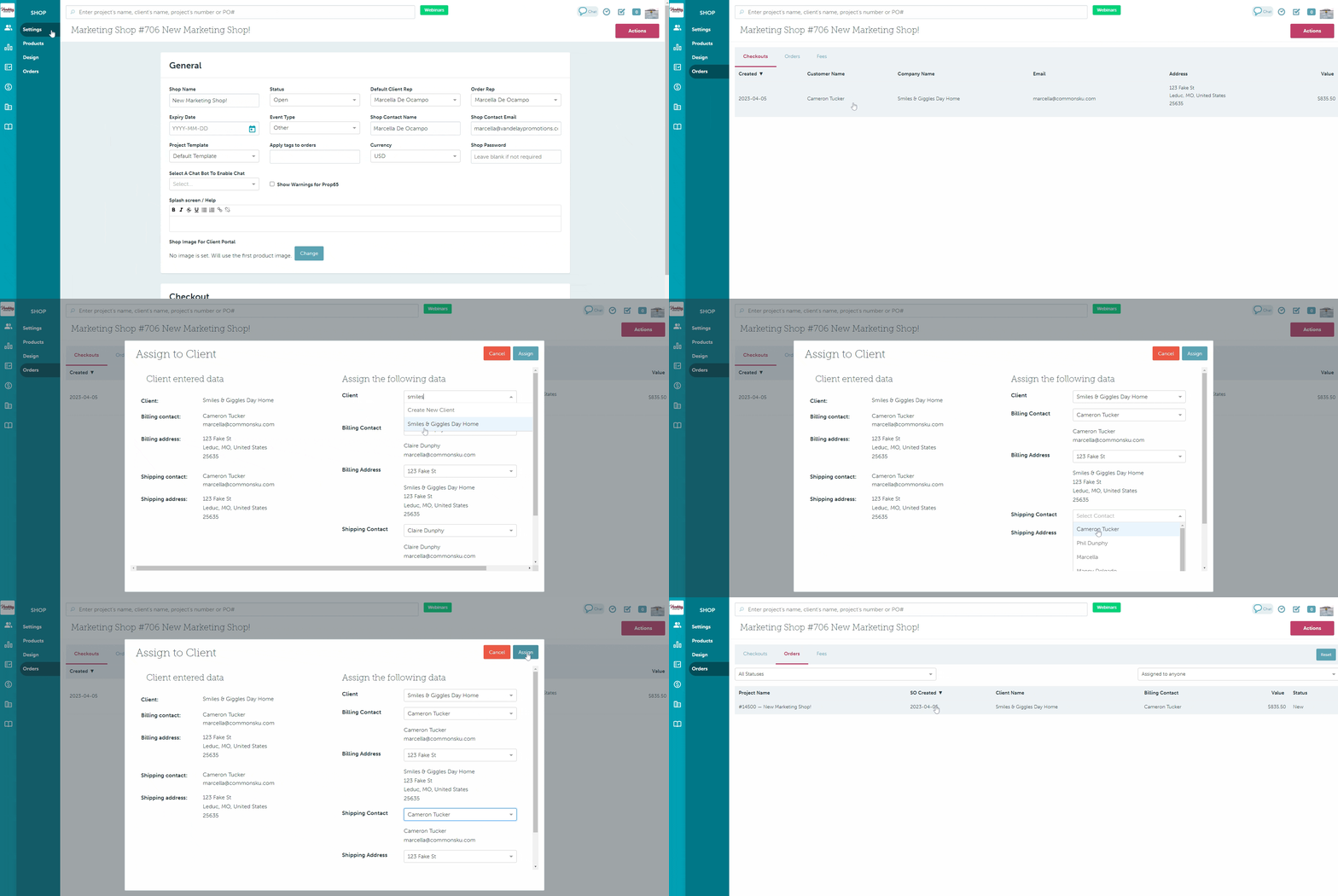
To assign an order to an existing client:
- In the Orders tab > Checkouts > select the checkout
- In the "Assign to Client" pop-up, click the drop-downs to edit the client, billing, and shipping details (optional)
- Click Assign
To assign an order to a new client:
- In the Orders tab > Checkouts > select the checkout
- In the "Assign to Client" pop-up, click the "Client" drop-down > type Create New Client > select the "Create New Client" option
- In the "Create Client" pop-up, enter the client name, choose their industry, and select their client rep
- In the "Assign to Client" pop-up, click Create
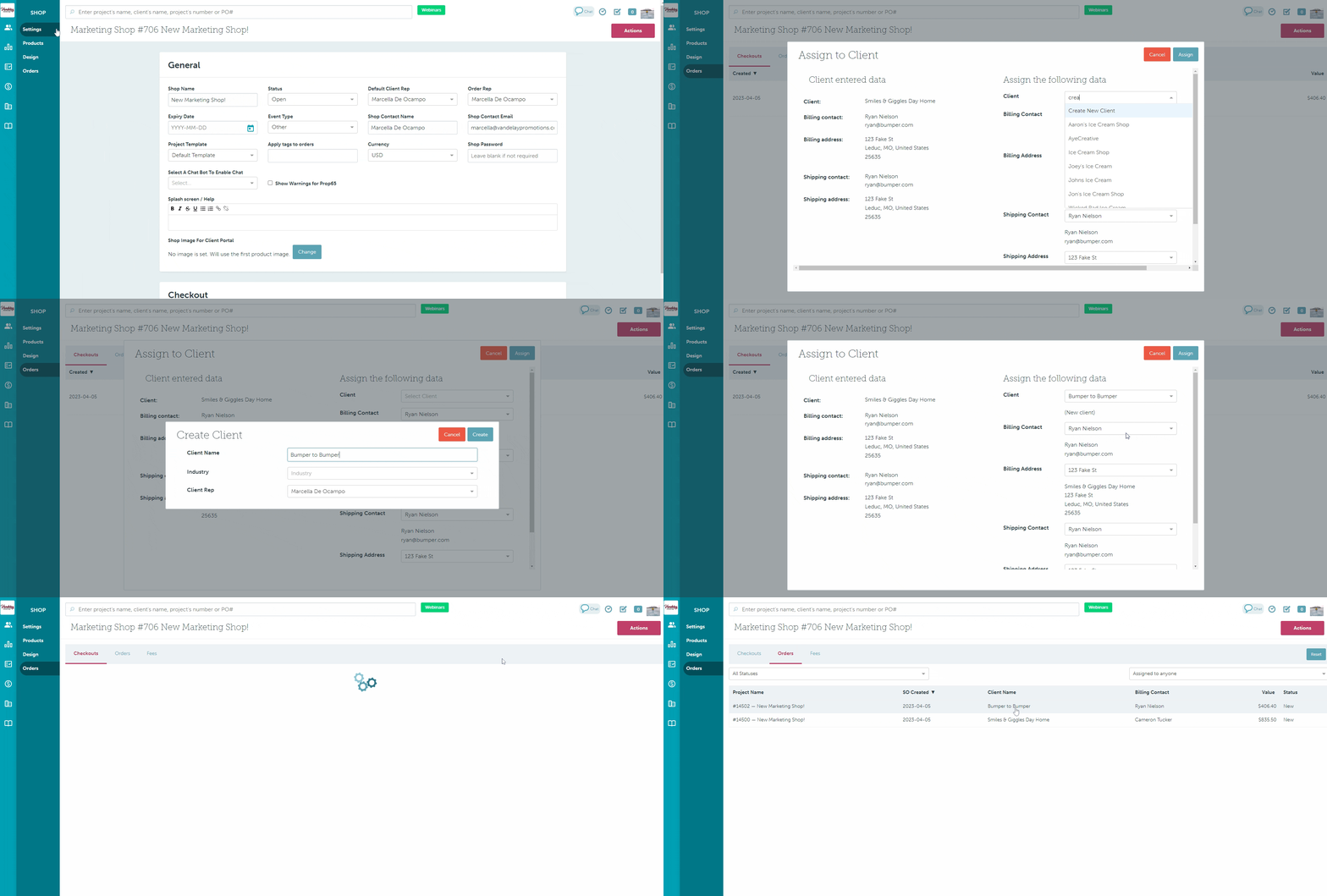
Once you've assigned the order to a client, the checkouts transfer to the Orders tab, and a sales order is created.
Orders
The Orders tab shows sales orders created through the shop. Select the sales order you'd like to access to open the order in a new tab.
The Orders tab displays each sales orders':
- Project name
- Creation date
- Client name
- Billing contact
- Value
- Status
You can filter by the:
- Sales order's status ("All Statuses" drop-down)
- Order rep ("Assigned to anyone" drop-down)
Fee Report
A shop fee is charged when an order is assigned to a client and converted into a sales order.
Fee Structure
With the new pricing model, shop fees are volume-based, meaning your effective rate decreases as total shop sales increase. For each shop, the following tiered rates apply:
-
2.5% on the first $25,000 in sales (from $0–$25,000)
-
2% on sales between $25,000–$50,000
-
1.5% on sales between $50,000–$100,000
-
1% on sales above $100,000
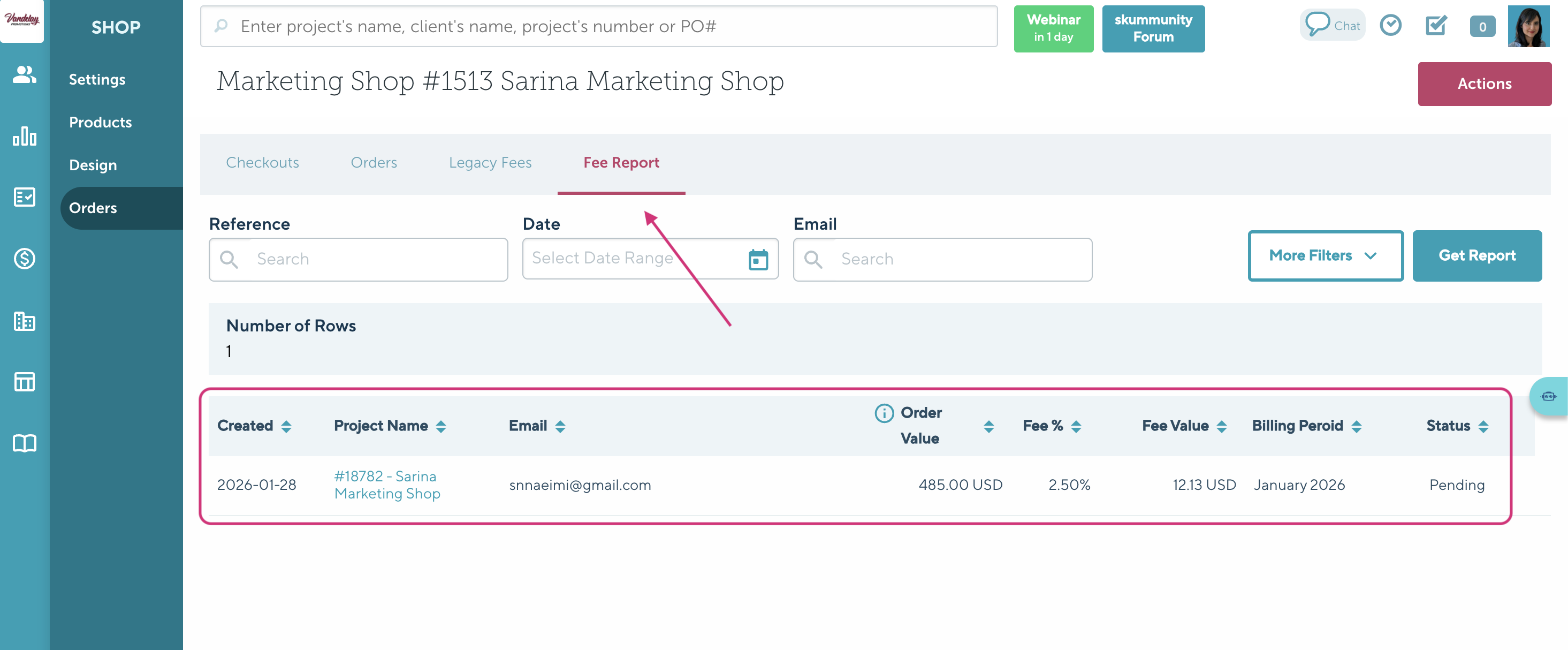
Fee Report Details
The Fee Report tab provides a detailed breakdown of all fees charged, including:
-
Created Date
-
Project Name
-
Email
-
Order Value
-
Fee Percentage
-
Fee Amount
-
Billing Period
-
Status
Filtering Options
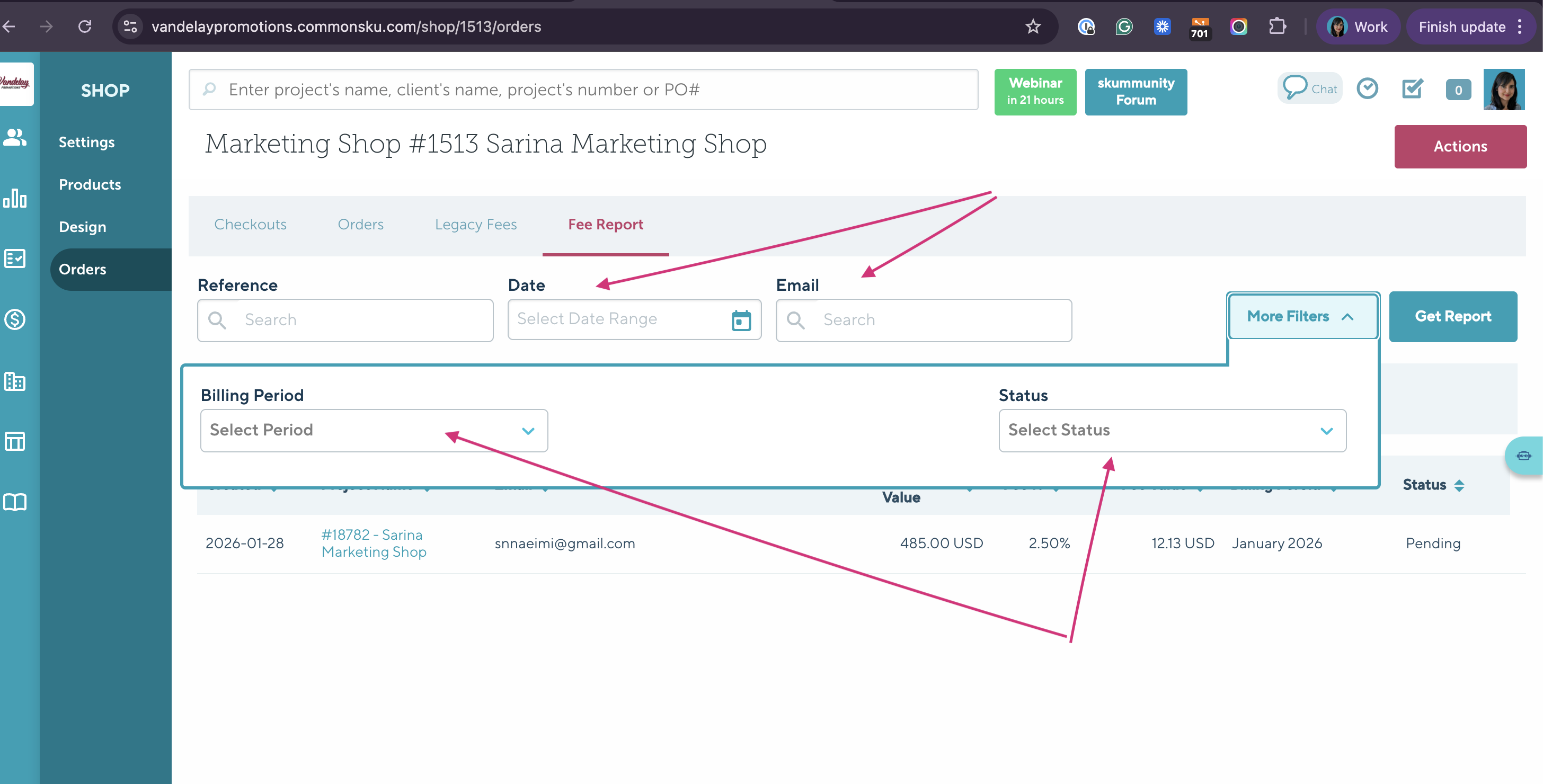
You can filter the Fee Report by:
-
Date
-
Email
-
Billing Period
-
Status
This allows you to easily review, track, and reconcile fees across different orders and time periods.
Sales orders
Each sales order will reflect the client, billing, and shipping details entered in the shop's Checkouts tab.
The project's overview will also note:
- The shop
- The sales order's creation date
- The person who placed the order
- Any comments the shopper added to their checkout
Next steps
The next steps vary depending on your team's order process; you may need to send the order for approval, invoice the client, or move straight into production.
Some important things to add to your order may include:
- Payment terms
- Default tax
- In-hands date
- Service charges
FAQ
- What does the shopper's email notification say?
- Can I customize the shopper's email notification?
- How do I cancel/close a Marketing Shop order?
- What is Legacy Fee?
What does the shopper's email notification say?
The shopper's email notification will look something like this:
Order from [Company Name] shop [Shop Name]
You are receiving this email because you were the billing or shipping contact on an order request we have received from the [Company Name] shop [Shop Name].
Billing contact: [Billing Contact Name and Email]
Shipping contact: [Shipping Contact Name and Email]
We are preparing a sales order based on the products that have been selected. Your order has been assigned the following sales order number [Sales Order Number].
If you have any questions, or need to make any changes to this order request, please email [order rep's email].
Can I customize the shopper's email notification?
Shop email notifications are hard-coded and cannot be customized. The best practice is to add any post-order details to the shop's checkout message.
How do I cancel/close a Marketing Shop order?
Canceling a Marketing Shop order is as easy as canceling a sales order:
- Change the sales order's status to Closed
What is Legacy Fee?
A Legacy Fee refers to any fees that were charged before the new pricing model was introduced. These fees come from older pricing structures and remain on accounts that were set up prior to the pricing update.