🚧 This feature is in Beta
Print-on-Demand Shops are rolling out to a limited group of commonsku customers while the workflow is being finalized. Some settings, notifications, and reporting details described below may still change.
On this page:
Creating a Print on Demand Shop
Overview
What is a Print-on-Demand Shop?
A Print-on-Demand (PoD) Shop is a shop type in commonsku built for single-unit, on-demand merchandise programs , things like employee stores, influencer merch, or corporate gifting, where you don't want to wait to batch orders together.
Instead of running these programs through a separate, standalone system (like Fulfill Engine, Printful, or Bold Stores) and manually re-entering order and artwork details into commonsku, a PoD Shop connects directly to a print-on-demand fulfillment partner. Right now, that partner is Fulfill Engine.
When a shopper checks out, the order is automatically sent to Fulfill Engine for production and shipping. You don't need to manually create a purchase order, although you'll still manually aggregate checkouts into a Sales Order or Project for your own records.
Why use a Print-on-Demand Shop?
- No minimums, no waiting. Every checkout — even a single unit — goes straight to production instead of sitting in a shop waiting to be combined with other orders.
- Less manual work. commonsku sends order, artwork, and shipping details to Fulfill Engine automatically, so you're not re-typing anything into a separate PoD platform.
- One place to track everything. Order status and shipment tracking flow back into commonsku instead of living in a separate system.
How PoD Shops are different from other shops
A PoD Shop looks similar to a Pop-Up Shop, but the two work differently under the hood:
|
Stage |
Print-on-Demand Shop |
Pop-Up Shop |
|---|---|---|
|
Product source |
Fulfill Engine's catalog only (apparel and hard goods) |
commonsku's full product search (including your regular suppliers) |
|
Product setup |
You choose a decoration method and location and upload artwork; Fulfill Engine validates each product before it can go live |
You set pricing and can upload artwork manually or via ePO |
|
Checkout |
Every checkout goes directly to Fulfill Engine for production — no combining orders |
Checkouts can be combined into a single sales order, or kept separate |
|
Purchase orders |
Created automatically for you with each checkout |
You generate POs manually |
|
Shipping |
Fulfill Engine handles fulfillment and shipping. Shipping charges can either be calculated automatically by Fulfill Engine or configured manually using checkout-total ranges. |
Your supplier handles fulfillment and shipping; for PromoStandards suppliers, available shipping updates are reflected back in commonsku |
Requirements & Availability
- Who can use it: Distributors on commonsku with Print-on-Demand access enabled on their account. This is currently rolling out to a limited beta group — it is not yet available to every account.
- Shipping availability: Print-on-Demand orders fulfilled through Fulfill Engine can currently be shipped only to addresses in the United States. Shipping to Canadian or other international addresses is not supported at this time.
- Plan requirements: This feature is available to all the distributors.
- Prerequisites:
- An active Fulfill Engine account, separate from your commonsku account.
- Your Fulfill Engine Account ID and API Key
- Setup requirement: Your Fulfill Engine credentials need to be entered and connected in commonsku before you can browse Fulfill Engine's product catalog or create a PoD Shop.
Before You Begin
A few things to know before you set up your first PoD Shop:
- You'll need a Fulfill Engine account first. A PoD Shop connects to Fulfill Engine — it doesn't replace the need for a Fulfill Engine account.
- Products come only from Fulfill Engine's catalog. You won't be able to pull products from your regular suppliers (Sage, ESP, DC, Connected+, etc.) into a PoD Shop. Product search inside a PoD Shop is limited to what's available through Fulfill Engine.
- Every product must be validated before it can be sold. Fulfill Engine checks that your decoration method, location, and artwork are compatible with the product you've selected. A shop needs at least one validated product before it can accept orders.
- Shipping address collection and tax calculation are mandatory. Unlike a Pop-Up Shop, you can't turn these off for a PoD Shop, since every order ships directly to an individual customer.
Connecting Fulfill Engine
Before you can create a Print on Demand (PoD) Shop, you'll need to connect your Fulfill Engine account to commonsku. You can do this in one of two ways.
Option 1: Connect your account while creating your first PoD Shop
If this is your first time creating a Print on Demand Shop, commonsku will automatically prompt you to connect your Fulfill Engine account during the shop creation process.
To connect your account:
- Start creating a new Print on Demand Shop.
- When prompted, enter your Fulfill Engine Account ID and API Key.
- Click Save to connect your account.
- Continue creating your shop.
Note: You'll only be prompted to enter these credentials the first time you create a Print on Demand Shop. Once they're saved, they'll be reused for future PoD Shops unless you update them.
Here’s how to get your Fulfill Engine credentials:
In your Fulfill Engine account, navigate to Configuration > API Keys. From there:
- Copy your Account ID
- Click Create API Key to generate your API Key
Keep your API Key handy, as you'll need it to connect Fulfill Engine to commonsku.
/firstShopCreate.gif?width=670&height=349&name=firstShopCreate.gif)
Option 2: Connect your account from Company Settings
You can also connect or update your Fulfill Engine credentials at any time through Company Settings.
To connect your account:
- Go to Settings > Company Settings > Integrations > Fulfill Engine.
- Enter your Fulfill Engine Account ID and API Key.
- Click Save.
Here’s how to get your Fulfill Engine credentials:
In your Fulfill Engine account, navigate to Configuration > API Keys. From there:
- Copy your Account ID
- Click Create API Key to generate your API Key
Keep your API Key handy, as you'll need it to connect Fulfill Engine to commonsku.
/FullfinEngineConnect.gif?width=670&height=350&name=FullfinEngineConnect.gif)
Once your credentials are saved, commonsku uses them to authenticate requests to Fulfill Engine. This connection allows commonsku to:
- Access the Fulfill Engine product catalog.
- Submit orders to Fulfill Engine automatically after customer checkout.
- Validate Print on Demand products.
💡 Note: Only one Fulfill Engine account can currently be connected through this setup.
Fulfill Engine Credentials
To connect commonsku to Fulfill Engine, you'll need two pieces of information from your Fulfill Engine account:
- Fulfill Engine Account ID
- Fulfill Engine API Key
Where they're required: These credentials authenticate every call commonsku makes to Fulfill Engine — browsing the product catalog, validating products, and submitting orders after checkout.
Creating a Print-on-Demand Shop
Creating the shop
Once your Fulfill Engine account is connected, you're ready to create your first Print on Demand (PoD) Shop.
To create a Print on Demand Shop:
- Go to Shops and click Create Shop.
- Select Print on Demand Shop.
- If this is your first Print on Demand Shop and you haven't connected your Fulfill Engine account yet, you'll be prompted to enter your Fulfill Engine Account ID and API Key before continuing.
- Enter a name for your shop.
- Select the client you'd like to associate with the shop.
- Continue through the remaining setup steps to finish creating your shop.
Note: If you've already connected your Fulfill Engine account, the credentials step will be skipped and you'll be taken directly to the shop setup.
Once your Fulfill Engine credentials have been saved, commonsku won't ask for them again unless they're updated or replaced.
A PoD Shop has four working areas:
- Settings — shop details and the client the shop is linked to
- Products — browsing and configuring products from Fulfill Engine
- Design — layout, templates, and shop appearance
- Orders — checkout activity and production status for the shop
Shipping Settings
Print-on-Demand Shops can calculate shipping automatically through Fulfill Engine.
Under Shipping Charge, turn on Calculate shipping automatically to have Fulfill Engine calculate the shipping cost based on the items in the order, their weight, and the shopper’s shipping address.
When this setting is enabled, you do not need to create your own shipping charge ranges in commonsku.
/ShippingChargeCalculate.png?width=670&height=132&name=ShippingChargeCalculate.png)
If you turn Calculate shipping automatically off, shipping charges work the same way they do in a Pop-Up Shop. You can create shipping ranges based on the checkout total and assign a shipping charge to each range.
For example, you could charge:
- $10 shipping for orders between $0 and $100
- $5 shipping for orders between $100 and $200
- Free shipping for orders over $200
Note: Turning off automatic shipping only changes how the shipping charge is calculated. Print-on-Demand orders are still fulfilled and shipped through Fulfill Engine.
Selecting and configuring products
- From the Products area, browse Fulfill Engine's catalog of apparel and hard goods.
- Select a product to add to your shop.
- Configure the product:
- Decoration method — options documented include DTG, embroidery, DTF, screen print, and laser engraving.
- Decoration location — where on the product the design will appear.
- Artwork — upload the artwork file for that product and make the necessary corrections.
- Save or complete the product configuration to validate it. If validation fails, commonsku will display the issues returned by Fulfill Engine so you can make the necessary corrections.
/Validation-1.png?width=670&height=361&name=Validation-1.png)
Accepted artwork file formats depend on the decoration method:
|
Decoration Method |
Accepted File Formats |
|---|---|
|
DTF |
PNG, PDF (SVG support planned) |
|
DTG |
PNG |
|
Embroidery |
DST |
|
Engraving |
PNG |
|
Screen Print |
PNG, PDF |
|
🛑 Note on embroidery: Embroidery artwork requires a DST file plus a list of thread colors matched to the sequences in that file. Documented supported thread brands include Madeira, Isacord, and Robison-Anton, along with the Pantone Matching System for color matching. |
|---|
a PoD Shop always shows the artwork applied to the product so shoppers see exactly what they're ordering.
Publishing your shop
A PoD Shop becomes ready to accept orders as soon as at least one product has been successfully validated. You don't need to validate every product in your shop before it can go live — but only validated products will be visible/purchasable.
Managing Orders
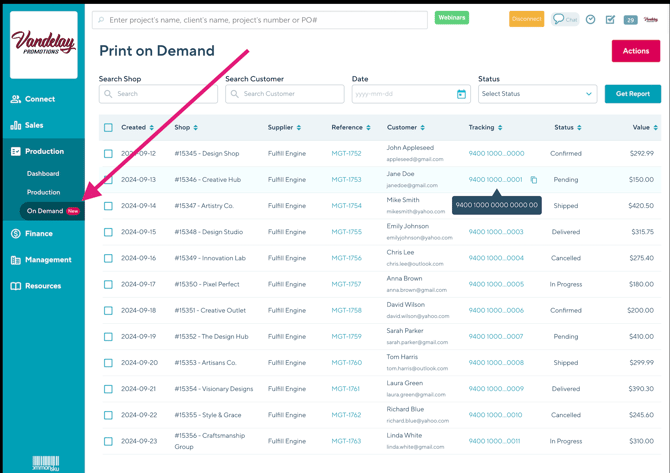
All Print-on-Demand orders are available from the Production > On Demand tab, making it easy to manage every checkout in one place.
From the On Demand tab, you can:
- View all Print-on-Demand checkouts across every PoD Shop.
- Filter orders by shop, customer, date, or order status.
- View the current fulfillment status for each order.
- Copy a tracking number directly from the Tracking column.
- Click a tracking number to open the carrier's tracking page and view the latest shipment updates.
Tip: Hover over a tracking number to view the full tracking number. Hover over the copy icon to display the Copy tooltip before copying the tracking number.
- Status updates: Track checkout and production status for a shop from that shop's own Orders tab, or across all your PoD shops from the new On Demand tab within Production.
- Purchase orders: A purchase order is created automatically for each checkout — you don't need to generate one manually. Purchase Orders created for Print-on-Demand Shops are separated from your standard Production board so large volumes of PoD orders don't clutter your regular production workflow.
- Sales orders / projects: For now, PoD checkouts work like Pop-Up Shop checkouts — you manually aggregate checkouts into a sales order/project, and additional checkouts get appended to existing or new projects as they come in.
- Billing: Fulfill Engine invoices you (the distributor) on a recurring basis for production costs, separate from the payment your shopper made at checkout.
PoD shops Fee
- Fee is charged at checkout
- There is a 7-day grace period before the fee appears in your billing report
- If checkouts are exported or aggregated within that window, the fee is captured immediately
💡 You’ll see a warning message if you try to do any of the following during the grace period:
- Export checkouts (e.g., CSV)
- Create a project from checkouts
- Perform any action that finalizes the orders
If you export checkouts or create a project multiple times, you will not be charged multiple times.
Note:
Exporting checkouts to ShipStation does not trigger the fee.
Order Flow
After a customer places an order in your Print on Demand (PoD) Shop, commonsku and Fulfill Engine work together to process and fulfill it.
The order follows this lifecycle:
-
Customer places an order: The customer completes checkout by providing their shipping information and payment details.
-
commonsku creates the order: commonsku records the checkout and automatically sends the order to Fulfill Engine.
-
Fulfill Engine receives the order: Fulfill Engine creates the order and returns a Fulfill Engine Order ID, which is stored with the checkout in commonsku for tracking purposes.
-
Order enters production: The fulfillment provider begins producing the ordered items. The order status updates to In Production.
-
Order ships: Once production is complete, the order is shipped. Fulfill Engine sends the shipping carrier and tracking information back to commonsku.
-
Track the order: You can monitor the order's progress and view tracking information from the Orders tab and the On Demand tab under Production.
-
Order is complete: After the shipment has been delivered, the order is considered complete.
Order statuses
During the fulfillment process, an order can move through the following statuses:
| Status | Description |
|---|---|
| Created | The order has been successfully created in Fulfill Engine. |
| In Production | The order is currently being produced. |
| Shipped | The order has shipped and tracking information is available. |
| Canceled | Fulfill Engine has canceled the order or an individual shipment. When this happens, the cancellation reason is returned to commonsku when available. |
Note: If an order contains multiple shipments, Fulfill Engine can cancel individual shipments without canceling the entire order.
Limitations
- Product search inside a PoD Shop is limited to Fulfill Engine's catalog — you can't add products from your regular suppliers.
- PoD checkouts are not automatically combined into a sales order — that aggregation step is still manual, the same as with Pop-Up Shops.
- PoD orders are excluded from your standard Production board, dashboards, reports, and newsfeed, and surfaced separately in the On Demand tab instead.
- Real-time order and tracking updates depend on Fulfill Engine successfully sending status updates back to commonsku, so there may occasionally be a short delay before the latest status appears.
Best Practices
- Validate before you publish. Run every product through the Validate step and fix any flagged issues before sharing your shop link — this avoids surprises once shoppers start ordering.
- Double-check embroidery setups. Since DST files determine the physical size of an embroidered design, confirm your thread colors and DST file are correct before validating — physical size can't be set separately for embroidery.
- Check the On Demand tab regularly. Because PoD orders don't show up on your main Production board, build a habit of checking the On Demand tab so nothing slips through.
- Reconcile your Fulfill Engine invoice against your PoD projects. Since billing comes from Fulfill Engine separately from what your shopper paid, review invoices against your PoD checkouts/projects regularly.
- Confirm current behavior with your Account Rep before launch. Because this feature is in beta and several workflow details (notifications, cancellations, out-of-stock handling) are still being finalized, confirm current functionality before promising specific behavior to your clients.
- Check the On Demand tab regularly. Since Print-on-Demand orders don't appear on your standard Production board, make checking the On Demand tab part of your regular workflow. troubleshi
FAQ
What's the difference between a Print-on-Demand Shop and a Pop-Up Shop?
Do I need a Fulfill Engine account to use a PoD Shop?
Can I use suppliers other than Fulfill Engine?
How many products do I need to validate before my shop can go live?
Can my shoppers upload their own artwork?
Will I need to create purchase orders manually?
Do I still need to create a sales order myself?
Can Print-on-Demand orders ship outside the United States?
What's the difference between a Print-on-Demand Shop and a Pop-Up Shop?
A Pop-Up Shop lets you combine multiple checkouts into one sales order and can source products from any of your regular suppliers. A PoD Shop sends every checkout straight to Fulfill Engine for production, sources products only from Fulfill Engine's catalog, and creates a purchase order automatically for each checkout.
Do I need a Fulfill Engine account to use a PoD Shop?
Yes. A PoD Shop connects to your own Fulfill Engine account using your Account ID and API Key
Can I use suppliers other than Fulfill Engine?
Not currently. Fulfill Engine is the only supported print-on-demand partner right now.
How many products do I need to validate before my shop can go live?
Just one. Once at least one product is validated, your shop is ready to accept orders.
Can my shoppers upload their own artwork?
No. Artwork is uploaded by you, the distributor, when you configure each product.
Will I need to create purchase orders manually?
No — a purchase order is created automatically for each checkout.
Do I still need to create a sales order myself?
Yes, for now. Checkouts are aggregated into a sales order/project manually, the same way Pop-Up Shop checkouts are.
Can Print-on-Demand orders ship outside the United States?
No. Currently, Print-on-Demand orders fulfilled through Fulfill Engine can only be shipped to addresses in the United States. Canadian and other international shipping addresses are not supported.
Troubleshooting
A product won't validate. Validation checks your decoration method, location, and artwork against what Fulfill Engine supports for that specific product. Double-check that:
- Make sure your Fulfill Engine account is connected under Company Settings > Integrations. Until valid credentials have been entered, commonsku can't access the Fulfill Engine catalog.
- Your artwork file matches the required format for the decoration method you selected (see the table under Creating a Print-on-Demand Shop).
- For embroidery, your thread colors are specified and use a supported brand.
- All required fields (SKU, artwork, shipping details) are filled in.
If validation still fails, the error message returned should indicate what's missing or invalid — check that message first before reaching out to support.
My shop isn't accepting orders. Your shop needs at least one validated product before it can accept checkouts. Go to your Products area and confirm at least one item shows as validated.
A checkout or order failed. Order failures are typically returned with a specific error message from Fulfill Engine (for example, an invalid shipping address, a disabled account, or an invalid product configuration). If you see a system-level error with no further detail, this generally means an issue on Fulfill Engine's end — contact support with the order details.
Artwork was rejected. Confirm the file format matches what's required for the decoration method (for example, embroidery requires a DST file, not a PNG). For embroidery, also confirm thread colors are specified for every design element.