On this page:
How Adding These Columns to Production Report?
What's New?
The Production Report now includes two new columns to help you track supplier updates in real time:
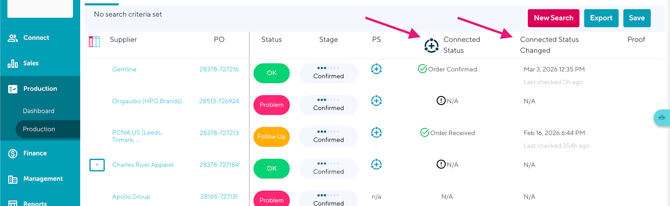
Connected Status
Displays the live status returned by the supplier via PromoStandards.
The Production Report already includes a Stage and Status column, which reflects your internal commonsku workflow.
commonsku stages include:
-
Created
-
Submitted
-
Confirmed
-
Shipped
-
Ready for Billing
-
Closed
-
Billed
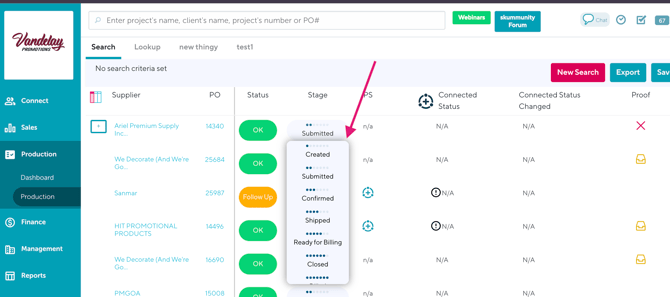
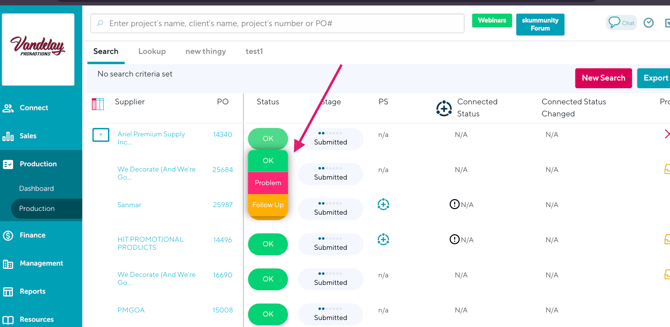
commonsku statuses includes:
- OK
- Follow Up
- Problem
Connected Status works alongside your internal Stage and Status to give you a complete picture of where the order stands. These statuses contain:
|
PS Status |
||
|
Name |
Description |
Enumeration Value |
|
Order Received |
Order or line item has been received |
received |
|
Order Confirmed |
Order or line item has been received, entered, and accepted |
confirmed |
|
Preproduction |
Vendor has begun to process the order, but it is not in production |
preproduction |
|
In Production |
Production of the order has started |
inProduction |
|
In Storage |
Order or line item is complete, but the vendor is waiting to ship goods |
inStorage |
|
Partially Shipped |
Order or line item has shipped in Part; remaining items in production |
partiallyShipped |
|
Shipped |
Order or line item has shipped in full |
shipped |
|
Complete |
Order or line item has shipped in full and invoiced, No further updates will be given |
complete |
|
Canceled |
Order or line item has been canceled, no further updates will be given |
canceled |
|
Order Entry Hold |
Vendor has a problem with the data in the purchase order, and it is preventing the order from being entered |
orderEntryHold |
|
General Hold |
Something is preventing the order from being entered |
generalHold |
|
Credit Hold |
Vendor is awaiting payment from the customer |
creditHold |
|
Proof Hold |
Vendor is awaiting response to proof |
proofHold |
|
Art Hold |
Vendor is awaiting suitable artwork from the customer |
artHold |
|
Back Order Hold |
Order or line item has been backordered; Nothing has shipped yet |
backOrderHold |
|
Shipping Hold |
Order or line item has been produced and is on hold preventing shipping |
shippingHold |
|
Customer Supplied Item Hold |
Order or line item is on hold waiting for customer owned goods |
customerSuppliedItemHold |
You can update commonsku status based on Connected Status.
If your Connected Status shows one of the following, you should follow up with the supplier. In these cases, your commonsku Status should typically be set to “Follow Up”:
-
General Hold
-
Credit Hold
-
Partial Shipment
-
Partially Shipped
-
Proof Hold
-
Art Hold
-
Canceled
These statuses usually indicate that the order requires attention, clarification, or confirmation before it can continue progressing smoothly.
Connected Status Changed
Shows the date and timestamp of when the supplier last updated their status.
This helps you quickly answer:
-
When did the supplier ship this order?
-
Was this recently updated?
Together, these two columns provide a clear, real-time view of supplier activity.
How Adding These Columns to Production Report?
You can customize your Production Report to display these new columns.
-
Go to the Production > Production Report
-
Click the Select Columns icon.
-
Choose the columns you’d like to display.
-
Make sure to select:
-
Connected Status
-
Connected Status Changed
-
The selected columns will now appear in your report results.
Connected Status Details
When you hover over a Connected Status cell, a tooltip appears.
If the supplier’s PromoStandards status is further along than your current commonsku Stage, the tooltip will recommend the appropriate Stage or Status update.
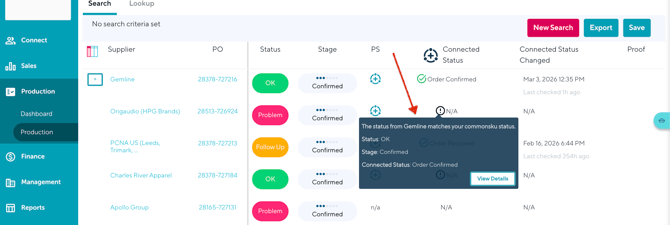
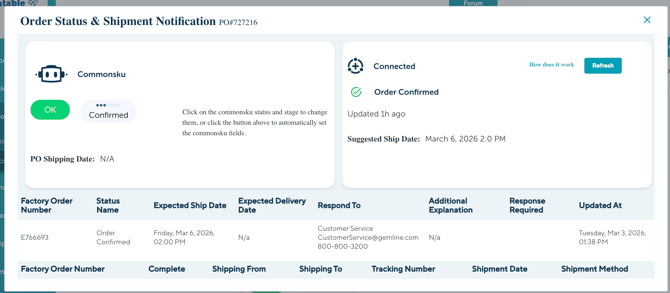
You can click the View Details button to see more information about a specific order.
Inside the details panel, you can:
-
View additional order information
-
Update your PO Status if needed
-
Review supplier-related updates
If you need to check for the most recent supplier update, click the Refresh button to re-query PromoStandards and pull the latest status in real time.