On this page:
Review and validate tax calculations
Setting up Split Ship Taxes
Set up your project
Create and prepare your Estimate, Sales Order or Invoice in commonsku as you normally would.
To set up your Estimate, Sales Order or Invoice for Split Ship Taxes:
-
Add items, variants or breakdowns, shipping fees, and decoration
-
Verify that all Tax codes are correctly assigned to each item
-
When ready, click the Set up Split Ship button at the bottom of your subtotal box to begin configuring split shipping
- Once this is done, follow the next steps below to Assign unique external SKUs to your product
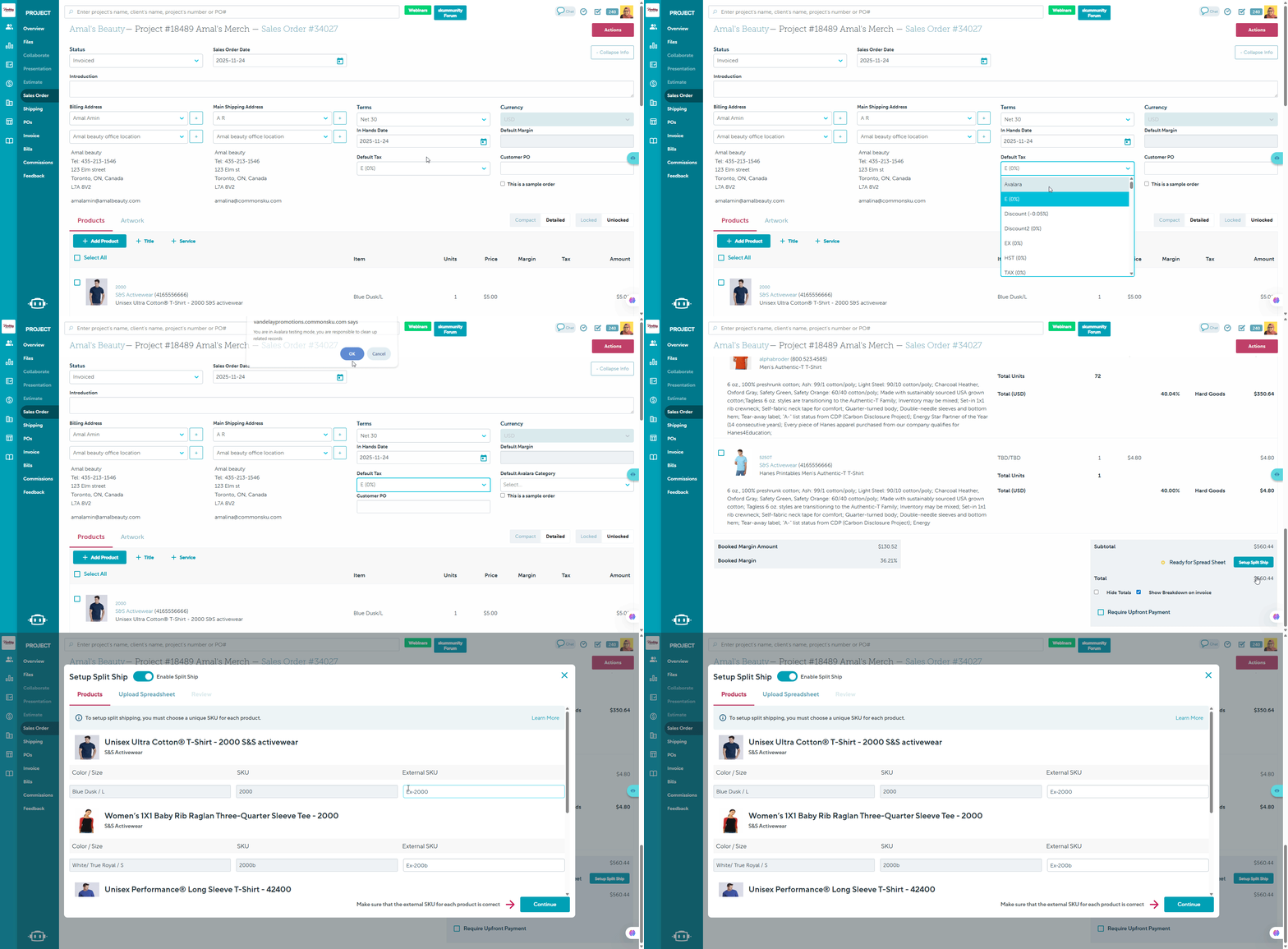
Note: To access the Set up Split Ship button, ensure that Avalara tax is connected in your setup. This option becomes available for configuration only after Avalara tax is selected as the Tax option.
Assign unique external SKUs
Each product variant must have a unique external SKU to configure split shipping.
To Assign unique external SKUs:
-
Click on the External Sku option to add a unique SKU to be assigned to your products.
-
Once all SKUs are assigned, the Continue button will become active at the bottom of the modal.
-
Click Continue to move to the Spreadsheet tab and click Download
- Once you are in the Spreadsheet tab, follow the steps below to configure your split ship spreadsheet
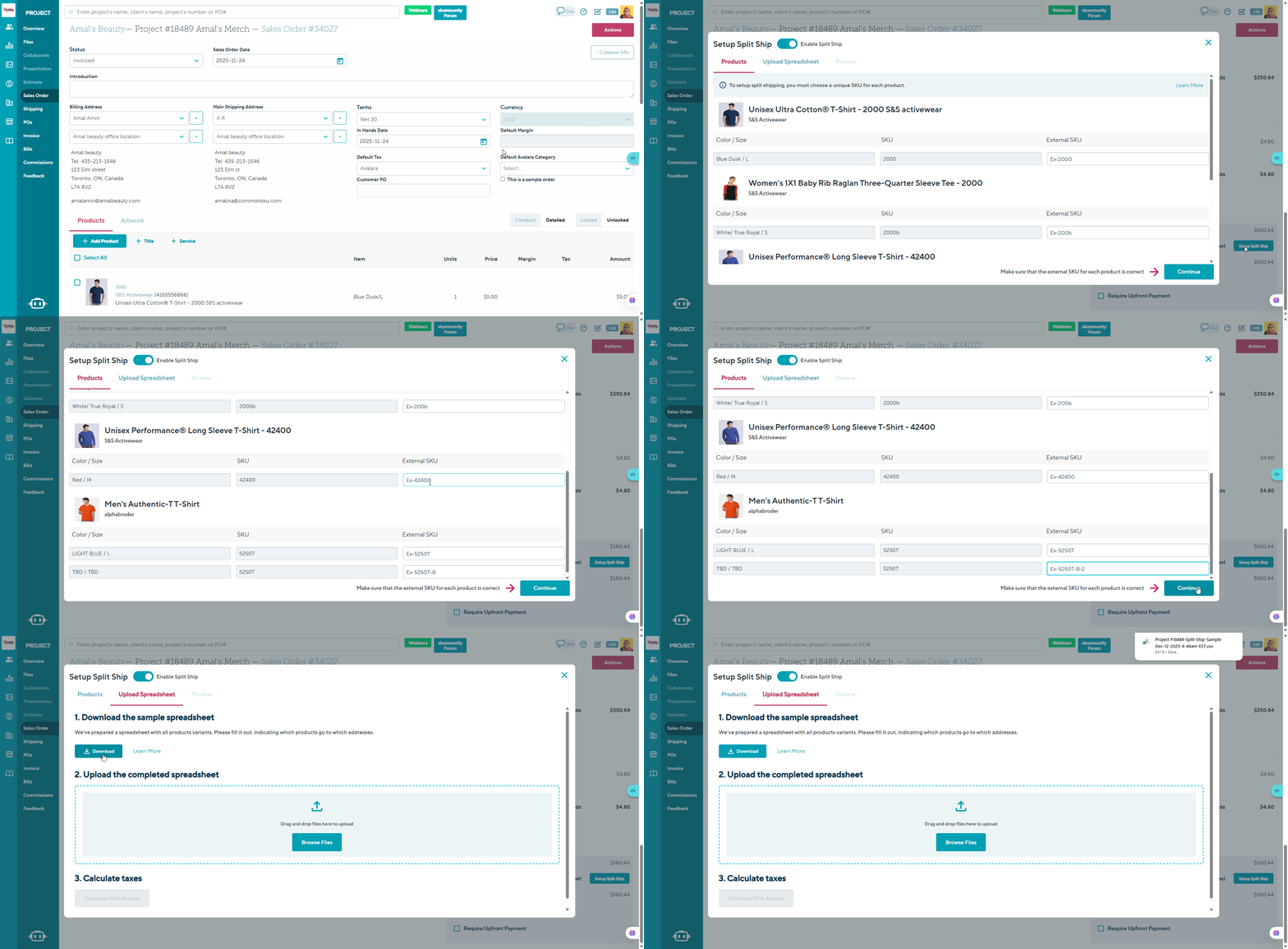
SKUs are unique to this project, but you can reuse your existing warehouse or system SKUs if they’re unique per variant. Without unique external SKUs added, you won’t be able to continue.
Configure your split ship spreadsheet
To configure your Split Ship Spreadsheet:
-
Click Download the sample spreadsheet template if you haven't done so, this template would have your product info already updated
- After downloading, open the spreadsheet and carefully update your client and shipping details
-
Once your information is configured, upload the completed spreadsheet to the platform
-
If you receive an error, please click on “View More” to see additional details about the issue. You will need to correct the errors in the spreadsheet and then re-upload the file. For guidance, please refer to the section “How to Fix Error Codes.”
- When everything is validated correctly, you can select Calculate taxes with Avalara to generate your split ship taxes.
- Once taxes are calculated, go to the Review tab to confirm the amounts and jurisdictions (optional but recommended).
- To show clients how taxes are applied, select the checkbox to display a tax breakdown on the invoice. If you leave it unchecked, only the total tax amount appears.
- Once completed, it will show Setup complete and your split taxes will be updated in the order
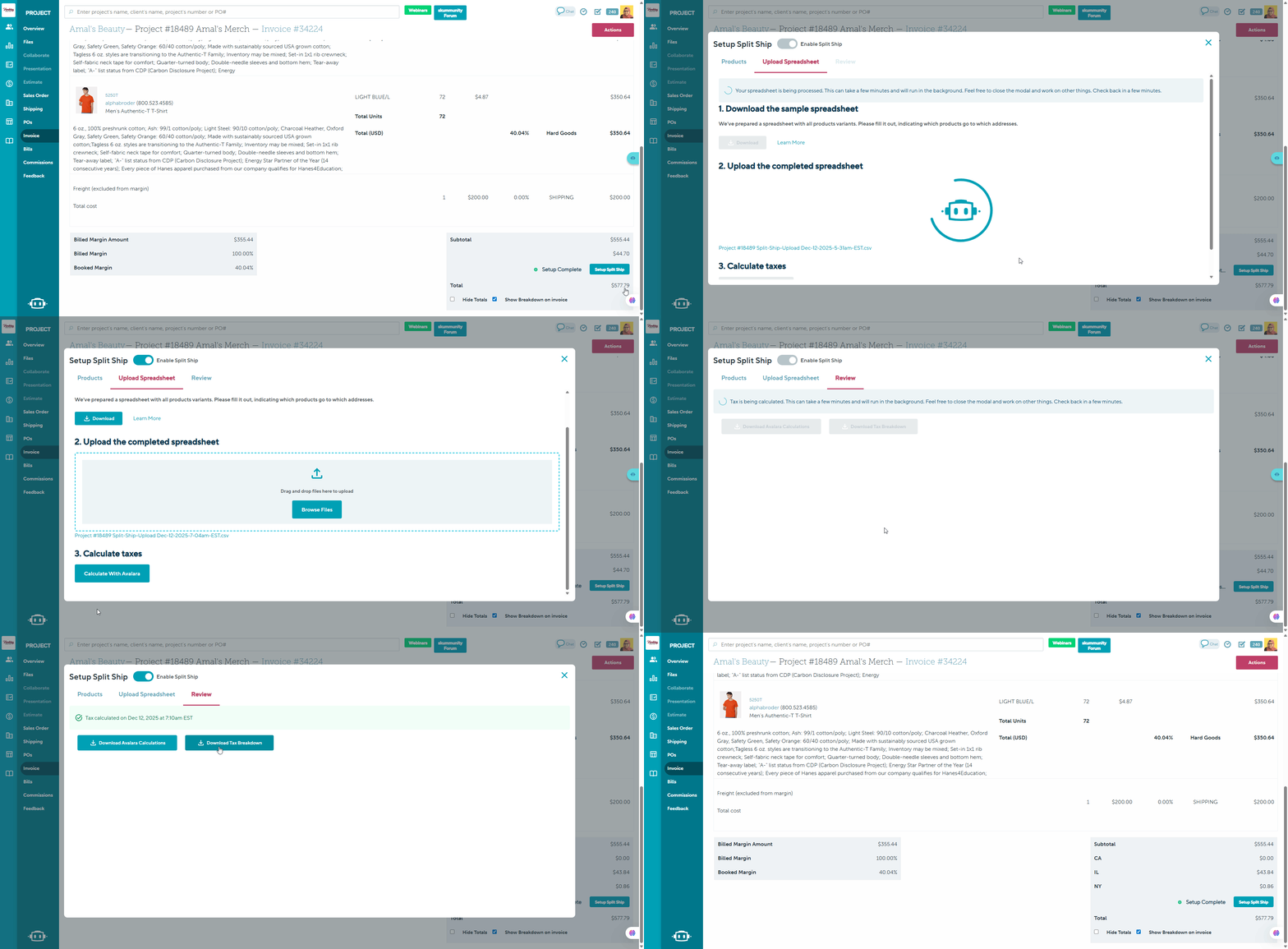
- If you see the commonsku loading icon, you can leave and come back later, your progress is saved.
- Please make sure that all mandatory fields are completed, including:
- Address
- City
- State
- Postal Code
- Country
If you receive an error code, please refer to the section “How to Fix Error Codes.”
You can refer to an example of a completed Split Ship Spreadsheet here
Review and validate tax calculations
Once your taxes are sent to Avalara, you’ll be redirected to the Review tab.
Here you can:
View the status of your tax calculations by 2 options:
Download Avalara Calculations
The Avalara Calculations refers to the JSON file of calculations to be used only for developers.
Download Tax breakdown
The Tax breakdown refers to the summary data for the jurisdiction and your tax liability per state.
Setup Complete
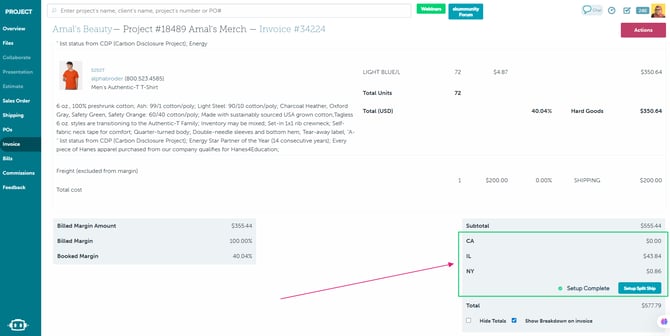
Once split ship taxes are configured correctly, you’ll see all taxes summarized at the bottom of the order.
These are grouped by State/Province based on the Avalara response when you select the option to display a tax breakdown on the invoice. If you leave this option unchecked, only the total tax amount will appear.
When everything is set up properly, the status will show as Setup complete.
How to Fix Error Codes
-
"Total extra cost mismatch for {item name}. Expected: {expected_total}, Found: {spreadsheet_total}."
"Could not find item on line {line number}."
It looks like there may be a product, service, or fixed cost on the Sales Order that is not included in the spreadsheet.
Also, please make sure that all mandatory fields are completed, including:
- Address
- City
- State
- Postal Code
- Country
Once these fields are filled in, please try uploading the spreadsheet again.
"Missing entry for {Item}: {item_name}"
This error means that one or more required fields are missing or not filled out correctly.
Please make sure all mandatory fields are completed, including:
-
Address
-
City
-
State
-
Postal Code
-
Country
Additional check: If you are using multiple fields of the same type (for example, multiple shipping entries), each one must have a unique name.
Example:
-
Shipping 1
-
Shipping 2
-
Shipping 3
Using duplicate names for different fields can also trigger this error.
If you’re experiencing this issue, delete the existing shipping entries, then in your form, go to Services > Other Service and re-add them using unique names for each entry.
"Service item {service} can only be split from one item"
If you are using multiple fields of the same type (for example, multiple shipping entries), each one must have a unique name.
Example:
-
Shipping 1
-
Shipping 2
-
Shipping 3
Using duplicate names for different fields can also trigger this error.
If you’re experiencing this issue, delete the existing shipping entries, then in your form, go to Services > Other Service and re-add them using unique names for each entry.
"Invalid item type: {item_type}. Must be "Product, Service, or Fixed Cost"
Please note that custom item types cannot be used in the spreadsheet upload.
The only valid item types are:
-
Product
-
Service
-
Fixed Cost Option
If any other item type is used, the upload will fail. Please update your spreadsheet accordingly and try again.
"External SKU is required for items."
One of the items in the spreadsheet is missing an SKU.
Each item must have a valid SKU and be properly configured before the upload can be completed.
Please update the spreadsheet with the correct SKU and try again.
"Unexpected error processing item."
We’re seeing a general error with the spreadsheet upload.
Please try the following basic troubleshooting steps:
-
Make sure all mandatory fields are filled in.
-
Confirm there are no missing SKUs.
-
Ensure only valid item types are used (Product, Service, or Fixed Cost Option).
-
Remove any extra columns, headers, or formatting changes.
-
Re-download a fresh copy of the template and re-enter the information if needed.
Once you’ve reviewed these items, please try uploading the spreadsheet again.
"No breakdown found for external SKU: {external_sku}."
There is an item in the project that has been configured with an external SKU, but it does not appear in the spreadsheet.
Please review the spreadsheet and make sure all items — including those with external SKUs — are included.
Once updated, please try uploading the file again.
"Unit price cannot be negative for external SKU: {external_sku}."
A negative amount has been entered for a Product, Service, or Fixed Cost item.
Please update the value and try uploading the spreadsheet again.
"Unit price mismatch for external SKU: {external_sku}. Expected: {split_ship_unit_price}, Found: {unit_price}."
The unit cost for a Product in the Sales Order cannot differ from the unit cost listed in the spreadsheet.
Please review the unit cost for the Product item and ensure it matches exactly in both the order and the spreadsheet before trying again.
"Service item {external_sku} not found in order."
There is a Service item listed in the spreadsheet that does not appear on the commonsku order.
Please review the spreadsheet and make sure all Service items match exactly with what is included in the order.
Once updated, please try uploading the file again.
"Item SKUs are required for FIXED COST items."
There is a Fixed Cost item in the spreadsheet that does not include an SKU.
Each Fixed Cost item must have a valid SKU to properly identify it in the system.
Please update the spreadsheet to include the correct SKU and try uploading it again.
"No PRODUCT item found with SKU: {item_sku} for FIXED COST item."
All Fixed Cost items must be associated with a corresponding Product.
This error indicates that the associated Product has been removed from the spreadsheet, but its Fixed Cost item is still included.
Please either:
-
Re-add the associated Product to the spreadsheet, or
-
Remove the related Fixed Cost item.
Once updated, please try uploading the file again.
"Invalid FIXED COST item format: {external_sku}. Expected format: {CostName}-{LineNumber}."
commonsku automatically generates identifying numbers to differentiate between multiple Fixed Cost items in the spreadsheet.
This error indicates that the system-generated number for a specific Fixed Cost line item has been removed or altered.
Please download a fresh template and re-enter the data to ensure the Fixed Cost line item can be properly identified.
Once corrected, please try uploading the spreadsheet again.
"Invalid phone number: $phone_number."
The phone number entered is in an incorrect format.
Please update it to a valid format and try again.
Note: The phone number field is not required for the import. If it’s not needed, you can remove it from the spreadsheet.
'Phone number mismatch for existing contact.'
The phone number provided is either incorrect or not formatted consistently for the same contact (or across multiple contacts sharing that phone number).
Please review and ensure the phone number is entered in a valid and consistent format.
Note: The phone number field is not required for the import. If it’s not needed, you may remove it from the spreadsheet.
"External SKU {external_sku} has a mismatch in quantity. Expected: {total_quantity}, Found: {quantity}."
The quantity of an item on the Sales Order does not match the total quantity listed in the spreadsheet.
For example, there may be 25 units on the Sales Order, but only 23 units accounted for in the spreadsheet — or vice versa.
Please review the quantities and ensure the total quantity for each item matches exactly between the Sales Order and the spreadsheet.
Once corrected, please try uploading the file again.
"Total extra cost mismatch for {item name}. Expected: {expected_total}, Found: {spreadsheet_total}."
commonsku requires the total cost for each item to match exactly between the Sales Order and the spreadsheet.
For example, if the Sales Order shows:
-
100 pieces
-
$3.00 per piece
-
Total: $300.00
Then the total cost for that item in the spreadsheet must also equal $300.00.
This error means the total cost listed in the spreadsheet does not match the total on the Sales Order.
Please review the quantity and unit cost to ensure the total amount matches exactly, then try uploading the file again.
"Invalid address country: {country name}."
Please ensure that the Country field in your spreadsheet matches Avalara’s accepted formats exactly.
Valid examples:
-
United States
-
US
-
United Kingdom
Invalid formats (will cause errors):
-
USA
-
UK
Using unrecognized variations will prevent the file from processing correctly and may result in validation errors.
Please note:
-
Use “United Kingdom” instead of “UK”
-
Use “United States” or “US” (not “USA”)
Once updated, please try uploading the spreadsheet again.
Invalid CSV header format” usually means the system tried to read the first row (the header row) of your CSV and it didn’t match what it expects—either the header names are wrong, the file isn’t really a clean CSV, or the header row is malformed.
If a macOS is the system used, when exporting the spreadsheet ensure the "Include table name" is turned off before Saving the CSV document.
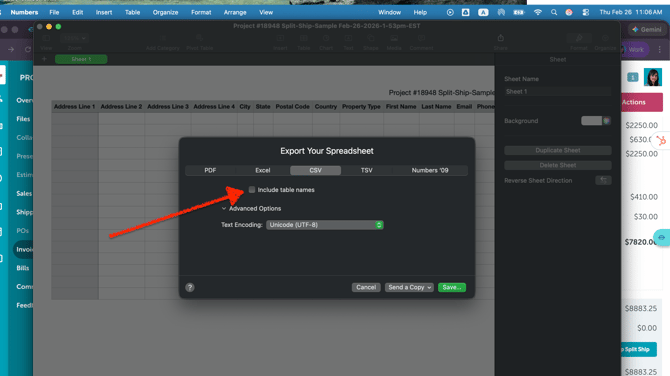
Another Effective workaround: Open the CSV document in Google Sheets and export the document, upload the CSV into commonsku directly from the Downloads folder without re-saving in Excel.
FAQs
- Can I use SKUs from my warehouse or ERP system?
- Where can I find the Avalara tax summary?
- If I make changes to my order, will I need to re-configure my split ship taxes?
- Can split ship taxes be calculated in Deposit Invoices?
- Will Split ship taxes be compatible with Quickbooks or Xero?
- Why do I see a “Line Limit” error when uploading my CSV?
Can split ship taxes be configured without using Avalara?
Split ship tax functionality in commonsku is currently designed to work exclusively with the Avalara integration. At this time, you must have Avalara enabled to configure and calculate split ship taxes, and this integration is available to users on the Advanced and Enterprise plans.
What if my SKUs are not unique?
You’ll need to edit your product variants so that each has a unique SKU before you can proceed.
Can I use SKUs from my warehouse or ERP system?
Yes, as long as each SKU is unique per variant.
Where can I find the Avalara tax summary?
In the Review tab, you can download both the summary and raw tax response data.
If I make changes to my order, will I need to re-configure my split ship taxes?
Yes. If you update your order for example, by adjusting quantities, colors, sizes, or decoration locations, the split ship taxes will display a status of Incomplete configuration. In this case, you’ll need to reconfigure your split ship taxes again to ensure accurate calculations.
Can the split ship taxes be used in Deposit Invoices?
Yes. You can still configure split ship taxes on the Sales Order for Deposit Invoices. However, this functionality is not yet available for full payment invoices generated through Approve and Pay.
Will Split ship taxes be compatible with Quickbooks or Xero?
Split ship taxes are currently compatible with QuickBooks, but they are not yet supported for Xero integrations.
Why do I see a “Line Limit” error when uploading my CSV?
This error is related to Avalara’s line limit, not commonsku.
By default, Avalara supports up to 1,000 lines per transaction. However, commonsku can handle up to 15,000 lines without any issues.
What’s the workaround?
You’ll need to contact Avalara Support and request a line limit increase to 15,000 lines. Once Avalara updates the limit on their side, the error should be resolved.
If you have questions about this feature please email support@commonsku.com for further assistance.