On This Page:
What is the "New Project" Trigger?
Data Points Available in this Trigger
What Is the “New Project” Trigger?
The New Project Trigger runs automatically whenever a new project is created in commonsku.
When this happens, commonsku sends project information to Zapier. You can then use that information to automatically update other apps like Slack, Google Sheets, HubSpot, and more. It does not run when:
-
A project is updated
-
A stage changes
It only runs at the time the project is first created.
Once triggered, Zapier receives project details and can pass that information to other connected apps.
This feature is not available to teams subscribed to commonsku's Essentials plan. The Advanced plan or higher is required in order to use this tool.
Data Points Available in the Trigger
When setting up your automation, fields are grouped into three main sections:
-
Project Information
-
Client Information
-
Sales Team Information
Each section provides specific data that can be used to trigger workflows, populate CRM records, send notifications, or keep your internal systems aligned.
Project Information
-
Project Name, is the name of the project in commonsku.
You can use this in Slack messages, CRM deals, or tasks for easy identification what is the project name. For example you can use this to:-
Create a HubSpot deal with the project name you already have like “Spring Trade Show Campaign”
-
Send a Slack message announcing the new project name
-
Trigger a welcome email template that references the project name
-
Add a row in Google Sheets with the project name for tracking
-
Include the project name in an automated internal email notification
-
Using the Project Name in your automation ensures that every system clearly reflects the same project title, reducing confusion and improving team alignment.
-
Project Number, is the unique number of the project. For example, you can use this to:
-
Store it in your CRM
-
Include it in Slack notifications for quick lookup
-
Add it to a Google Sheet for reporting and tracking
-
- In Hands Date, is the deadline by which the client needs the product. Ths helps your team manage timelines and prioritize urgent work. For example, you can use this to:
-
Automatically create a task due before the deadline
-
Send a reminder notification 3 days before delivery
-
Flag projects as high priority if the date is approaching
-
- Date Created is the date and time the project was created. This is useful for reporting and pipeline tracking.
-
Project Internal Link is the direct link to the project inside commonsku (for your internal team). This allows your team to quickly access the project. For example you can use this to:
-
Include a clickable link in Slack notifications
-
Attach it to a task in different platforms
-
-
Project External Link is the client-facing portal link for the project. This can be used for automated client communication. For example, you can use this to:
-
Send the project portal link in a welcome email
-
Store the link inside your CRM notes
-
- Starting Stage is the stage where the project begins (for example, Opportunity).
- Project UUID is a system-generated unique identifier for the project.
This is mainly useful for advanced integrations or backend tracking. - Project Email is a unique email address associated with the project.
The project email is a forwarding address used to capture external emails inside the project. The forwarded email posts on the project's overview, along with any email attachments.
- Event Type is the category of the project (for example, Trade Show or Advertising). This helps segment and organize projects. For example, you can
can use this to:
-
Notify specific teams based on event type
-
Filter projects in reports
-
Trigger workflows only for certain types of events
-
Client Information
-
Client Account Name is the name of the company or client associated with the project in commonsku. You can use this field to identify which client the project belongs to and keep your external systems aligned with your client records. For example you can use this to:
-
Create or update a company record in HubSpot
-
Send a Slack notification like: “New Project for Happy Customer Corp.”
-
Log the client name in a Google Sheet for reporting
-
Trigger account-specific workflows for key clients
-
-
Initial Client Contact (First Name, Last Name, Email) is the primary contact person associated with the project. This includes their first name, last name, and email address. You can use this information to automate communication and CRM updates. For example, you can use this to:
-
Automatically create a contact in HubSpot
-
Add the contact to a Mailchimp list
-
Send a welcome email when a project is created
-
Assign follow-up tasks to the sales rep responsible for that contact
-
Log the contact’s email in a spreadsheet for tracking
-
- Client Account UUID is a system-generated unique identifier for the client account. Most customers will not need to use this field for basic automations. It is primarily useful for advanced integrations or backend system matching
Sales Team Information
-
Order Rep (First Name, Last Name, Email), is the team member responsible for managing the order and production side of the project. You can use this information to automate internal workflows and ensure the correct team member is notified or assigned tasks. For example, you can use this to:
-
Automatically assign a task in Asana or ClickUp to the Order Rep
-
Mention or tag the Order Rep in a Slack notification
-
Set the deal owner in your CRM
-
-
Client Rep (First Name, Last Name, Email) is the team member responsible for managing the client relationship for the project. This is helpful when automating communication, CRM updates, or ownership tracking. For example, you can use this to:
-
Assign the HubSpot deal owner automatically
-
Send a notification directly to the Client Rep when a project is created
-
Create follow-up tasks assigned to the Client Rep
-
-
Created By field shows the email address of the person who created the project in commonsku. This is useful for tracking activity and triggering internal notifications. For example, you can use this to:
-
Send a confirmation notification to the user who created the project
-
Track how many projects each team member creates
-
Trigger tasks based on who initiated the project
-
Build internal performance dashboards
-
Step-by-Step Examples
Below are two examples showing how you can use the New Project Trigger in real-world scenarios:
Example 1: Send a Slack Notification When a New Project Is Created
Example 2: Automatically Create a CRM Deal + Assign Production Task for High-Budget Projects
Example 1: Send a Slack Notification When a New Project Is Created
You want your team to be notified immediately whenever a new project is created in commonsku:
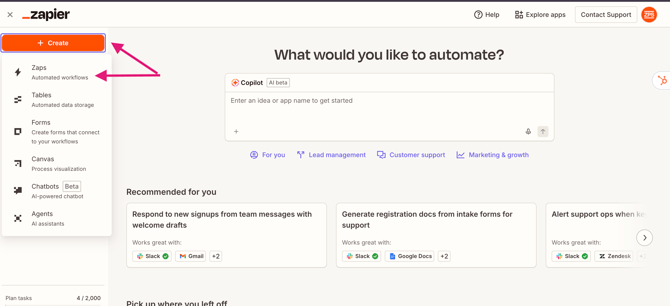
- Log in to Zapier > Click Create Zap
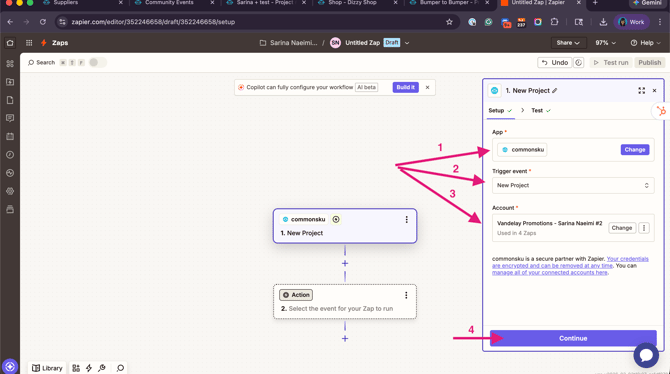
- choose commonsku as the Trigger app > Select New Project as the trigger event
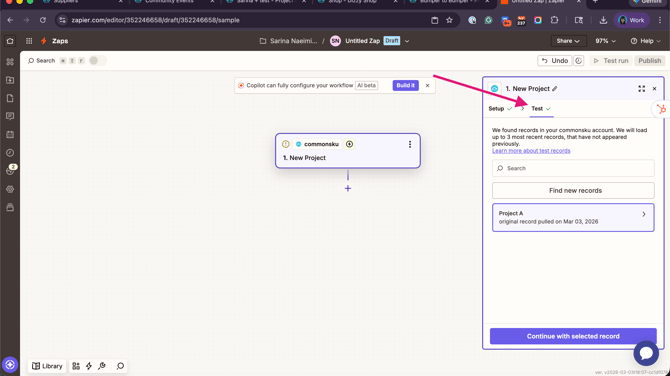
- Connect your commonsku account > click Test Trigger to pull in a recent sample project
-
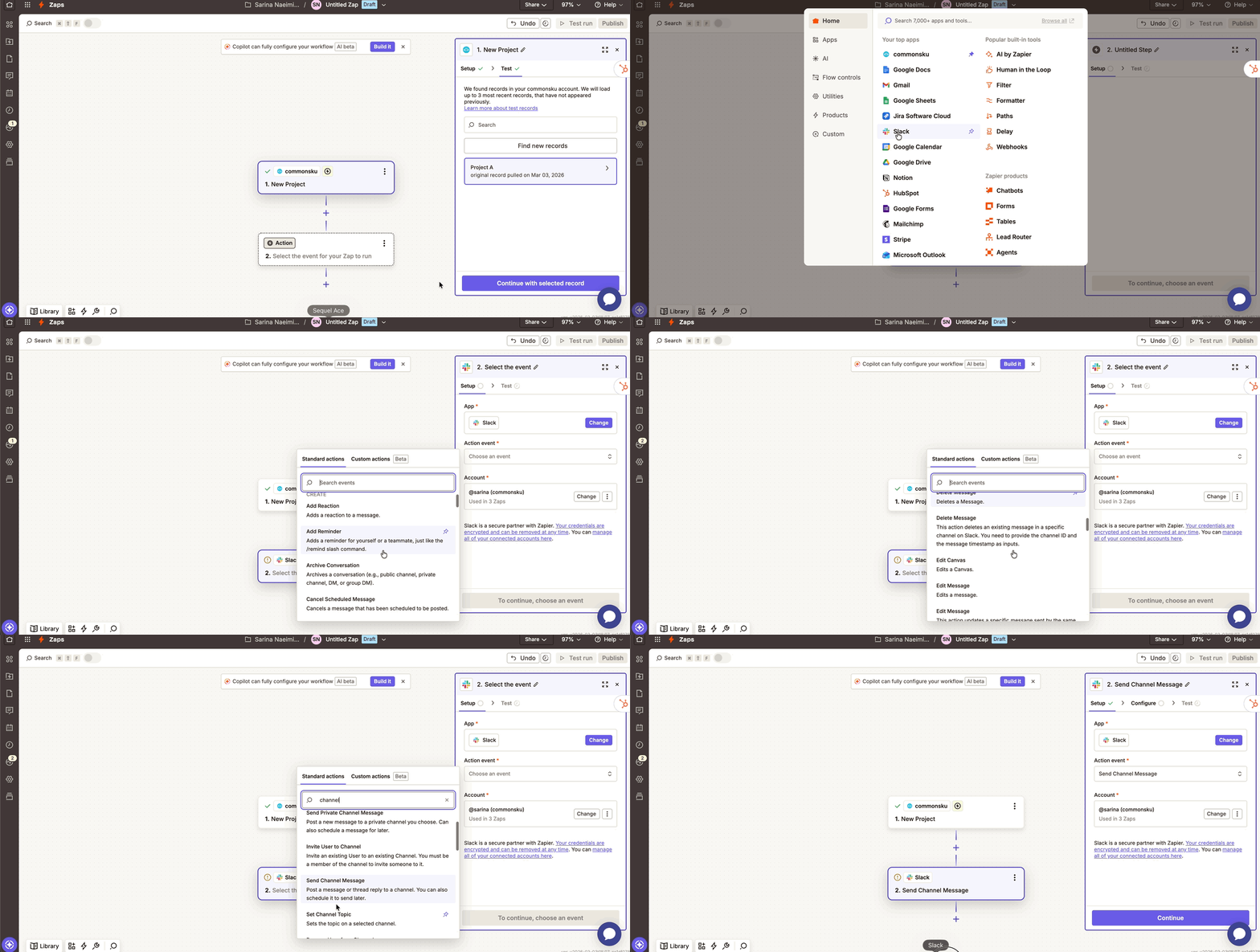
Click Continue > Choose Slack as the Action app > Select Send Channel Message > Choose the Slack workspace and channel
-
In the message field, map the following fields:
-
Project Name
-
Project Number
-
Client Account Name
-
Budget
-
Project Internal URL
-
-
Click Test Step to confirm the message sends correctly
-
Click Publish
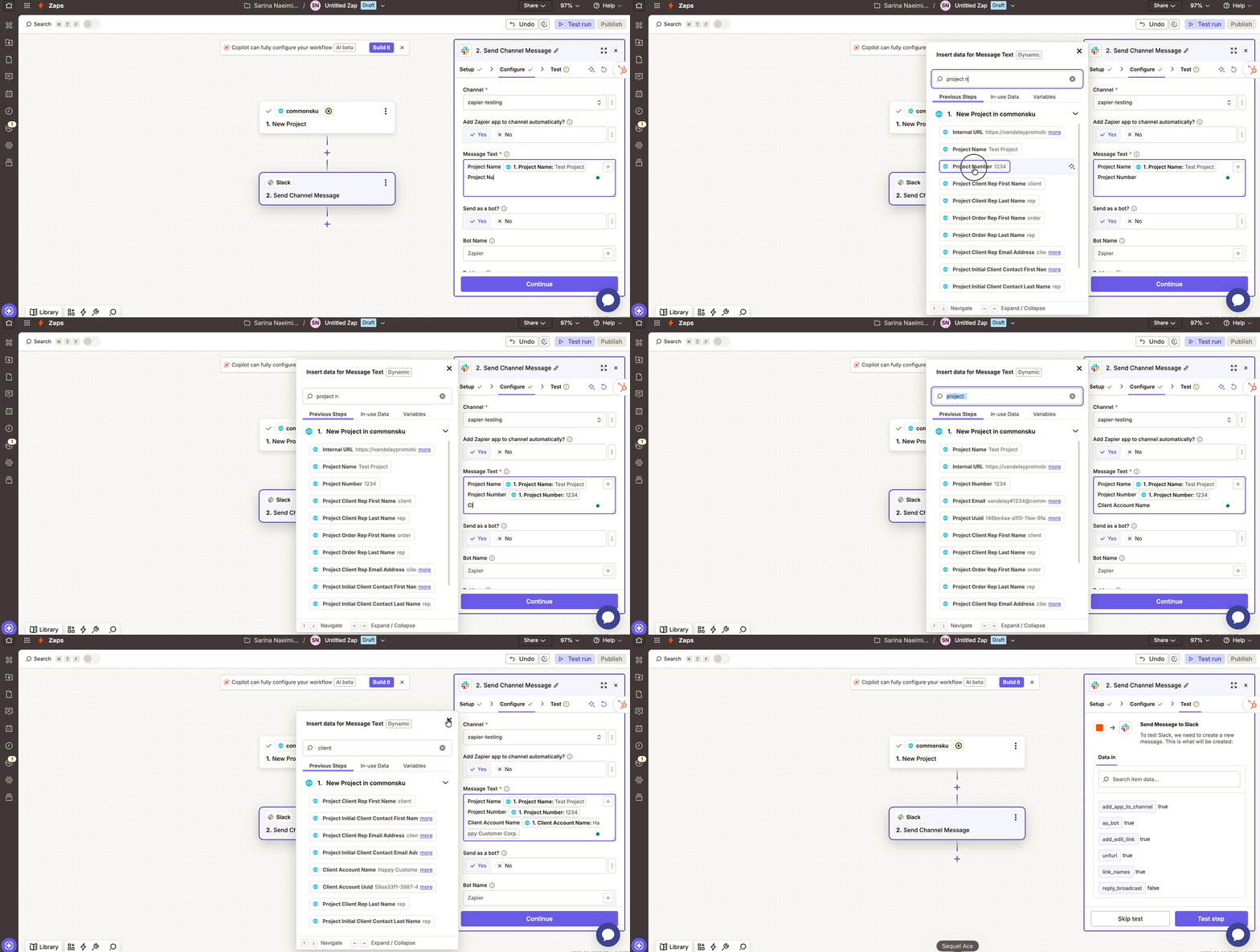
Now, every time a new project is created, your team will automatically receive a Slack notification.
[back to top]
Example 2: Automatically Create a CRM Deal + Assign Production Task for High-Budget Projects
You want to automatically create a HubSpot deal and assign a production task only when a project budget is over $5,000:
-
Log into Zapier > Click Create Zap
-
Choose commonsku as the Trigger app > Select New Project
-
Connect your account > Click Test Trigger
-
Click + Add Step > Choose Filter
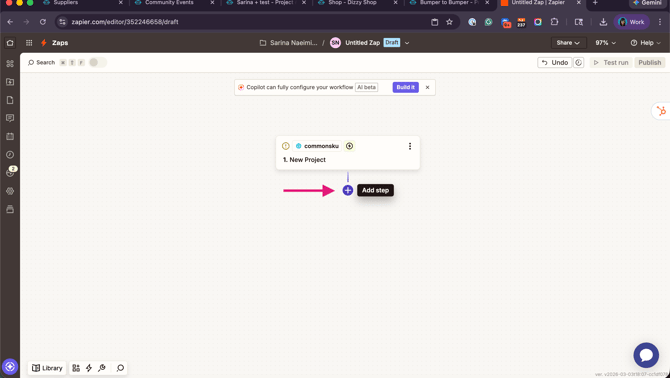
-
Set the condition:
-
Budget > (Greater Than) > 5000
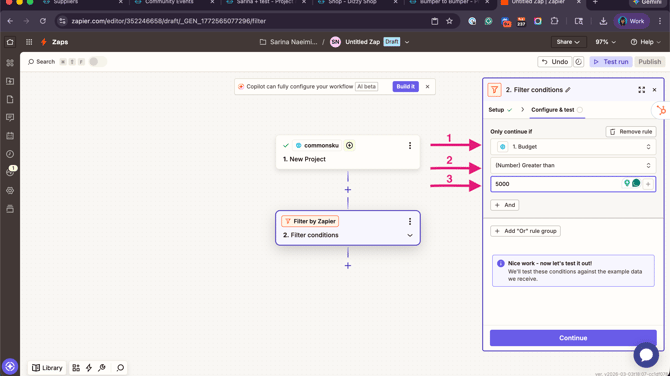
-
-
Click Continue
-
Click + Add Step > Choose HubSpot
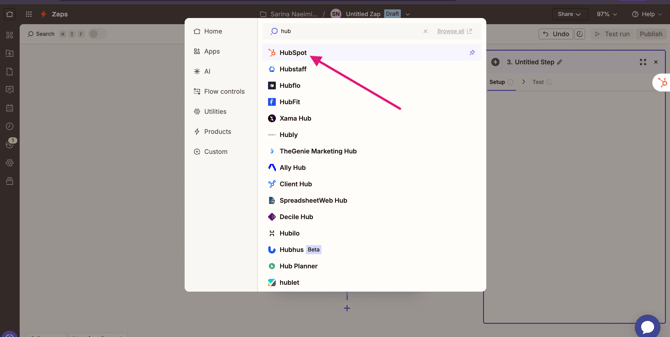
-
Select Create Deal
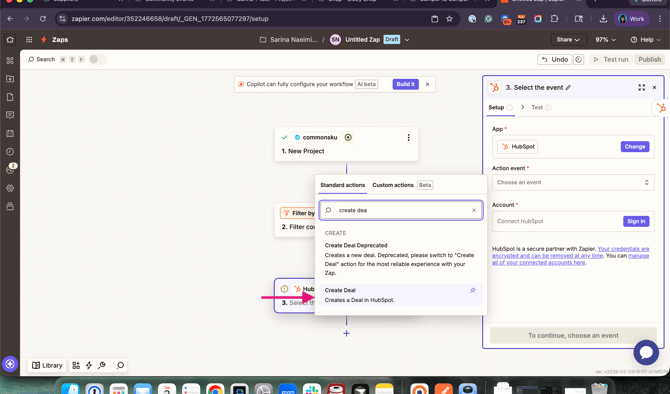
-
Map the following fields:
-
Deal Name → Project Name
-
Amount → Budget
-
Company → Client Account Name
-
Deal Owner → Client Rep Email
-
-
Click Test Step > Click + Add Step > Choose your task manager
-
Select Create Task > Map:
-
Task Name → “Project # – Begin Production”
-
Assignee → Order Rep Email
-
Due Date → In Hands Date
-
Description → Project Internal URL
-
-
Click Test Step > Publish
Now, only high-value projects will automatically create a CRM deal and assign production responsibility.
[back to top]
FAQs
Will this trigger run if I edit an existing project?
What happens if someone deletes a project after it’s created?
Can I limit this trigger to only certain projects?
Can I automatically assign tasks to the correct team member?
Can I use this trigger to send emails to clients?
What if my Zap doesn’t seem to run?
Do I need technical knowledge to use this trigger?
Will this trigger run if I edit an existing project?
No. The New Project trigger only runs when a project is first created. If you update a project later (such as changing the stage), this trigger will not run again.
What happens if someone deletes a project after it’s created?
The trigger runs at the moment the project is created.
If the project is deleted later, the Zap will not reverse any actions that already occurred in other apps.
Can I limit this trigger to only certain projects?
Yes. You can add a Filter step in Zapier to control when the workflow continues.
For example:
-
Only continue if Budget is greater than $5,000
-
Only continue if Event Type equals “Trade Show”
-
Only continue if Starting Stage equals “Opportunity”
This helps prevent unnecessary workflow activations.
Can I automatically assign tasks to the correct team member?
Yes. You can use the Order Rep or Client Rep email fields to automatically assign tasks in commonsku or other tools. For assigning tasks in commonsku, you can use Add a Note to a Project action.
Can I use this trigger to send emails to clients?
Yes. You can use the Project Name, Client Contact Email, and Project External Link to create automated email workflows in tools like Mailchimp or Gmail.
What if my Zap doesn’t seem to run?
Check the following:
-
Is the Zap turned on?
-
Does your Filter condition block the workflow?
-
Did the test step show any error message?
If all settings look correct, try re-testing the trigger inside Zapier.
Do I need technical knowledge to use this trigger?
No.
Most setups only require selecting fields and mapping them to the correct places. Advanced options like Filters are available but not required.