On this page:
What Is the Order Email Sent Trigger?
Available Data Fields
Step-by-Step Examples
FAQs
What Is the Order Email Sent Trigger?
The Order Email Sent trigger runs automatically whenever an order email is sent from commonsku.
When this happens, commonsku sends order details to Zapier. Zapier can then use that information to trigger actions in other apps such as:
-
Slack
-
Google Sheets
-
HubSpot
-
Asana
-
ClickUp
-
Email tools
This allows you to automatically notify teams, track order activity, or update external systems.
The trigger runs only when an order email is sent from commonsku.
It does not run when:
-
A sales order is created
-
A sales order is edited
-
Project details are updated
The automation starts at the exact moment the order email is sent to the client.
This feature is not available to teams subscribed to commonsku's Essentials plan. The Advanced plan or higher is required in order to use this tool.
Available Data Fields
When the trigger runs, commonsku sends several data points to Zapier. These fields can be used in your automation and they are grouped into three main sections:
Order Details
-
Order Number: This is a unique number for the order (Presentation, Estimate, Sales Order, invoice) in commonsku. For example, you can use this to:
-
Include it in Slack notifications
-
Track orders in Google Sheets
-
Store the order number in your CRM
-
-
Order Type: Indicates the type of order (for example, Sales Order). For example, you can use it to:
-
Filter workflows based on order type
-
Route notifications to different teams
-
-
Order Date: The date when the order was created. For example, you can use it to:
-
Track order timelines
-
Log order activity in reporting tools
-
-
Project Number: The number of the project associated with the order. For example, you can use it to:
-
Connect order activity with project records
-
Track project-level reporting
-
-
Project Name: The name of the project associated with the order. For example, you can use this to:
-
Improve clarity in notifications
-
Track projects in reports
-
- Project Email is a unique email address associated with the project.
The project email is a forwarding address used to capture external emails inside the project. The forwarded email posts on the project's overview, along with any email attachments.
-
In Hands Date: The deadline by which the client expects to receive the product. For example, you can use this to:
-
Create production tasks
-
Send deadline reminders
-
Flag urgent orders
-
-
Project Tags: Tags assigned to the project. For example, you can use this to:
-
Trigger workflows for specific campaigns
-
Filter orders by event type
-
- Project UUID is a system-generated unique identifier for the project.
This is mainly useful for advanced integrations or backend tracking. - Sample Order: It will check if the project is a Sample Order or not. Output is True (yes) or False (no).
-
Internal URL: This is the direct link to the order inside commonsku for internal use. For example, you can use this to:
-
Include clickable links in Slack notifications
-
Attach orders to tasks
-
-
Public URL: This is the client-facing link to the order. For example, you can use this to:
-
Send order links in emails
-
Store the order portal in CRM records
-
Financial Information
-
Customer PO: This is the customer PO that you can set in your Sales Order tab. For example, you can use this to:
-
Reference orders in accounting systems
-
Include Customer PO numbers in notifications
-
-
Terms: This is the payment terms associated with the order (for example, Net 30). You can use this to:
-
Track payment expectations
-
Send order data to accounting systems
-
-
Subtotal: The order amount before taxes and additional charges. For example, this can be used to:
-
Track sales volume
-
Log item totals in reporting systems
-
-
Total: is the full order value. You can use this to
-
Create CRM deals
-
Trigger workflows for high-value orders
-
-
Booked Margin: is the booked margin percentage associated with the order. You can use this to:
-
Track profitability metrics
-
Monitor margin performance
-
-
Booked Margin Amount: The profit amount for the order. You can use this to:
-
Log profitability in dashboards
-
Track sales performance
-
-
Deposit Required: Indicates whether a deposit is required for that project. Output is True (yes) or False (no). You can use this to:
-
Notify finance teams
-
Trigger deposit reminders
-
Client Information
-
Client Account Name: The name of the client associated with the order. You can use this to:
-
Create or update CRM company records
-
Send Slack notifications identifying the client
-
-
Client Contacts (initial, billing, shipping, email): All the information related to the client contacts associated with that specific project. This contains:
-
Client Contacts Project Email Address
- Client Contacts Sales Order Billing Email Address
- Client Contacts Sales Order Shipping Email Address
For example, you can use this to:
-
Create contacts in your CRM
-
Send automated follow-up emails
-
Track client communication history
-
- Client Account UUID: This is a system-generated unique identifier for the client account. Most customers will not need to use this field for basic automations. It is primarily useful for advanced integrations or backend system matching
Addresses
-
Billing Address: The address used for billing and invoicing, which includes:
-
City
- State
- Country
- Postal Code
- Billing Address line 1, Billing Address line 2, Billing Address line 3, and Billing Address line 4
-
Send billing details to accounting systems
-
Store address information in your CRM
-
-
Shipping Address: The address where the order will be delivered. which includes:
-
City
- State
- Country
- Postal Code
- Billing Address line 1, Billing Address line 2, Billing Address line 3, and Billing Address line 4
You can use this to:
-
Send shipping data to fulfillment systems
-
Track delivery locations
-
Email Details
-
Sent From: The email address that sent the order.
-
Sent To: The email addresses that received the order email
-
Share Time: The date and time when the order email was sent
Sales Team
-
Project Order Rep (Name and Email)
-
Project Client Rep (Name and Email)
Step-by-Step Examples
Below are two examples showing how you can use the New Project Trigger in real-world scenarios:
Example 1: Notify Your Production Team When an Order Is Sent
Example 2: Automatically Create a Fulfillment Workflow for Large Orders
Example 1: Notify Your Production Team When an Order Is Sent
You want your production team to be notified immediately when an order email is sent to a client so they can begin preparing artwork, inventory, or supplier coordination.
-
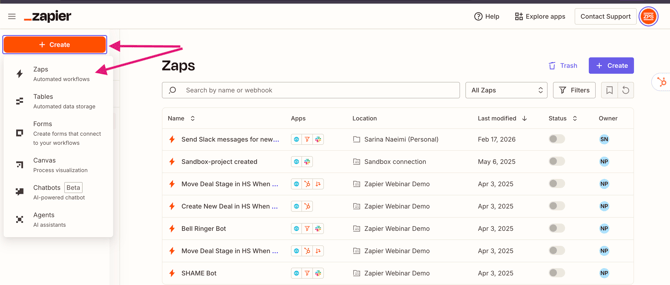
Log into Zapier → Click Create Zap
-
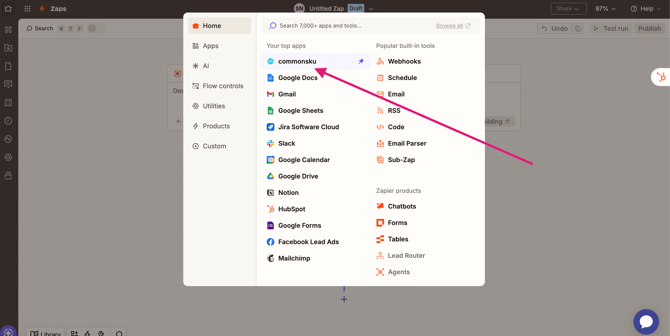
Choose commonsku as the Trigger app > Select Order Email Sent
-
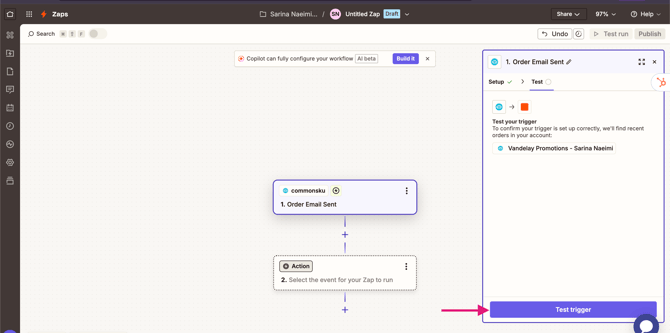
Connect your commonsku account → Click Test Trigger
-
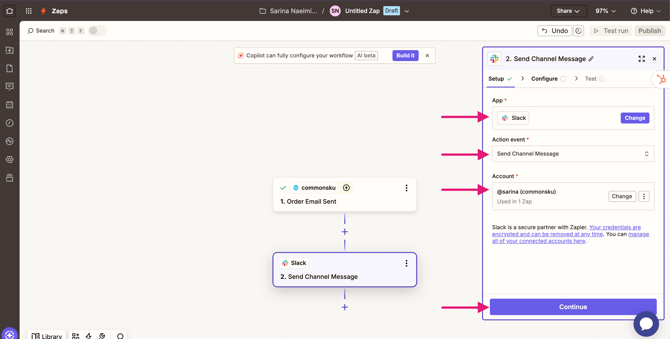
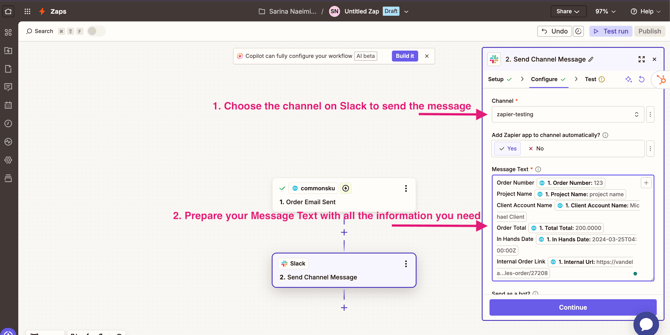
Add an Action > Choose Slack > Select Send Channel Message
-
In the message field, map the following fields:
-
-
Order Number
-
Project Name
-
Client Account Name
-
Order Total
-
In Hands Date
-
Internal Order Link
-
6. Click Test Step > Publish
Now your production team is instantly notified when an order is sent, allowing them to begin planning production and delivery.
Example 2: Automatically Create a Fulfillment Workflow for Large Orders
You want to automatically create a fulfillment workflow for large orders once the order email is sent to the client.
For example, if the order total is greater than $5,000, you want to:
-
Create a deal in your CRM
-
Assign a production task
-
Notify your operations team
Here is step-by-step workaround:
-
Log in to Zapier > Click Create Zap
-
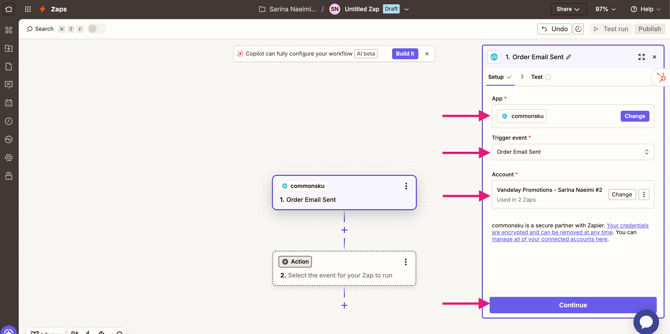
Choose commonsku > Select Order Email Sent
-
Connect your account > Click Test Trigger
-
Click Add Step > Filter > set condition:
Total > 5000
This ensures the automation runs only for high-value orders. Then click on Continue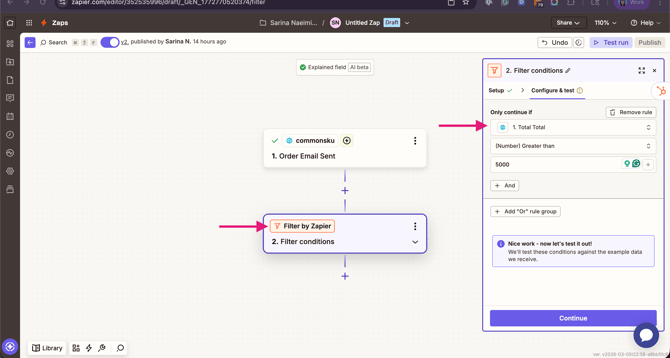
-
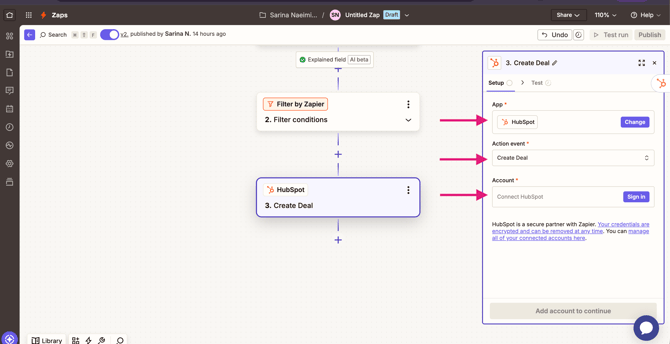
Add Action > HubSpot > Select Create Deal > Map fields:
This automatically creates a deal for the order.
6. Add Action > Slack > Send Channel Message > Click Publish
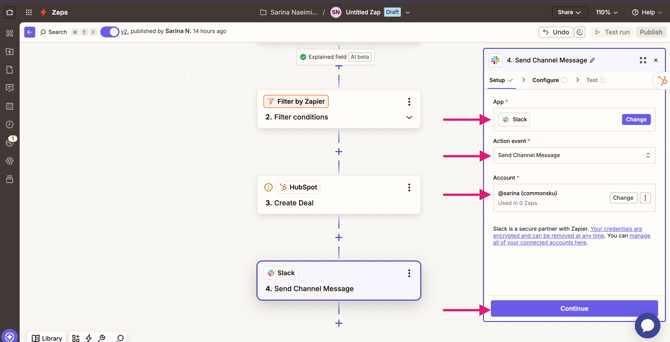
Now, whenever a large order is sent to a client, your system will automatically:
-
Create a CRM deal
-
Notify your operations team
FAQs
Why doesn’t the trigger run when I create an order?
The trigger runs only when the order email is sent from commonsku. Creating or editing an order will not activate the trigger.
Does this trigger work for all order types?
Yes. The trigger can run when emails are sent from order types such as:
-
Presentations
-
Estimates
-
Sales Orders
-
Invoices
You can use the Order Type field in Zapier to filter automations if needed.
Can I notify my team when an order is sent?
Yes. A common automation is sending a Slack notification to your production or operations team whenever an order email is sent.
Can I track order emails in a spreadsheet?
Yes. You can use Google Sheets or similar tools to automatically log order details such as:
-
Order Number
-
Client Name
-
Project Name
-
Total
-
Share Time
This is helpful for reporting and internal tracking.
What’s the difference between Internal URL and Public URL?
-
Internal URL → A link for your team to view the order inside commonsku.
-
Public URL → A client-facing link used to share the order externally.
What is the Project Email used for?
The Project Email is a forwarding address that allows external emails to be captured inside the project. Any forwarded emails and attachments will appear in the project overview.