On this Page:
What Is the “Sales Order Status Change” Trigger?
Data Points Available in the Trigger
What Is the “Sales Order Status Change” Trigger?
The Sales Order Status Change Trigger runs automatically whenever the status of a Sales Order changes in commonsku. When this happens, commonsku sends order information to Zapier. Zapier can then use this information to trigger automated actions in other apps.
For example, you can automatically:
-
Send Slack notifications when an order is closed
-
Update CRM records when an order status changes
-
Log order updates in Google Sheets
-
Trigger internal tasks when orders move to production
This trigger does not run when:
-
A sales order is created
-
Order details are edited
-
Project information changes
The automation starts at the exact moment the order status changes.
This feature is not available to teams subscribed to commonsku's Essentials plan. The Advanced plan or higher is required in order to use this tool.
Data Points Available in the Trigger
When the trigger runs, commonsku sends several order-related data fields to Zapier. These fields can be used in your automation.
The available data is grouped into these main sections:
Each section provides useful data that can help automate workflows, notify teams, or update external systems.
Order Information
Order Number, is the unique number for the order in commonsku. For example, you can use this to:
-
Reference the order in Slack notifications
-
Log the order in Google Sheets for reporting
Order Type shows the type of order (for example: Sales Order). This helps identify the type of the order when triggering automations. For example, you can use this to:
-
Filter workflows for specific order types
-
Send different notifications based on order type
Order Date is the date when the order was created. This field is helpful for reporting and time-based automations. For example, you can use this to:
-
Track order creation trends in Google Sheets
-
Generate weekly order reports
-
Trigger follow-up reminders after a certain number of days
In Hands Date is the date by which the client needs to receive the product. You can use this field to help manage production timelines. For example:
-
Send reminders when deadlines are approaching
-
Flag urgent orders in Slack
-
Automatically create tasks before delivery deadlines
Customer PO is the customer PO that you can set in your Sales Order tab. For example, you can use this to:
-
-
Reference orders in accounting systems
-
Include Customer PO numbers in notifications
-
Sample Order indicates whether the order is a sample order. For example, you can use this to:
-
Separate sample orders from production orders
-
Filter workflows for sample requests
-
Track sample activity in reports
Order Totals: commonsku sends both subtotal and total amounts:
-
Total Subtotal – Order value before taxes and CC fees.
-
Total Total – Final order amount including everything
You can use these fields to:
-
Track revenue in Google Sheets
-
Trigger workflows based on order value
-
Send alerts for high-value orders
Booked Margin represents the expected margin percentage for the order.
Booked Margin Amount shows the dollar amount of the margin.
Deposit Required indicates whether the order requires a deposit before production.
Order Status Change
These fields show the status update that triggered the Zap.
-
New Status – the current status of the order
-
Previous Status – the previous order status
-
Changed By – the user who updated the order status
For example, you can use this to:
-
Track order status history in Google Sheets
-
Trigger tasks when an order moves into production
Project Email: Each project includes a unique email address used to capture emails inside the project. For example, you can use this to:
-
Forward external emails to the project
-
Store communications in the order timeline
Order Public Link is the client-facing order link. This can be used for automated client communication. For example:
-
Send order confirmation emails
-
Store the order link in your CRM
-
Share the link with clients automatically
Order Internal Link is the direct link to the order inside commonsku. For example, you can use this to:
-
Include a clickable link in Slack notifications
-
Attach the order link to internal tasks
Project Information
Project Name is the name of the project associated with the order. For example, you can use this to:
-
Identify the project in Slack notifications
-
Log the project name in reports
-
Use the project name when creating CRM records
Project Number identifies which project the order belongs to. For example, you can use this to track project activity
Project Tags are labels added to a project to help categorize or organize work. For example, you can use tags to:
-
Filter workflows based on project category
-
Trigger automations for specific campaigns
-
Segment reporting data
Project UUID is a system-generated identifier used internally for integrations. This field is primarily used for advanced integrations or backend tracking.
Client Information
Client Account Name is the company associated with the order. For example, you can use this to:
-
Send Slack notifications identifying the client
-
Create or update company records in your CRM
-
Track order activity by client
Client Account UUID is a system-generated unique identifier for the client account.
Client Contacts: commonsku sends information for several client contacts related to the order. These may include:
-
Initial Client Contact
-
Billing Contact
-
Shipping Contact
Each contact includes First Name, Last Name and Email Address. For example, you can use this information to:
-
Create contacts in your CRM
-
Send automated notifications
-
Log contact details in reporting tools
Sales Team Information
Order Rep is the team member responsible for managing the order and production process. You can use this to:
-
Assign production tasks automatically
-
Tag the Order Rep in Slack notifications
Client Rep is the team member responsible for the client relationship. For example, you can use this to:
-
Notify the rep when order statuses change
-
Create follow-up tasks automatically
Step-by-Step Examples
Below are examples of how you can use the Sales Order Status Change Trigger in Zapier.
Example 1: Send a Slack Notification When an Order Is Closed
Example 2: Log Order Status Updates in Google Sheets
Example 1: Send a Slack Notification When an Order Is Closed
You want your team to be notified when a Sales Order is marked as Closed.
-
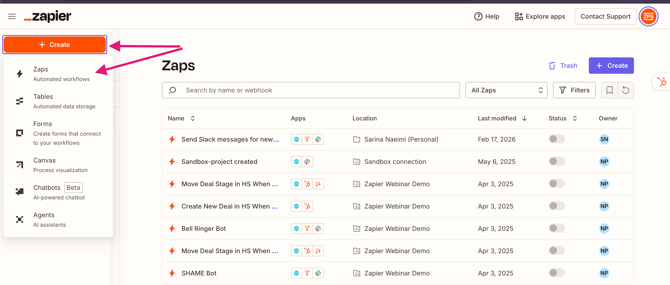
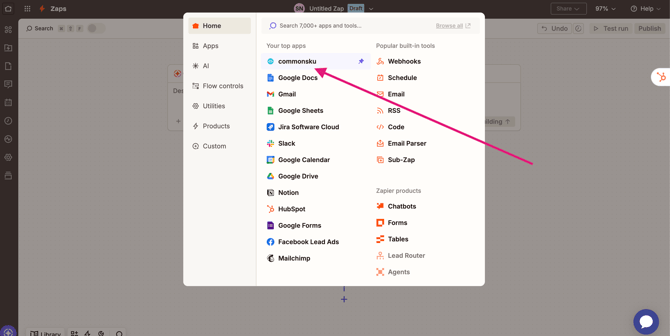
Log in to Zapier → Click Create Zap > Choose commonsku as the Trigger app
-
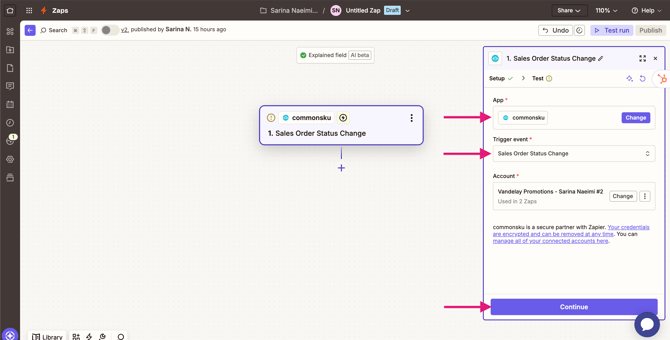
Select Sales Order Status Change as the trigger event > Connect your commonsku account > Click Test Trigger to pull in a recent order update > click on Continue
-
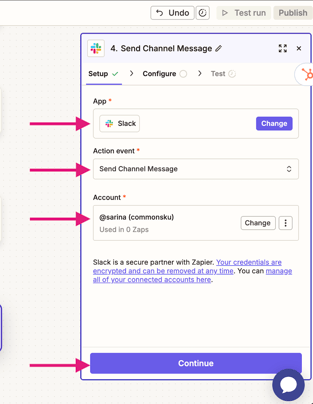
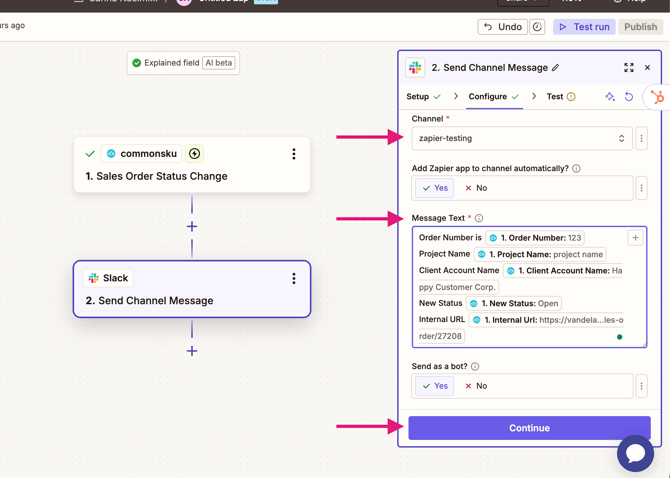
Click Continue > Choose Slack as the Action app > Select Send Channel Message > Choose the Slack workspace and channel > Click on Continue > In the message field, map the fields like Order Number, Project Name, Client Account Name, New Status, Internal URL
-
Click Test Step > Click Publish
Now, whenever a Sales Order status changes to Closed, your team will receive a Slack notification automatically.
Example 2: Log Order Status Updates in Google Sheets
You want to track all Sales Order status changes in a spreadsheet.
-
Log into Zapier → Click Create Zap > Choose commonsku as the Trigger app
-
Select Sales Order Status Change > Connect your account > Click Test Trigger
-
Click Add Step > Choose Google Sheets > Select Create Spreadsheet Row > You can map the following fields:
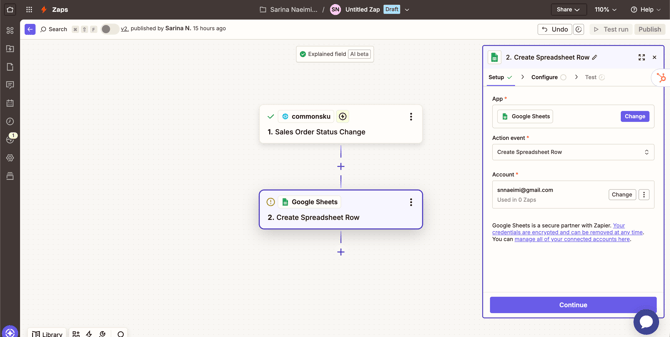
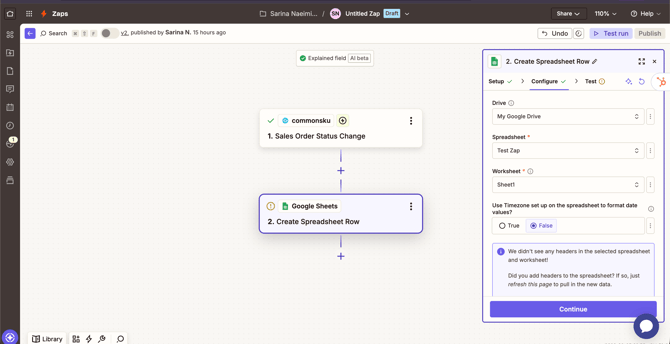
4. Click Test Step > Click Publish
Now, every Sales Order status will automatically be recorded in Google Sheets for reporting.
FAQs
When does this trigger run?
This trigger runs only when the status of a Sales Order changes.
Will this trigger run if I edit order details?
No. Updating order details will not trigger the automation.
The Zap runs only when the order status changes.
Can I run actions only for certain statuses?
Yes. You can add a Filter step in Zapier. For example, you can filter to continue only if: New Status = Invoiced
This allows you to trigger workflows only for specific status updates.
Can I notify the responsible team member automatically?
Yes. You can use the Order Rep or Client Rep email fields to notify or assign tasks to the correct team member.
Can I track order status history?
Yes. You can send the Previous Status and New Status fields to tools like Google Sheets or your CRM to maintain a record of order status changes.