On this page:
What is Product Upgrade?
Upgrading a Product inside a form
Upgrading Products When Copying a Sales Order
Benefits of Upgrading Your Product
FAQs
What is Product Upgrade?
If you’ve added products to a Sales Order before they were Promostandard, or you manually added them from your custom product in the company database, or copied them from an older project containing non-ePO products, those items won’t have Promostandard features such as:
-
Live inventory
-
Real-time pricing
-
ePO capability
Previously, the only option was to delete the item and re-add the Promostandard version. Now, you can upgrade the product directly on the same project (on your Sales Order). No need to start over.
Note: This feature is only available on Sales Order forms. It is not supported on other form types such as Presentations, Estimates, or Invoices.
Upgrading a Product inside a form
If a product in your Sales Order is eligible for upgrade to Promostandard, you’ll see a yellow badge under the product name that says: "Eligible for ePO”. This means the product exists as a Promostandard item, but your current version is not connected to it.
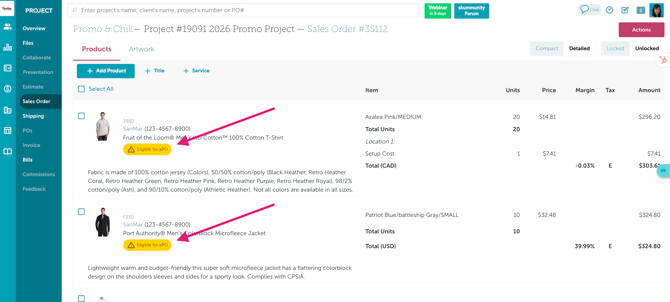
To upgrade a product:
-
Hover over the item.
-
Click Upgrade for ePO.
-
Map your existing product specifications to the Promostandard version in the system.
- If your specifications match automatically, the system will pre-fill the mapping for you.
- If not, select the correct options manually.
- Click Upgrade to confirm.
You’ll see a message that says “Item upgrade in progress.” Close the pop-up.
Once processing is complete, your product will automatically be replaced with the official Promostandard version.
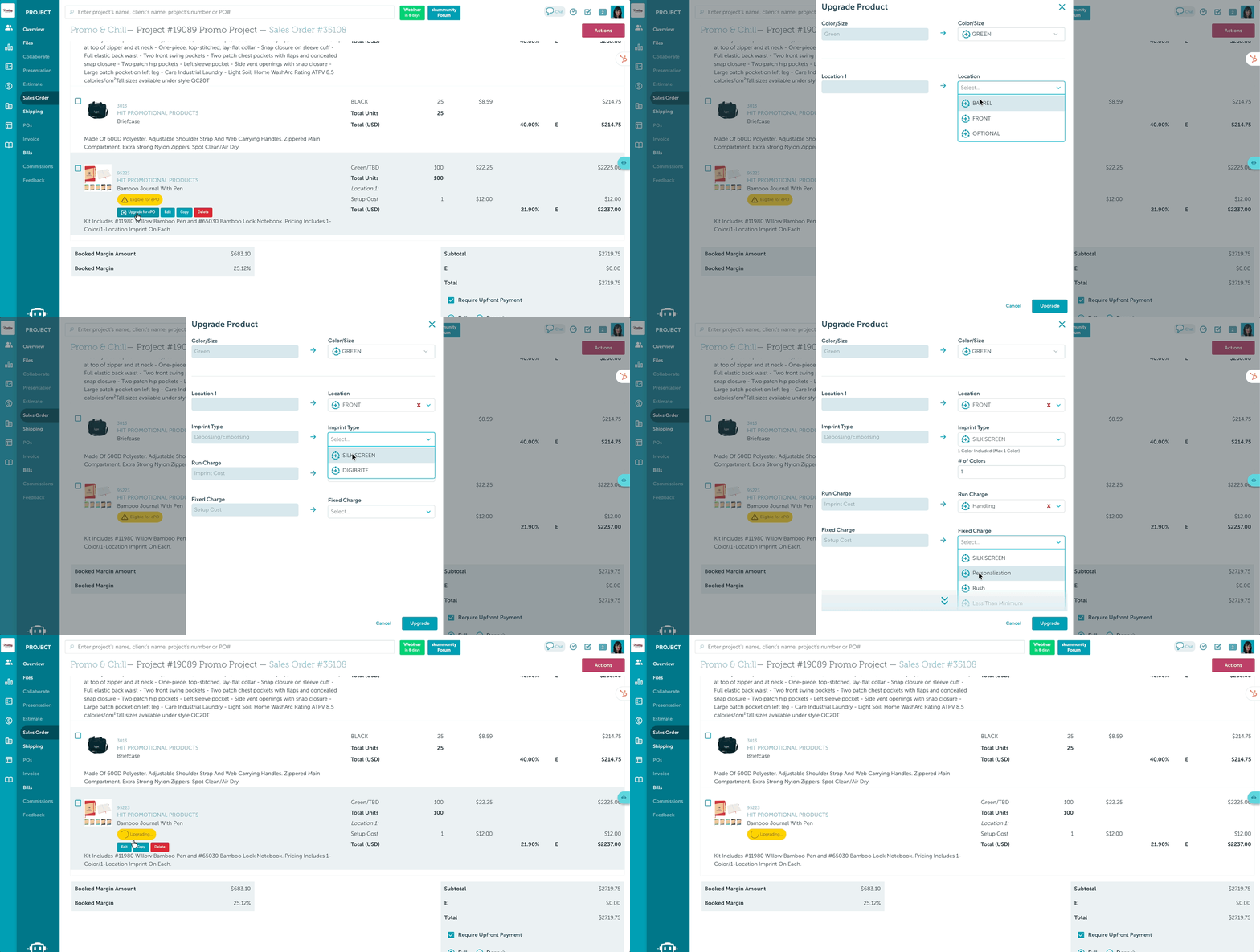
This feature only works on Sales Orders. It is not supported for other form types.
Upgrading Products When Copying a Sales Order
When copying a Sales Order that contains items eligible for upgrade to Promostandard, the behavior depends on whether the Sales Order is unlocked or locked and your user permissions.
Unlocked Sales Order
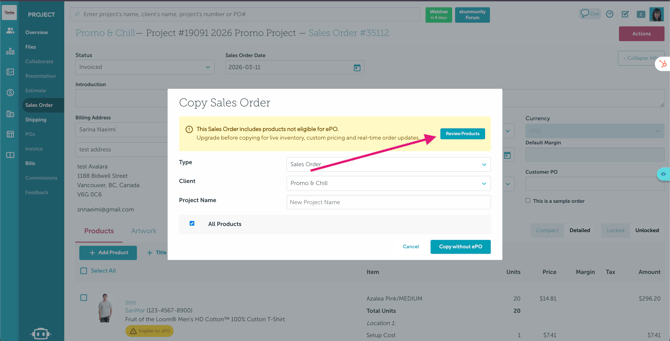
If you try to copy a Sales Order that contains items eligible for upgrade, a warning pop-up will appear letting you know the form includes products that are not currently connected to Promostandard (ePO).
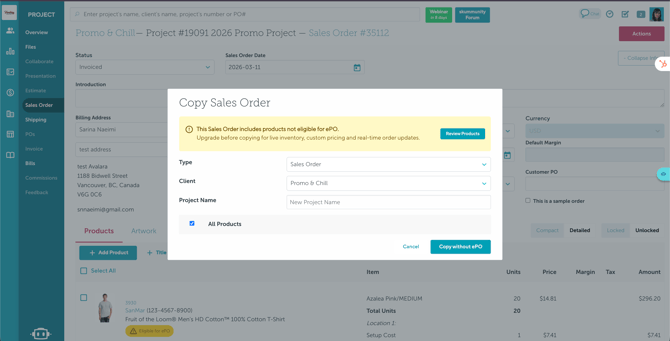
To upgrade the items during the copy process:
-
Click Review Products. > Hover over each eligible item.
-
Click Upgrade for ePO > Map your existing product specifications to the Promostandard version in the system.
If your specifications match automatically, the system will pre-fill the mapping for you. If not, select the correct options manually. - Click Upgrade to confirm >You will see the message “Item upgrade in progress.” > Close the pop-up once the process begins.
After the upgrade completes, the product will automatically update to the official Promostandard version.
Locked Sales Order
If the Sales Order is locked, what you see depends on your user permissions.
Users with Permission to Unlock
If you have permission to unlock forms, you will see a warning indicating that the Sales Order contains items eligible for ePO.
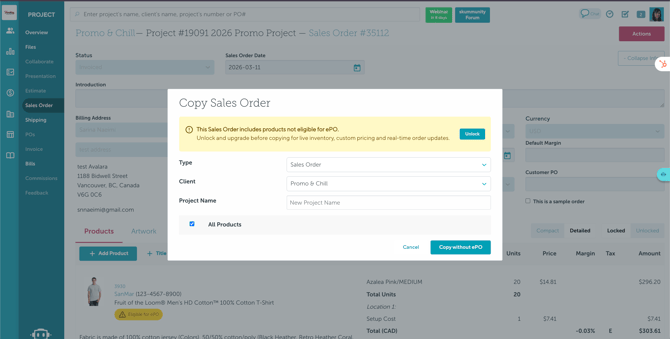
To upgrade the items:
-
Click Unlock. > Hover over each eligible item. > Click Upgrade for ePO.
-
Map your product specifications to the Promostandard version.
If the specifications match automatically, the mapping will be pre-filled. Otherwise, select the correct options manually. -
Click Upgrade to confirm.
You will see the message “Item upgrade in progress.” Once completed, the item will be upgraded.
Users without Permission to Unlock
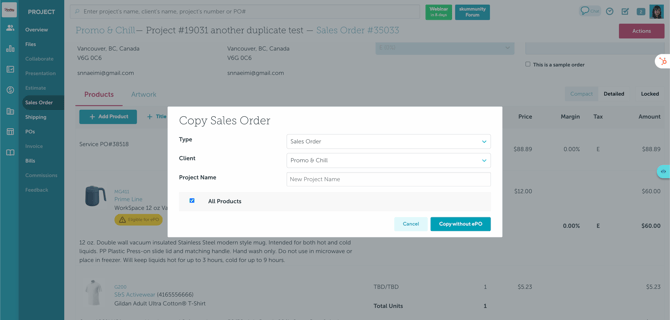
If you do not have permission to unlock the form:
-
You will not see a warning or error message when copying the Sales Order. The Sales Order will be copied without upgrading the items.
-
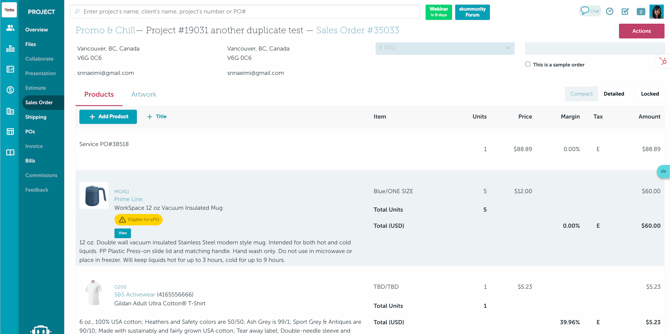
Items eligible for ePO will still be visible, but you cannot upgrade them unless the form is unlocked by a user with the proper permissions.
All of your existing details will carry over, including:
-
Artwork
-
Product name
-
Description
-
Decoration details
-
Pricing
-
Third-party or supplier decoration selections
Your upgraded item will retain everything you previously configured — it simply becomes connected to the official Promostandard product.
Benefits of Upgrading Your Product
Upgrading connects your product to Promostandard and gives you access to:
-
Live inventory
-
Real-time pricing
-
ePO capability
You keep all your existing details while gaining full Promostandard functionality.
FAQs
- What happens if I copy a Sales Order with products that need upgrading?
-
Will I lose my artwork, decoration details, descriptions, or any other information when upgrading?
-
Do I need to delete and re-add the product to enable ePO?
-
Why don’t I see the “Upgrade for ePO” badge?
-
What happens if I copy a form with products that aren’t upgraded?
-
How long does the upgrade take?
What happens if I copy a Sales Order with products that need upgrading?
It depends on whether the Sales Order is locked or unlocked.
-
If the Sales Order is unlocked, you will see a warning message indicating that some products are not eligible for ePO. You can click Review Products to upgrade them before copying.
-
If the Sales Order is locked and you have permission to unlock the form, you must unlock the Sales Order first to upgrade the products.

- If you do not have permission to unlock it, the Sales Order will be copied without upgrading the products and without showing the warning message.
Will I lose my artwork, decoration details, descriptions, or any other information when upgrading?
No. All existing details carry over, including artwork, product name, description, pricing, and decoration selections (including third-party or supplier decorators).
Do I need to delete and re-add the product to enable ePO?
No. If the product is eligible, you can upgrade it directly within the same form — no need to delete or re-add the item
Why don’t I see the “Upgrade for ePO” badge?
The badge only appears if the product is eligible for upgrade to Promostandard. If you don’t see it, the item may not have a matching Promostandard version available.
Why didn’t I see a warning message when copying my Sales Order?
If you copied a Sales Order that contains products eligible for upgrade to ePO, but did not see any warning message, it likely means you don’t have permission to unlock the form.
Only users with permission to unlock Sales Orders will see the warning and be able to review and upgrade those products.
If you need to upgrade the items, please ask your account admin to grant you permission to unlock forms. Once you have the proper permission, you’ll be able to unlock the Sales Order and upgrade the eligible products.
How long does the upgrade take?
The upgrade typically processes quickly. You’ll see an “Item upgrade in progress” message while the system completes the update.