On this page:
Sales Orders Ready for Invoicing
How to pull a report
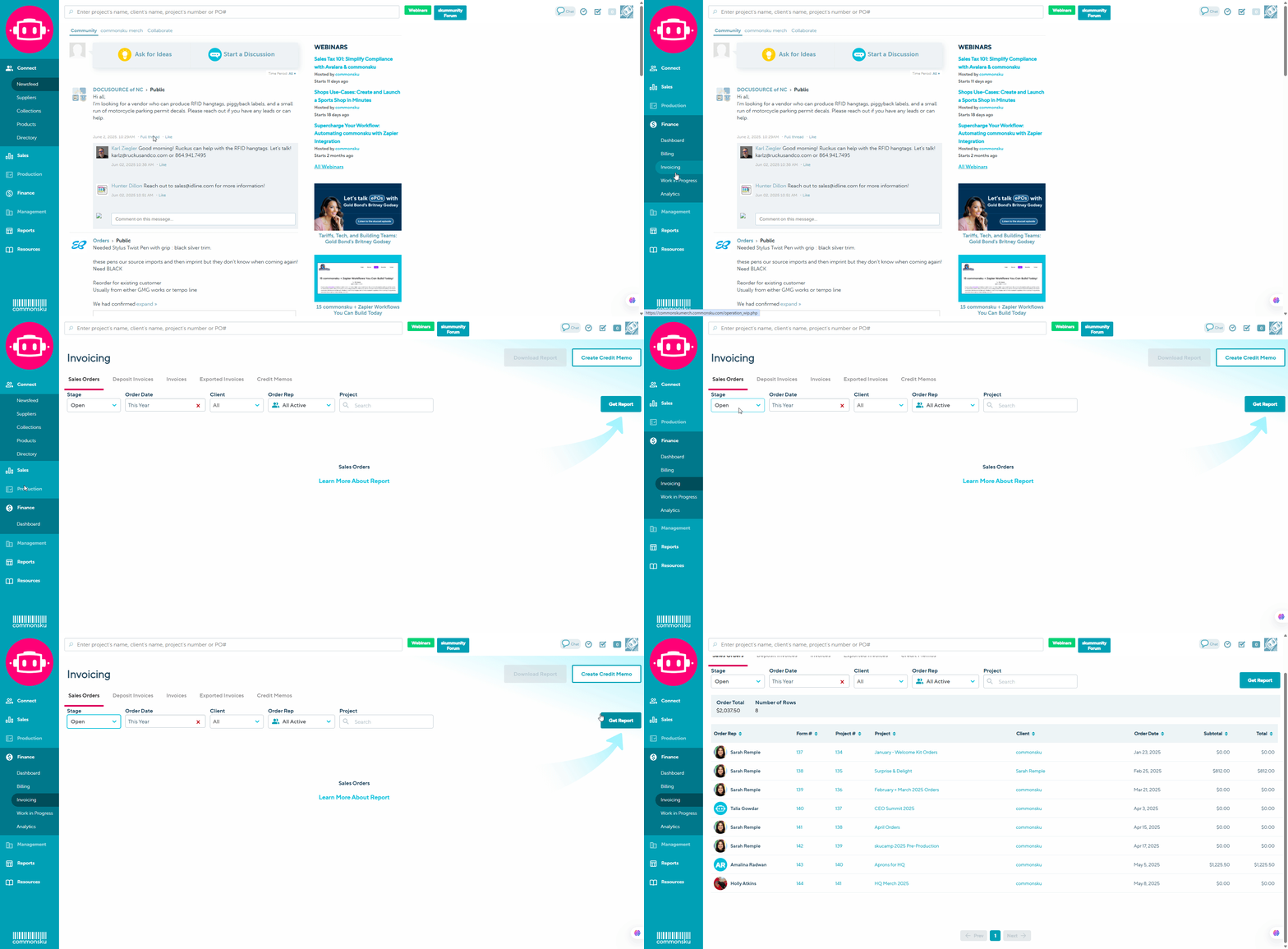
You can find your Client Invoicing Reports under your Finance tab > Invoicing.
Users need permission to View Finance Menu to access Client Invoicing Reports.
From there, you’ll see the following report options:
To pull a report for Sales orders:
- Click on the tab: Sales orders
- Select the stage options :
- Choose any additional filters: Order Date, Client, Client Rep or Project
- Click Get report
🔺 With the new invoicing page, users need either the “View reports for all users and groups” permission or the “View reports for your groups or group members” permission to view invoices and reports.
If you cannot see all invoices, please ask your admin to update your role permissions by going to:
Settings → Manage Users → Actions → Set Permissions
Then enable the appropriate permission for your role.
How to sort a report
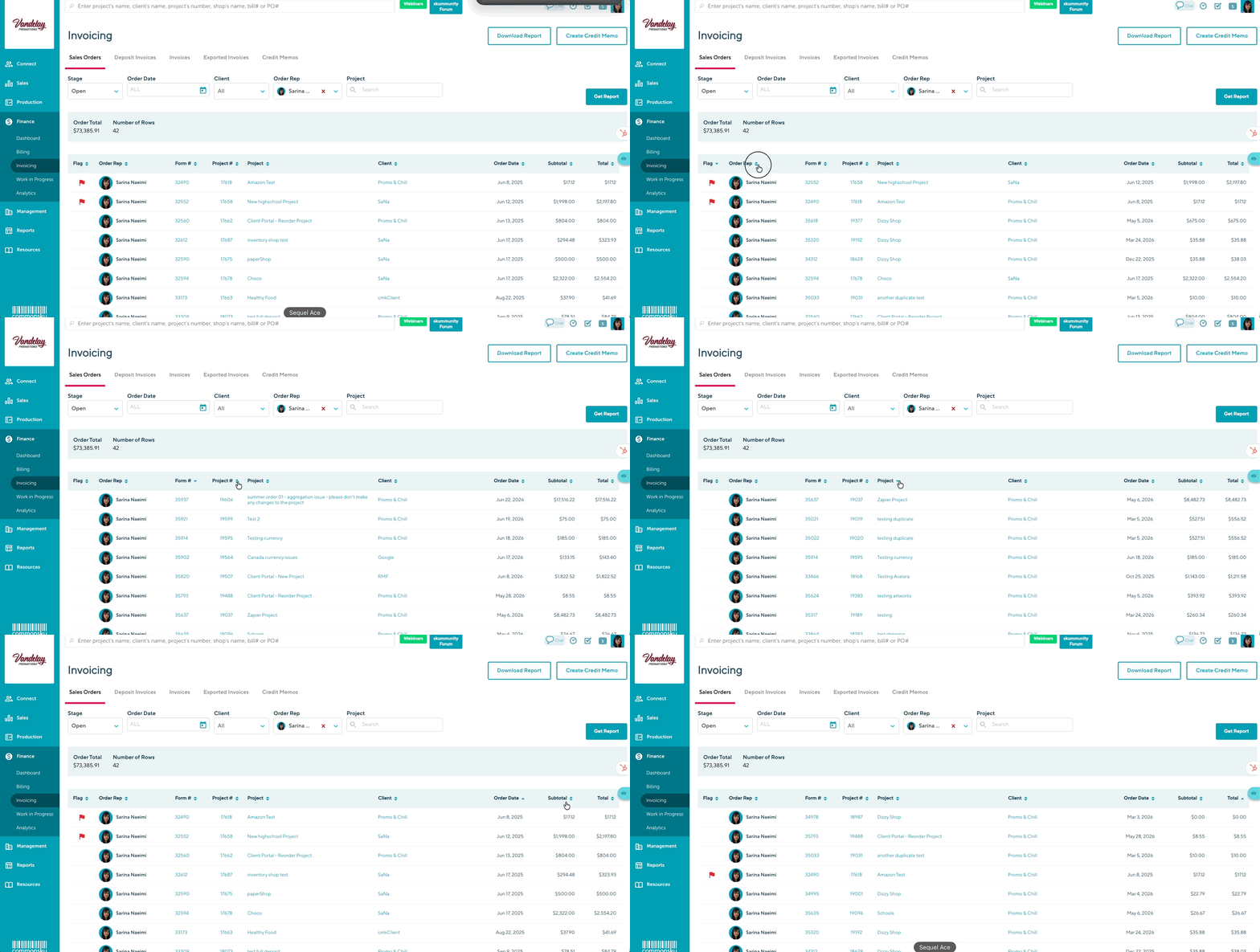
Once you have pulled a report, click on a column title to sort that column by alphabetical or numerical order.
Flagging Sales Orders
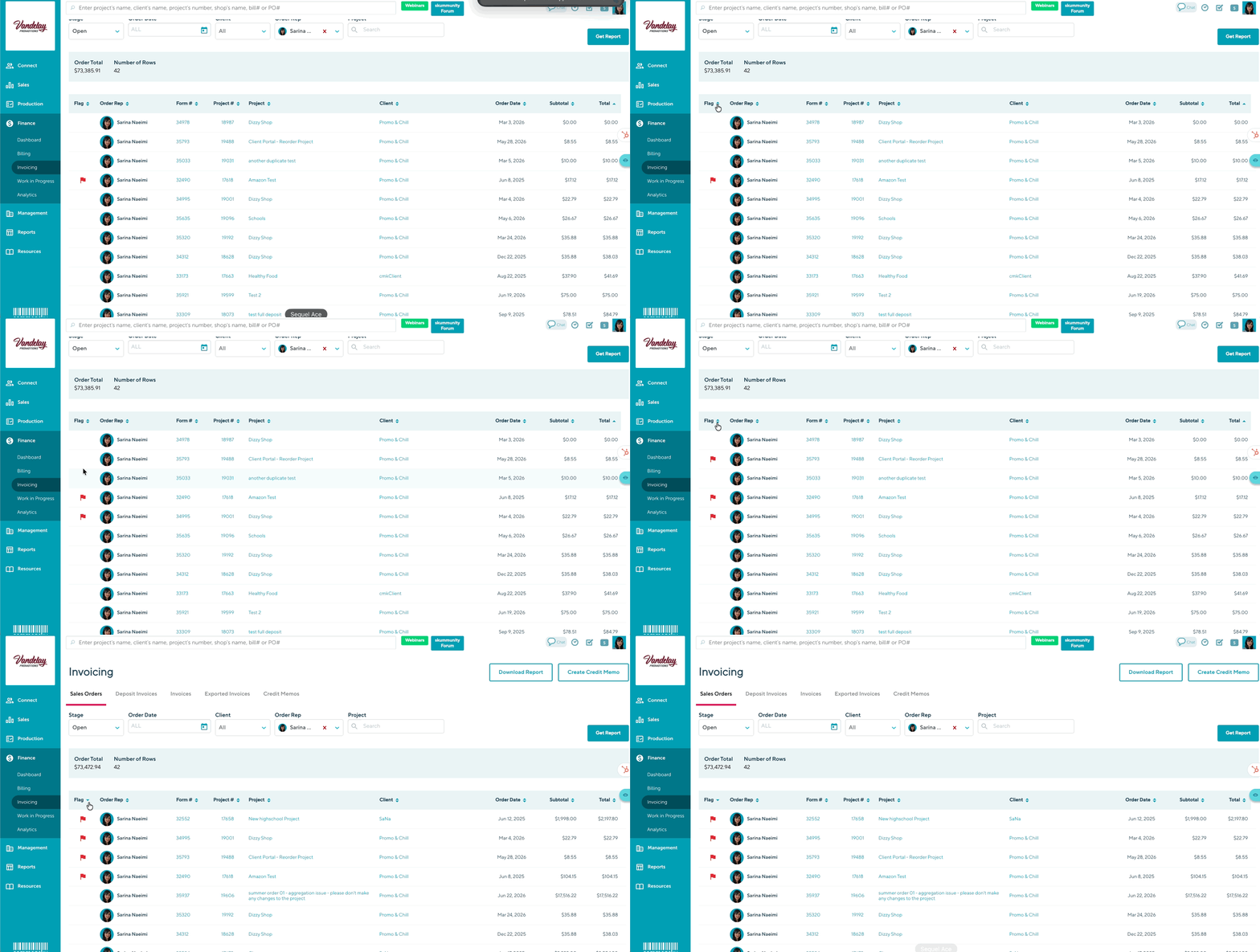
On the Sales Orders report, you can use the Flag column to manually mark a sales order that needs attention while working through your invoicing workflow.
Click the red flag icon to flag or unflag a sales order. The flag is shared with your team, so anyone with access to the report will see the same flagged orders.
Common uses include:
- Marking orders that are waiting for missing information or costs.
- Indicating orders that need follow-up before invoicing.
- Highlighting orders that are ready for Accounting to review or invoice.
| Note: Flagging a sales order is only a visual reminder. It does not change the order's status, prevent invoicing, send notifications, or affect exports to accounting platforms. The Flag column is available only on the Sales Orders report. |
[Back to top]
Open Sales orders
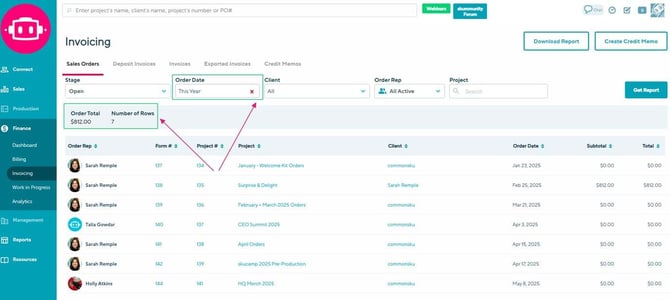
The Open Sales Orders Report shows sales orders that haven't been invoiced, closed, or deleted.
- You can filter the report based on the order date (creation date).
- The totals (blue banner) show the Order Total and the number of open orders (number of rows).
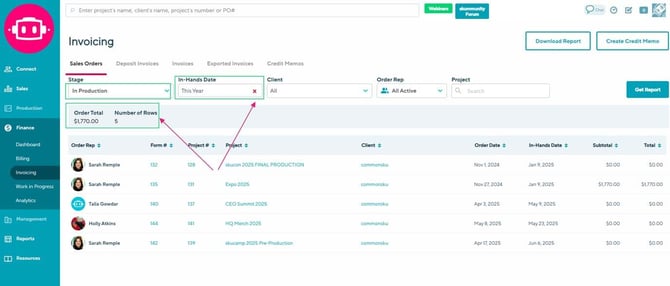
Sales Orders in Production
The Sales Orders in Production Report shows sales orders with at least one purchase order in the Created, Submitted, or Confirmed stage.
- You can filter the report based on the order's in-hands date.
- The totals (blue banner ) show the Order Total and the number of orders in production (number of rows).
Sales Orders Shipped
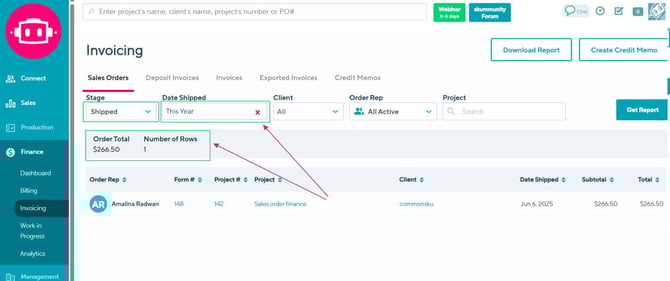
The Sales Order Shipped Report shows sales orders that have shipped to your client, meaning all of the purchase orders have been marked as Shipped.
- You can filter the report based on the date the order's status changed to Shipped (most recent PO shipment date)
- The totals (blue banner) show the order total and number of shipped orders (number of rows).
Sales Orders Ready for Invoicing
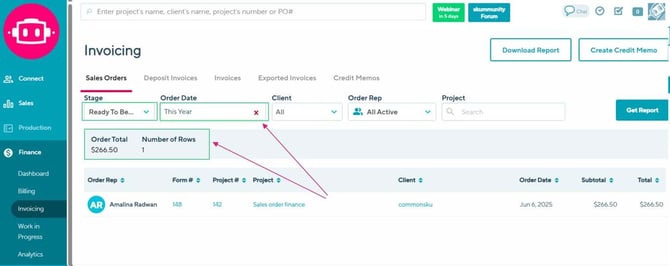
The Sales Orders Ready to Invoicing Report shows sales orders that are waiting to be invoiced. A sales order automatically updates to Ready for Invoicing status when all of its POs are marked as Ready for Billing. An order is removed from this report once the Sales Order has been changed to Invoiced status.
- The totals (blue banner) show the Order total and the number of sales orders ready to be invoiced (number of rows).
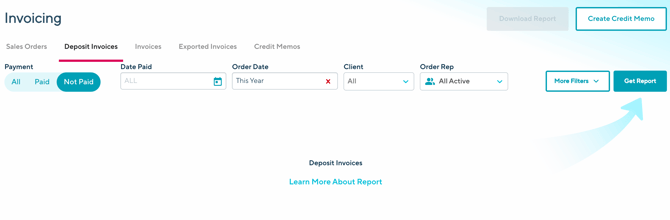
To pull a report for Deposit Invoices:
- Click on the tab: Deposit Invoices
- Select the Payment options : All, Paid, Unpaid
- Choose any additional filters : Date Paid, Order Date, Client, Order Rep or Project
- Click Get report
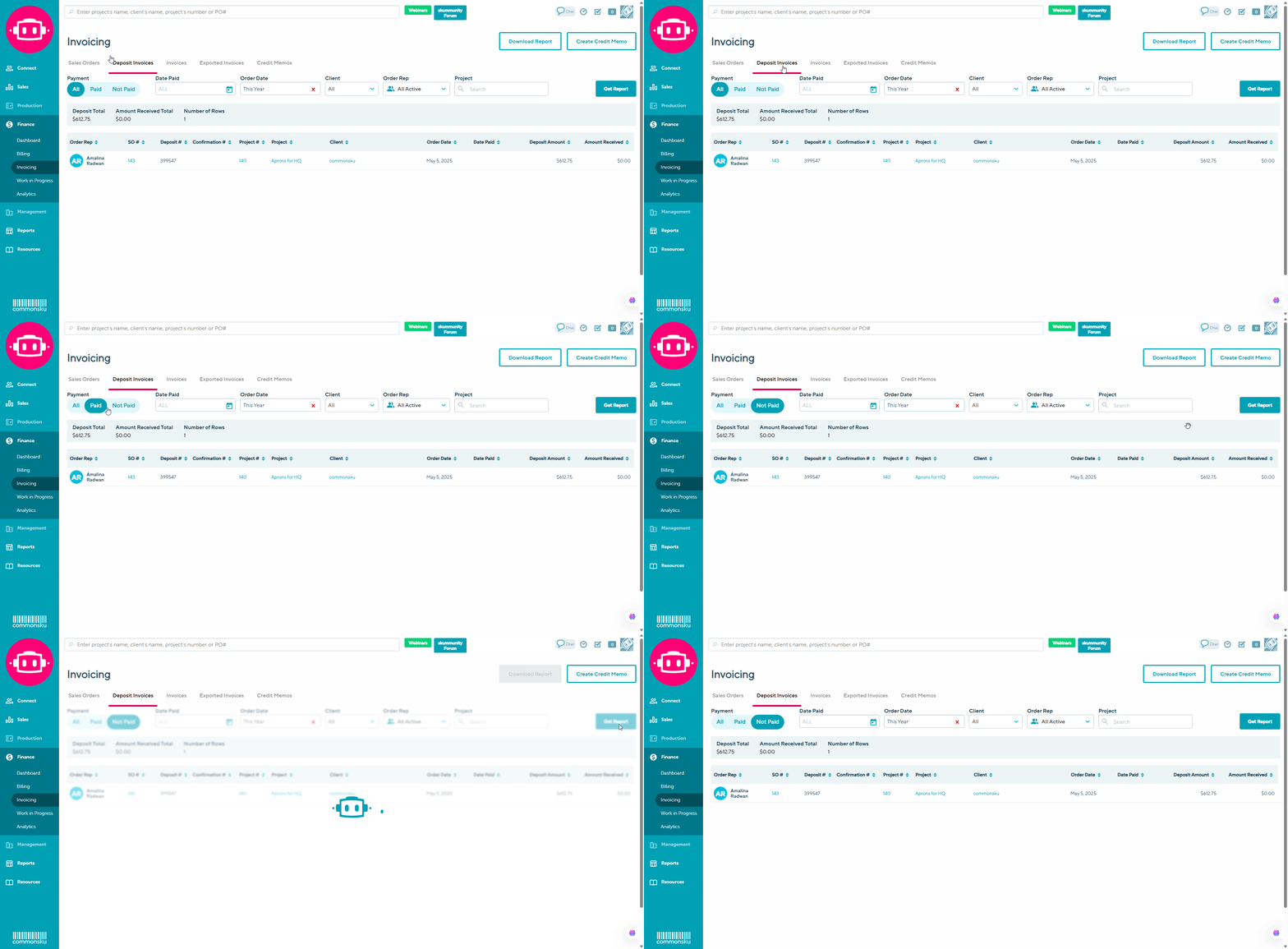
When users select the “Unpaid” option in the Invoicing Financial Report toggle, the report now
 includes both:
-
Unpaid invoices, and
-
Deposits where the “Date Received” field is left blank.
This aligns the report’s behavior with the rest of the financial reporting logic, where entries are interpreted from a date perspective, not just an amount perspective.
Example: If a deposit is entered but the "Date Received" is blank, it will appear in the report under "Unpaid," reflecting that it's not yet finalized.
Invoices
To pull a report for Invoices:
- Click on the tab: Invoices
- Choose any additional filters: Invoice Date, Client, Order Rep or Project
- Click Get report
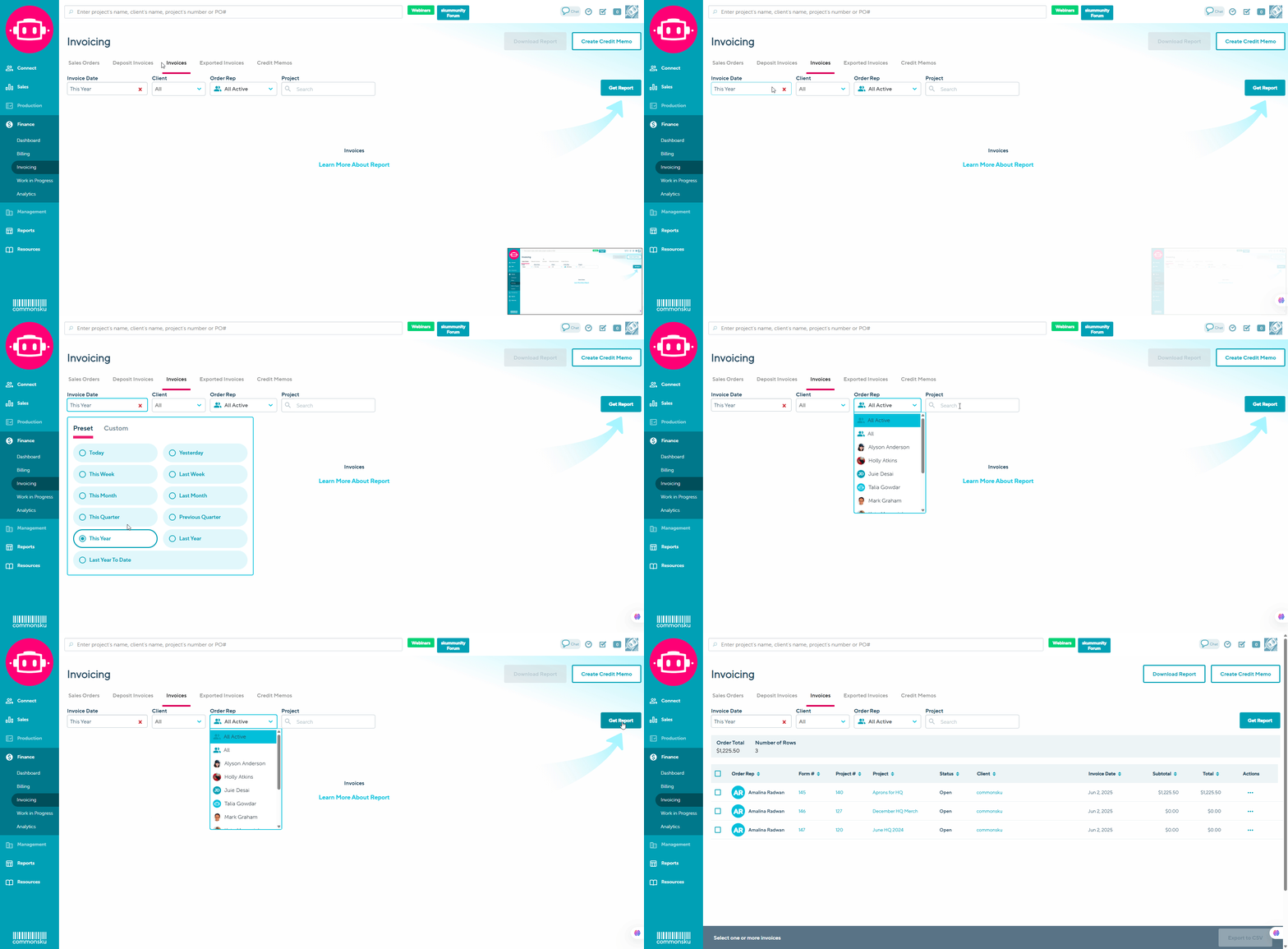
To export Invoices:
- Click on the tab: Invoices
- Choose any additional filters: Invoice Date, Client, Order Rep or Project
- Click Get report
- Select one or more of your preferred credit memos
- Next Click to:
Exported Invoices will automatically move to the Exported Invoices report.
[Back to top]
Exported Invoices
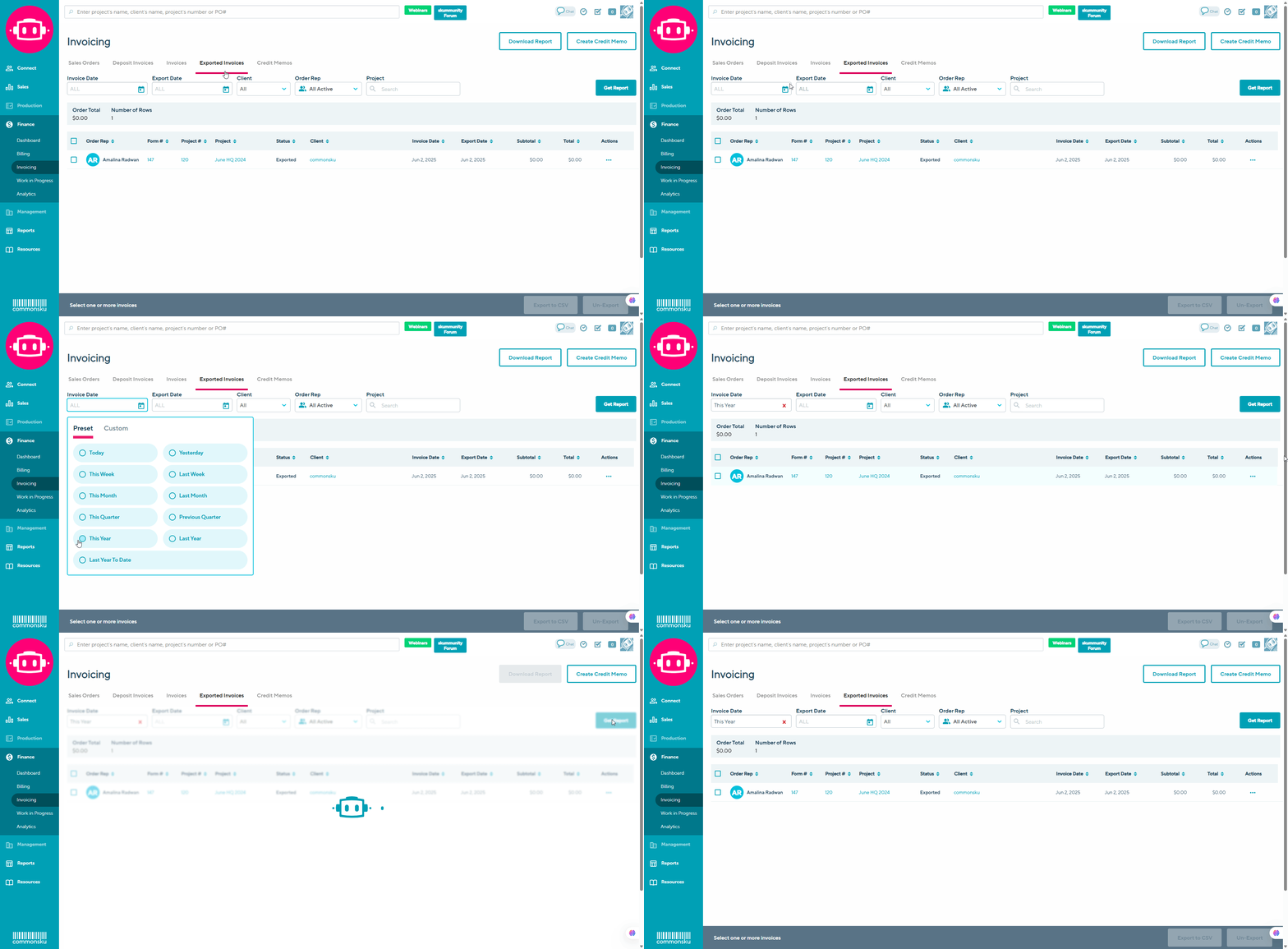
To pull a report for Exported Invoices:
- Click on the tab: Exported Invoices
- Choose any additional filters: Invoice Date, Export Date, Client, Order Rep or Project
- Click Get report
Credit Memos
- Create a Credit Memo for a Specific Project Invoice
- Create standalone Credit Memos
- Pull a report for Credit Memos
- Export Credit Memos
Create a Credit Memo for a Specific Project Invoice
- Go to Finance > Invoicing > Invoices/Exported Invoices
- Find the invoice you want to create a credit memo for.
- Click the three-dot (⋮) menu beside the invoice.
- Select Create Credit Memo.
Note: Do not use the Create Credit Memo button at the top of the page. That button is for creating a standalone credit memo and is not associated with a specific invoice.
- (Optional) Enter Description notes.
- Under each product, enter the quantity to refund.
- Choose either View Credit Memo or Close.
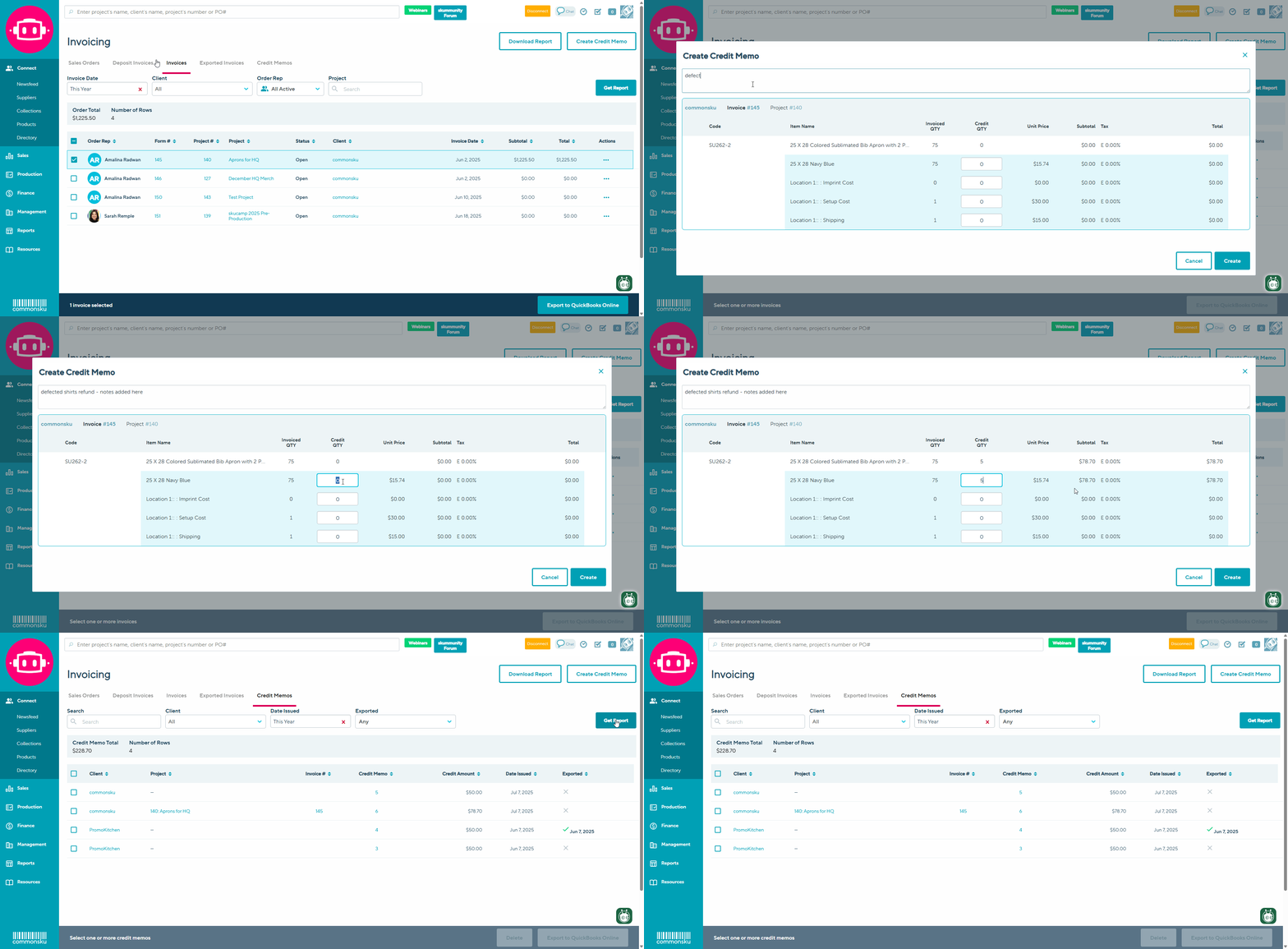
Credit memos generated for an invoice will be displayed under the credit memo tab within the project and the client invoicing report.
To create standalone Credit Memos:
1. Click on the Create Credit memo button
2. Fill out all the information: Description, Client and Total amount to refund.
3. Choose to either View credit memo or close.
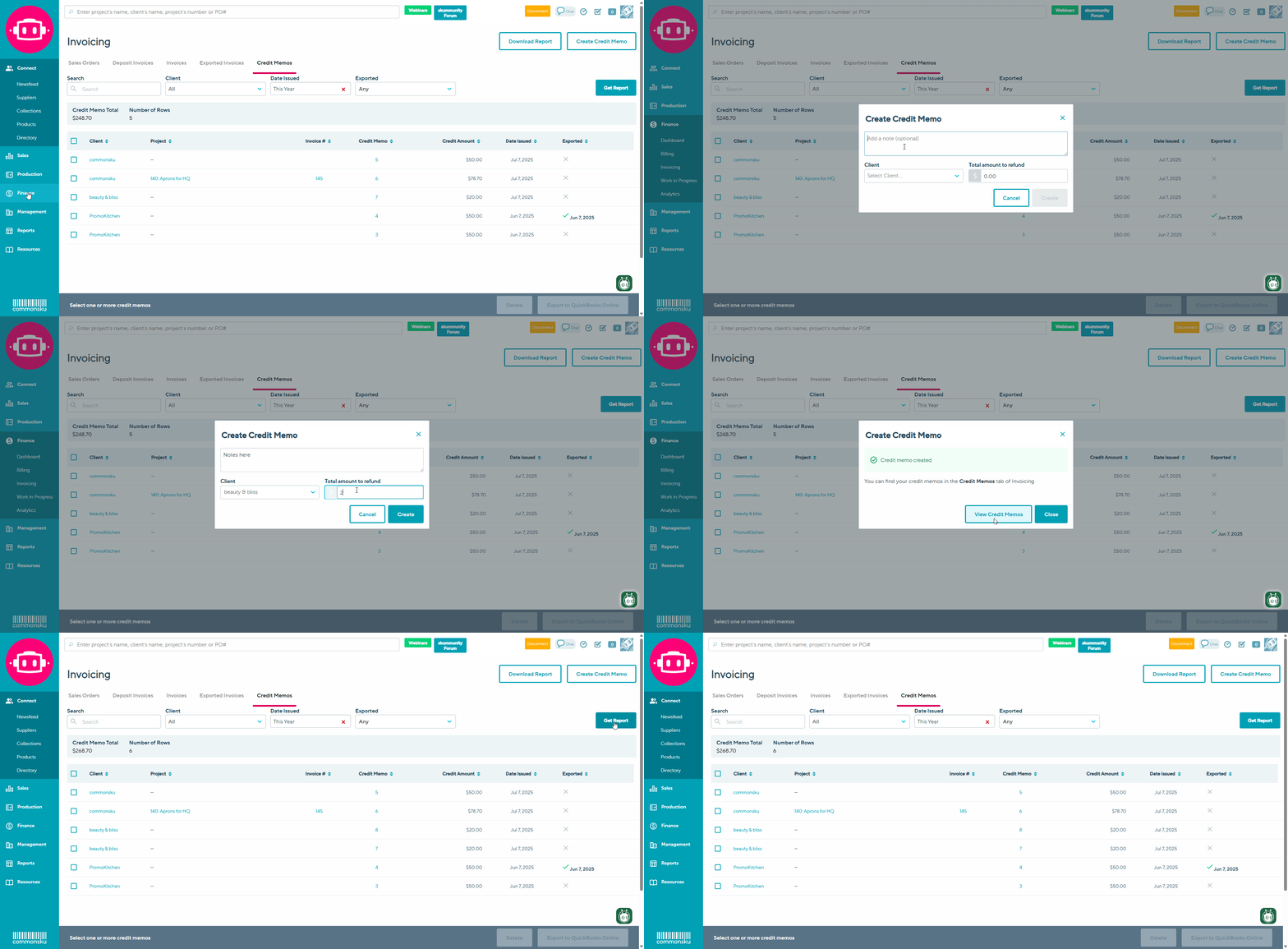
Unpaid commissions are automatically adjusted after a credit memo is created. If a commission is already paid or partially paid, a warning pop-up will alert you.
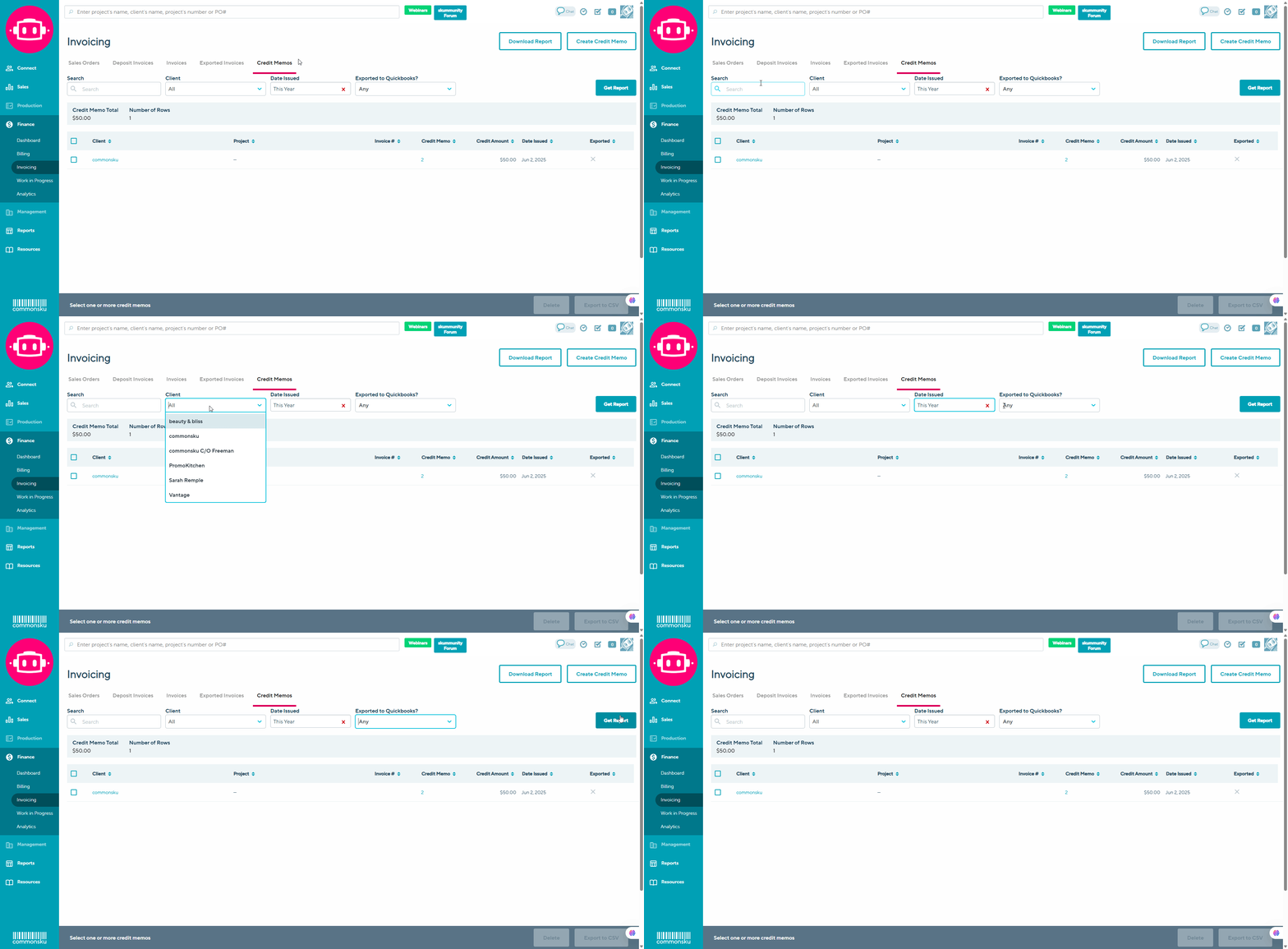
To pull a report for Credit Memos:
- Click on the form: Credit Memos
- Choose any additional filters: Search, Client, Date Issued, Exported to Quickbooks
- Click Get report
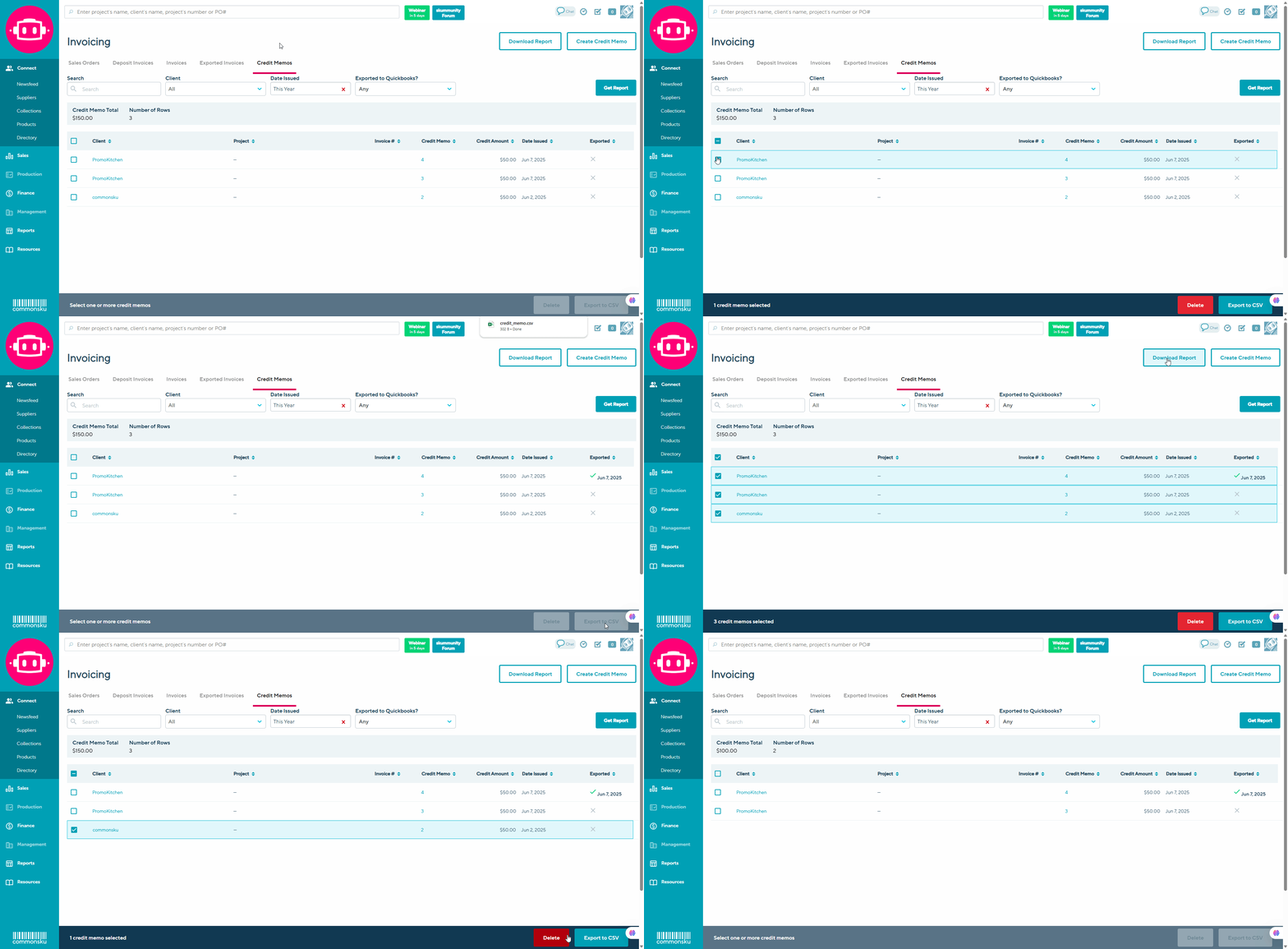
To export a Credit Memo:
- Click on the tab: Credit Memos
- Choose any additional filters: Search, Client, Date Issued, Exported to QuickBooks
- Click Get report
- Select one or more of your preferred credit memos
- Click button to:
- You can also select Download report if you would like a report of the current view of the report (optional)
- If you need to delete a credit memo, select the credit memo and click the red delete button to remove it.
To export to QuickBooks online:
- Click on the tab: Credit Memos
- Choose any additional filters: Search, Client, Date Issued, Exported to QuickBooks
- Click Get report
- Select one or more of your preferred credit memos
- Click button Export to QuickBooks online
To export to CSV or XML
- Click on the tab: Credit Memos
- Select one or more of your preferred credit memos
- Click button Export to CSV or XML
FAQ
- What Client Invoicing Reports are exportable?
-
What is the best way to track Invoice Reports that are open or sent to client?
- Why doesn’t the invoice change to paid when using Stripe?
- How do I recover a deleted invoice?
- How do I map credit memos in QuickBooks Online
-
Is it possible to generate multiple credit memos for a single invoice?
- Why am I not able to export a credit memo for a new client?
- Why can’t I see all invoices or reports on the new invoicing page?
- What is the Flag column used for in the Sales Orders report?
What Client Invoicing Reports are exportable?
The Invoices and Exported Invoices Reports are exportable.
What is the best way to track Invoice Reports that are open or sent to client?
Invoices default to Open when they're first created. Then, when they're emailed through commonsku, they move to Sent to Client.
You can use the Projects tab, Client Invoicing Report, and Sales Rep Report to track invoice statuses.
Why doesn’t the invoice change to paid when using Stripe?
Invoices are not automatically marked as “Paid” when a payment is processed through Stripe for two main reasons:
-
Partial payments
The system cannot always determine whether the Stripe payment is a full payment or only a partial payment toward the invoice. -
Accounting workflow consistency
Automatically marking an invoice as paid could cause discrepancies if the payment has not yet been properly received, reconciled, or recorded in the connected accounting platform (such as QuickBooks Online or Xero).
Because of this, invoices must still be manually reviewed and marked as paid to ensure accounting records remain accurate and aligned across systems.
How do I recover a deleted invoice?
You can recover a deleted invoice by heading to your Client's Page> projects tab
To Restore a deleted form from the projects tab:
- To refine your search, you may begin by filtering for the specific sales form you wish to restore, In this case Invoice.
- Ensure that you check the box to display deleted forms.
- Click the button to restore the selected sales form (the number of the deleted sales form will be displayed).
- Finally, click on the sales form number to restore it.
How do I map credit memos in QuickBooks Online?
- Credit Memo Items → Same as Invoice Items
- Credit Memo Services → Same as Invoice Services
- Client Credit Memo → Any Accounts Receivable (AR) account
Is it possible to generate multiple credit memos for a single Invoice?
No, it is not possible to generate multiple credit memos for a single invoice. This is done to ensure that each credit memo is accurately linked to its corresponding project.
Why am I not able to export a credit memo for a new client?
If you’re having trouble exporting a credit memo for a client, it may be because the client hasn’t been mapped to a client in QuickBooks yet. You should be able to map the client during the export process. If the client was previously mapped but the profile no longer exists in QuickBooks, you’ll need to visit the Client page and re-export the client to resolve the issue.
Why can’t I see all invoices or reports on the new invoicing page?
With the new invoicing page, users now need specific report permissions to view invoices and reports. This is required for the new filtering options, such as filtering by Client Rep.
To access all invoices and reports, your role must have one of the following permissions enabled:
- View reports for all users and groups
or - View reports for your groups or group members
If you cannot see all invoices, please ask your admin to update your role permissions by going to:
Settings → Manage Users → Actions → Set Permissions
Then enable the appropriate permission for your role.
What is the Flag column used for in the Sales Orders report?
The Flag column lets you manually mark a sales order that needs attention while working through your invoicing process.
Click the red flag icon to flag or unflag an order. Because the flag is saved on the sales order, everyone with access to the report sees the same flagged status.
Common uses include:
- Marking orders that are waiting for missing information or costs.
- Highlighting orders that need follow-up before invoicing.
- Indicating that an order has been reviewed and is ready for Accounting to invoice.
Flagging an order is only an internal visual reminder. It does not change the order's status, send notifications, prevent invoicing, or affect exports to accounting platforms. The Flag column is available only on the Sales Orders report.
[Back to top]