With Client Catalog, you can:
- Store client-specific products in one place.
- Quickly reuse products in future projects.
- Maintain consistent product information across reorders.
- Export catalog data for use in other systems.
This feature is not available to teams subscribed to commonsku's Essentials plan. The Advanced plan or higher is required in order to use this tool.
🟡 Users need permission to use the Client Catalog 🟡
On this page:
- Access the Client Catalog
- Required Permissions - Add products to the Client Catalog
- Set up products
- Publish products
- Manage published products
- Delete products
- Filter products
- Export your catalog
- Use Client Catalog products in forms (Presentation, Estimate, Sales Order, Invoices)
-
Adding Existing Products from your projects to the Client Catalog
- Use Client Catalog with Split Ship Taxes
- Notes
- FAQs
Accessing the Client Catalog
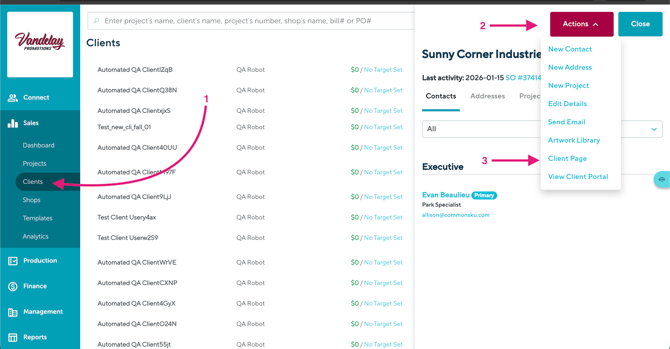
To access a client's catalog:
- Go to Sales > Clients.
- Open the client you want to work with.
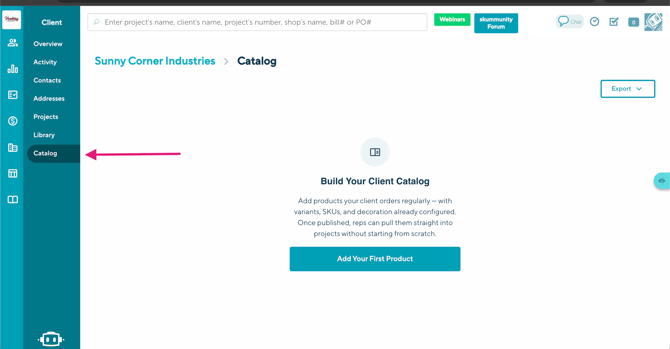
- Click the Catalog tab.
Required Permissions
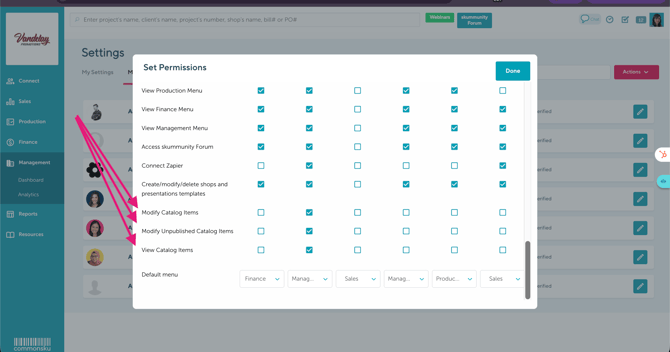
To access and manage the Client Catalog, a user must be granted the appropriate catalog permissions.
To update a user's permissions:
- Go to Settings.
- Select Manage Users.
- Click Actions.
- Select Set Permissions.
- Enable the appropriate catalog permissions for users.
The available permissions are:
- View Catalog Items – Allows the user to view products in the Client Catalog.
- Modify Unpublished Catalog Items – Allows the user to create, edit, and manage unpublished catalog products.
- Modify Catalog Items – Allows the user to modify published catalog products.
Note: Users must have the appropriate permissions assigned before they can access or manage the Client Catalog.
Adding Products to the Client Catalog
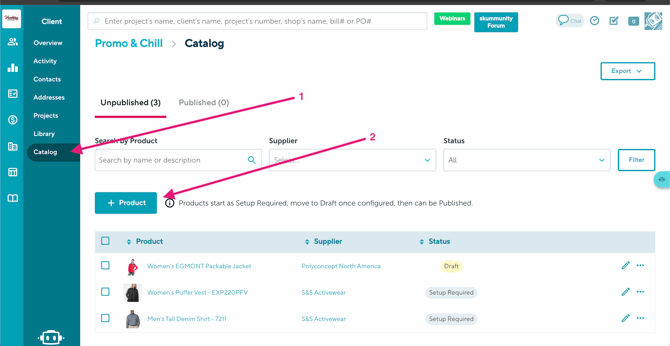
Before products can be used from the Client Catalog, they must first be added and published. You can add products when creating a new Client Catalog or add additional products to an existing catalog at any time.
Adding Products to the Client Catalog for the First Time
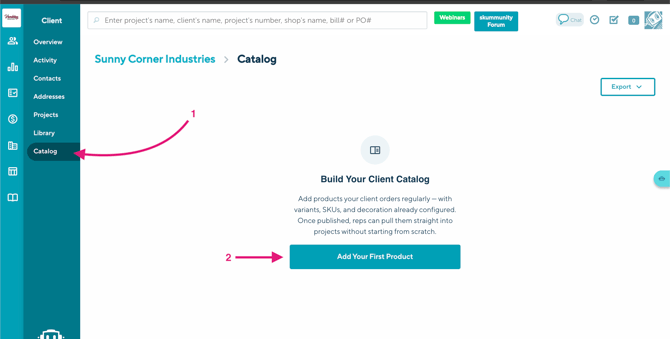
If you're creating a Client Catalog for the first time:
- Go to Sales > Clients.
- Open the client page you want to work with.
- Click the Catalog tab.
- Click Add Your First Product.
- Use the Connected+, ESP, SAGE and SAGE Connect, Distributor Central, Bookmarks, Tagged, Collections, or Company database
After adding products, they'll appear in the Unpublished section, where you'll complete the required setup before publishing them.
Adding More Products to an Existing Client Catalog
If the client already has products in their catalog:
- Go to Sales > Clients.
- Open the client.
- Click the Catalog tab.
- In the Unpublished section, click + Product.
- Use the Connected+, ESP, SAGE and SAGE Connect, Distributor Central, Bookmarks, Tagged, Collections, or Company database
The newly added products will appear in the Unpublished section, where you can complete their setup and publish them when ready.
Note: Products must be published before they can be used from the Client Catalog in forms.
Setting Up Products
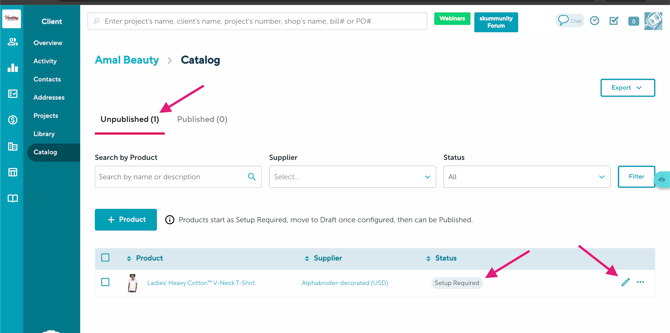
Each newly added product must be reviewed before publishing. You will see the status is Setup Required when you add new item to your catalog
Click the Edit icon beside a product to configure it.
.png?width=670&height=351&name=SettinUpProducts(editbutton).png)
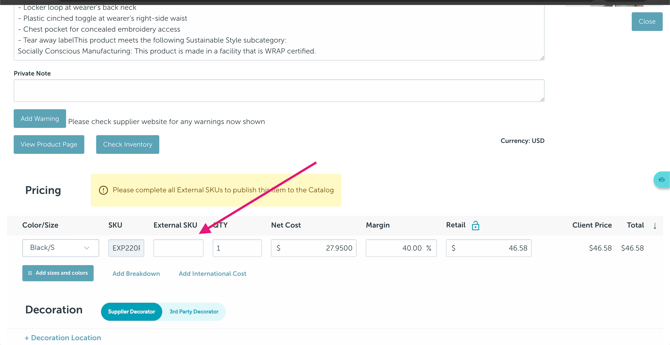
External SKU
The External SKU is required before publishing.
This unique identifier is also used by features such as Split Ship Taxes. When a Client Catalog product is added to a project or form, its External SKU is automatically populated, eliminating the need to manually assign it later.
You can also update:
- Product name
- Description
- Pricing
- Decorations
- Artwork
- Colors
- Sizes
- Other product details
Once you've entered the required External SKU, the product status changes from Setup Required to Draft.
Publishing Products
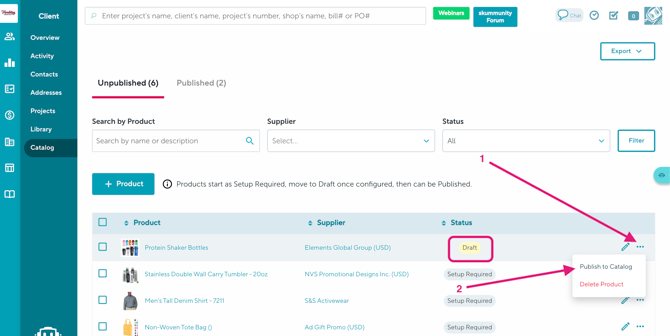
Once a product reaches Draft status, it's ready to publish.
To publish a product:
- Open the Unpublished section.
- Click the three-dot menu.
- Select Publish to Catalog.
The product will move into the Published section and become available throughout commonsku.
Note: Bulk publishing is not currently available. Each product must be published individually.
Managing Published Products
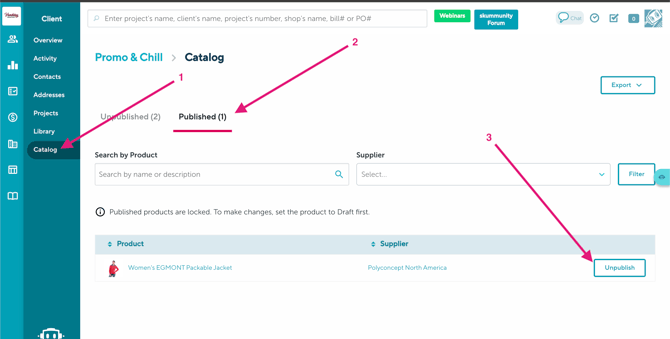
If you need to update a published product:
- Go to Client > Catalog > Published.
- Click Unpublish.
- Make your changes.
- Publish the product again.
Note: Bulk unpublishing is not currently available.
Deleting Products
You can delete unpublished products individually or in bulk under Unpublished section.
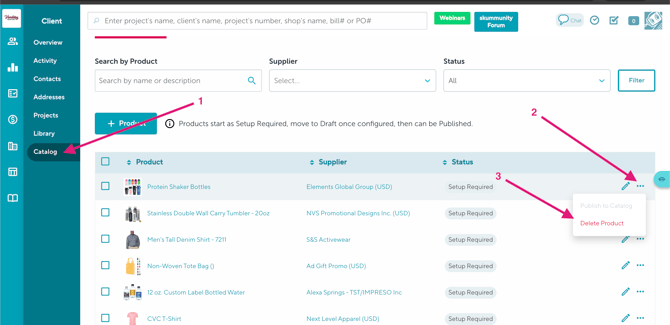
Delete a single product
Use the three-dot menu beside the product under the Unpublished section and select Delete.
Bulk delete
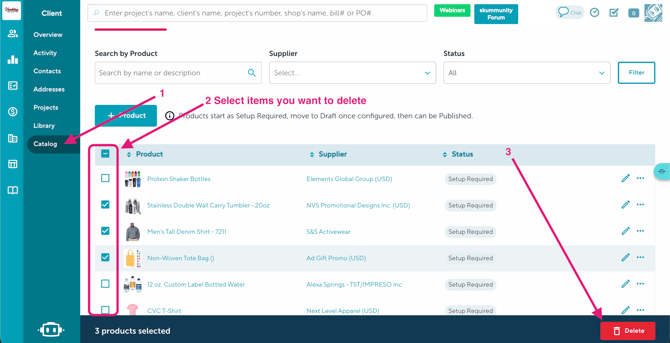
To delete multiple unpublished products:
- Open Client > Catalog > Unpublished.
- Select the products.
- Click Delete in the bottom-right corner.
Filtering Products
You can filter products to quickly find what you're looking for.
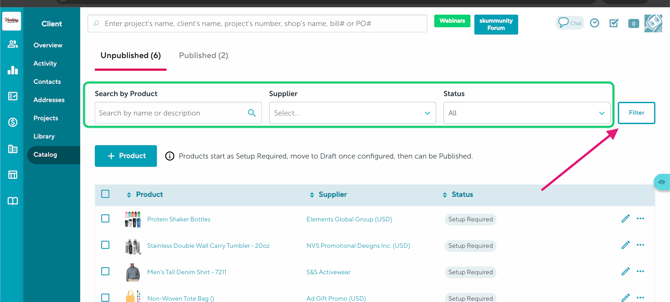
Filtering Unpublished Products
Available filters include:
- Product Name
- Supplier
- Status
After choosing your filters, click Filter.
Note: Product searches use the product name, not the SKU.
Filtering Published Products
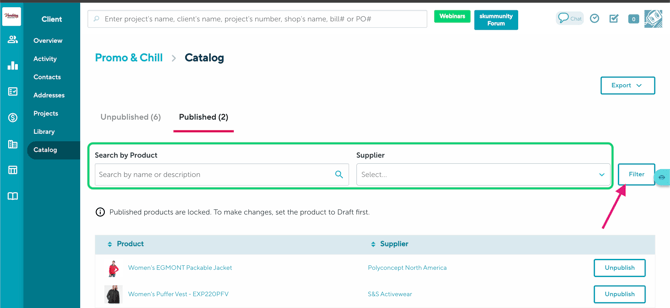
Published products can be filtered by:
- Product Name
- Supplier
Click Filter to display the results.
Exporting Your Catalog
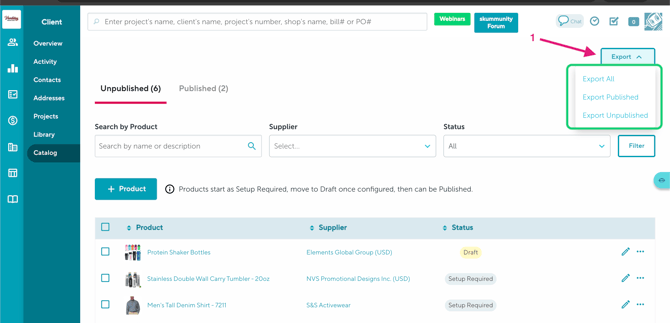
You can export catalog products as a CSV file at any time.
Click Export in the upper-right corner and choose one of the following:
- Export All
- Export Published
- Export Unpublished
Using Client Catalog Products
Once products have been published, they can be added directly into:
- Presentations
- Estimates
- Sales Orders
- Invoices
To add catalog products to your project:
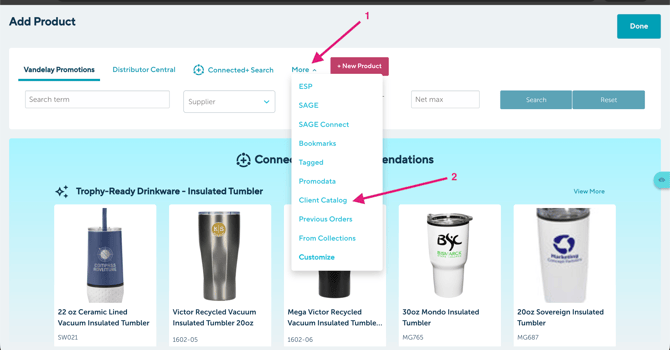
- Open your form (Presentation, Estimates, Sales orders, invoices).
- Click Add Product.
- Select More.
- Choose Client Catalog.
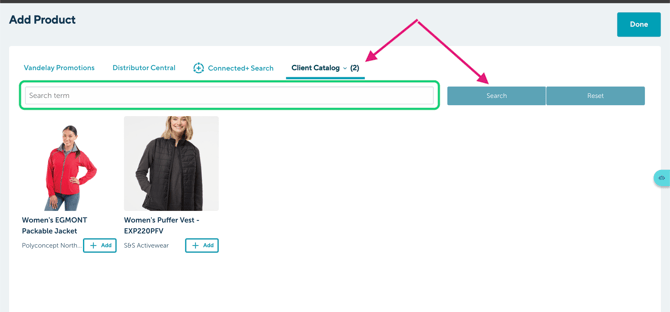
- Search or filter products by "Product Name"
- Select the products you'd like to add.
Note: Client Catalog is currently supported in Presentations, Estimates, Sales Orders, and Invoices. It is not yet available in Shops, so you can't add Client Catalog products to a Shop or vise versa at this time.
|
Searching is optional, you can simply click Search to display all products for that client. |
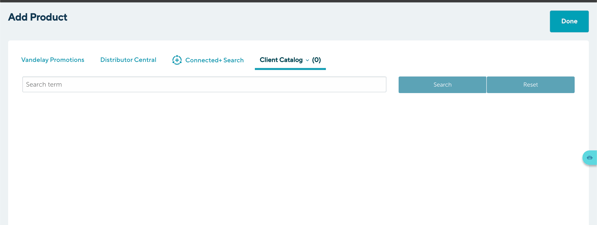
Note: If the selected client doesn't have any published products in their Client Catalog, the Client Catalog search page will be empty until products are added and published.
Adding Existing Products from yourprojects to the Client Catalog
You don't have to start from scratch.
You can add products to your client catalog directly from:
- Presentations
- Estimates
- Sales Orders
- Invoices
Simply:
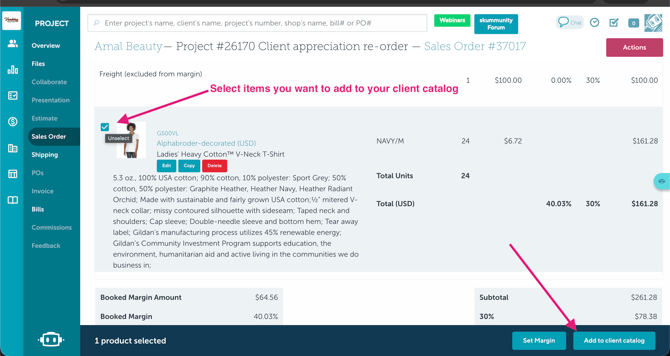
- Select one or more products.
- Click Add to Catalog.
The selected products will be added to the client's catalog under Unpublished section, where you can complete setup and publish them.
Note: At this time, products can only be added to the Client Catalog from Presentations, Estimates, Sales Orders, and Invoices. Adding products from Shops to the Client Catalog is not currently supported.
Using Client Catalog with Split Ship Taxes
Products added from the Client Catalog automatically include their assigned External SKU.
This means:
- You do not need to manually assign External SKUs for Client Catalog products when using Split Ship Taxes.
- Simply continue through the Split Ship Taxes workflow and upload your CSV file.
If your project contains products that were not added from the Client Catalog, you'll still need to assign External SKUs to those items manually.
Notes
- Only the External SKU is required before publishing.
- Decorations, artwork, descriptions, pricing, colors, and sizes are optional.
- Products must be published before they can be added from the Client Catalog.
- Bulk publishing and bulk unpublishing are not currently available.
- Product searches use the product name, not the SKU.
FAQs
Why can't I publish my product?
What information is required before publishing a product?
Can I publish/unpublish multiple products at once?
Can I delete multiple products at once?
Where can I use Client Catalog products?
Do Client Catalog products work with Split Ship Taxes?
Why is my External SKU missing after converting a Presentation to an Estimate or Sales Order?
Will unpublishing a product affect existing projects?
Can I use Client Catalog with Shops?
I'm trying to add a product from a previous order, but nothing is showing up?
[back to top]
Why can't I publish my product?
If the Publish to Catalog option is unavailable, the product is still in Setup Required status.
The most common reason is that the External SKU has not been entered. Once it's added, the product status changes to Draft, allowing it to be published.
What information is required before publishing a product?
Only the External SKU is required.
All other product information—including pricing, descriptions, decorations, artwork, colors, and sizes—is optional.
Can I publish multiple products at once?
No. Bulk publishing/unpublishing is not currently supported. Each product must be published individually.
Can I delete multiple products at once?
Yes, but only for unpublished products. Select the products in the Unpublished section and click Delete.
No. Client Catalog searches currently use the product name, not the SKU.
Where can I use Client Catalog products?
Published products can be added to:
- Presentations
- Estimates
- Sales Orders
- Invoices
Do Client Catalog products work with Split Ship Taxes?
Yes. Products added from the Client Catalog automatically populate their External SKU, so you don't need to assign it again when using Split Ship Taxes.
Why is my External SKU missing after converting a Presentation to an Estimate or Sales Order?
When a Presentation is converted into an Estimate or Sales Order, the External SKU does not carry over automatically.
You'll need to assign the External SKU again before using features such as Split Ship Taxes.
Will unpublishing a product affect existing projects?
No. Unpublishing a product does not affect projects where the product has already been added.
Once unpublished, the product simply becomes unavailable for new projects until it is published again. Existing projects that already contain the product will continue to function normally.
Can I use Client Catalog with Shops?
No. Client Catalog is not currently supported in Shops.
At this time:
- You can't add Client Catalog products to a Shop.
- You can't add products from a Shop to the Client Catalog.
Client Catalog is currently supported only in Presentations, Estimates, Sales Orders, and Invoices.
I'm trying to add a product from a previous order, but nothing is showing up?
The Previous Orders option works differently depending on where you are in commonsku. For example, when you’re working on a Sales Order, it shows products from previous Sales Orders. In Client Catalog, it only shows products from previous catalogs.
If you want to add products from a past Sales Order to your Client Catalog, follow the steps below.
You can add products directly from a previous Sales Order to your Client Catalog.
- Open the Sales Order where the products were originally ordered.
- Select one or more products using the checkboxes on the left.
- Click Add to client catalog.
- You can select multiple products at once, up to 50 products per action.
- If the client does not already have a Client Catalog, commonsku will create one when you add the first item(s).
- Once the products are added, you can find and reuse them through the Client Catalog on the client page or in product search.
Watch the video below to see how to add a product from a previous order to your Client Catalog: