On this page:
Accepting payments in commonsku
Which details are passed to Stripe/CloverConnect
commonsku Payments (Beta)
commonsku Payments is commonsku's built-in payment solution, allowing you to accept credit card and ACH (bank transfer) payments directly through commonsku.
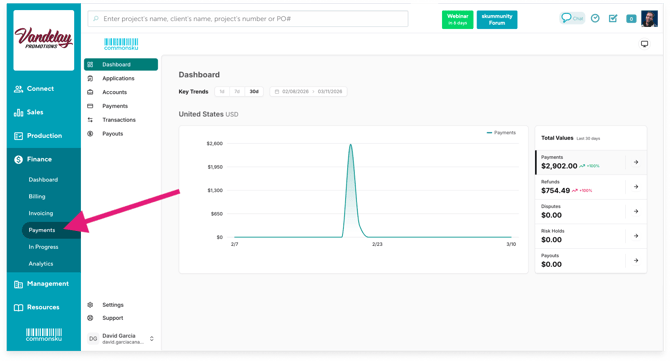
With commonsku Payments, you can collect payments on supported invoices, deposit invoices, and Shop checkouts, while managing your payment activity from Finance > Payments.
From there, you can review your:
- Payments
- Transactions
- Refunds
- Payouts
- Disputes and risk holds
To get started, you'll need to apply for commonsku Payments and complete the account setup process.
For application instructions, payment settings, refunds, payouts, transactions, and accounting information, see commonsku Payments.
[Back to top]Note: commonsku Payments is currently available to distributors in the United States and Canada.
Stripe
Connect your Stripe account to commonsku to start accepting credit card payments directly on your commonsku invoices.
To connect Stripe to commonsku:
- Create a Stripe account
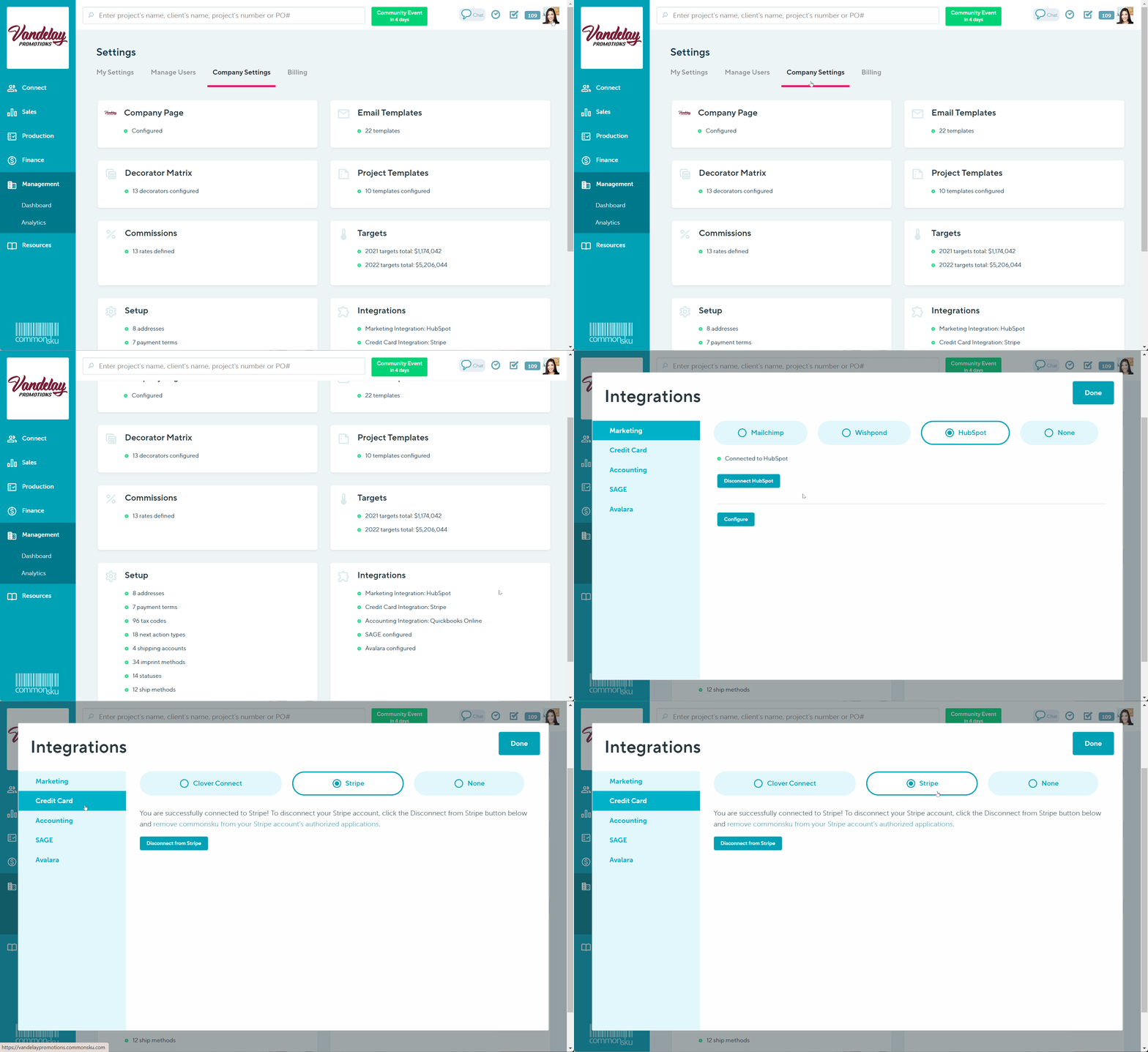
- Click your Profile icon (top right corner of commonsku) > Settings > Company Settings
- Click the Integrations section > payments
- Click to select the Stripe tab at the top of the pop-up window
- Select Connect to Stripe
- Enter your Stripe details and click Continue
Users need permission to Manage users, billing, and company settings to adjust credit card credentials.
Stripe enforces a transaction minimum of $0.50 USD in order to complete the payment. All invoices and shop orders will need to total to a mimimum of $0.50 USD.
Credit card and ACH Payments
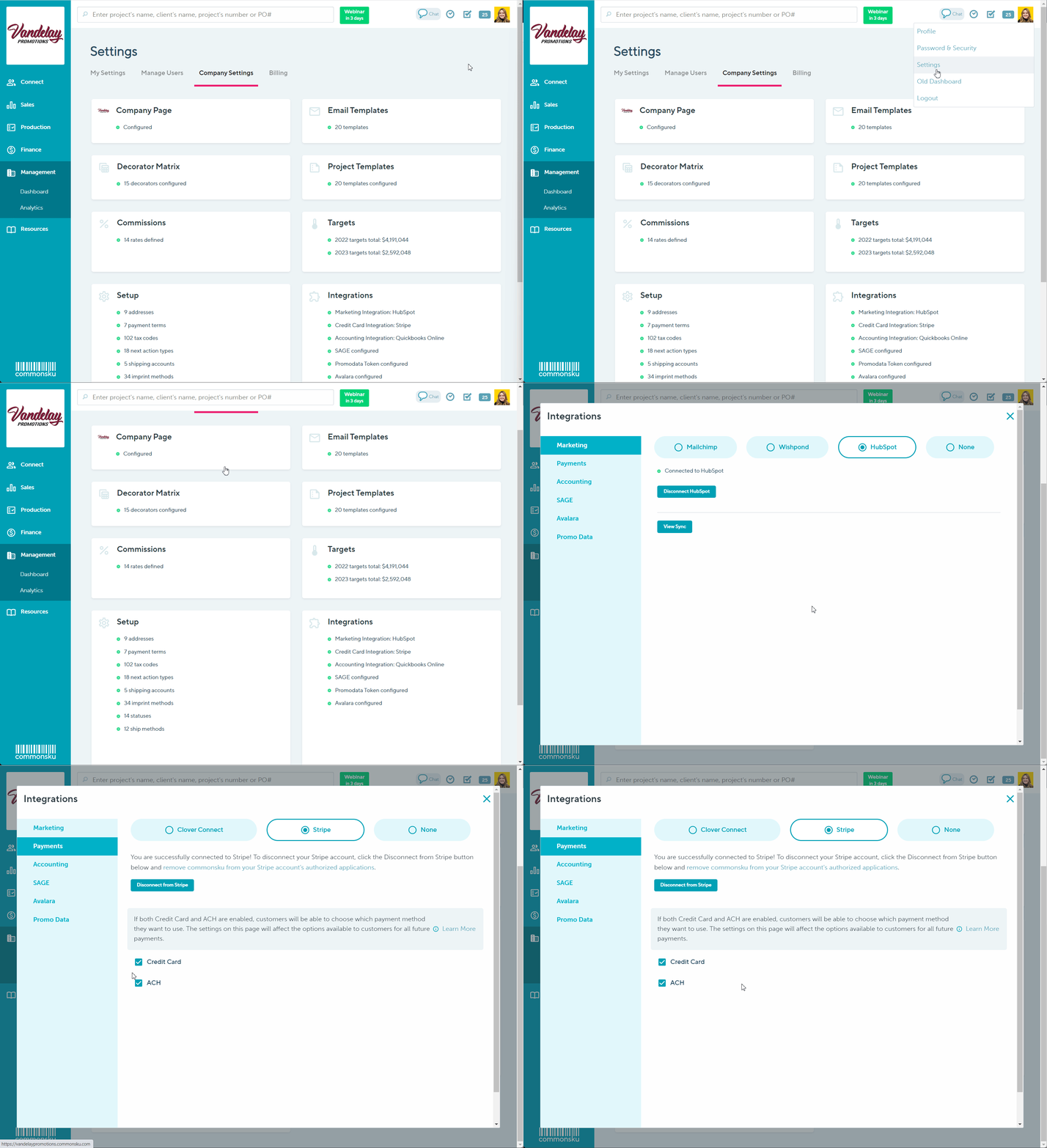
To activate credit card and ACH payments with Stripe:
1. Head to your profile icon (left hand corner of commonsku) and click Settings
2. Under company settings, click the integrations tile
3. Select payments
4. Select option to enable credit card, ACH or both.
Fiserv
Clover Connect is now Fiserv.
It links to your commonsku account to easily accept payments online.
To connect to Fiserv (Clover Connect) to commonsku:
- Create a Fiserv (Clover Connect) account
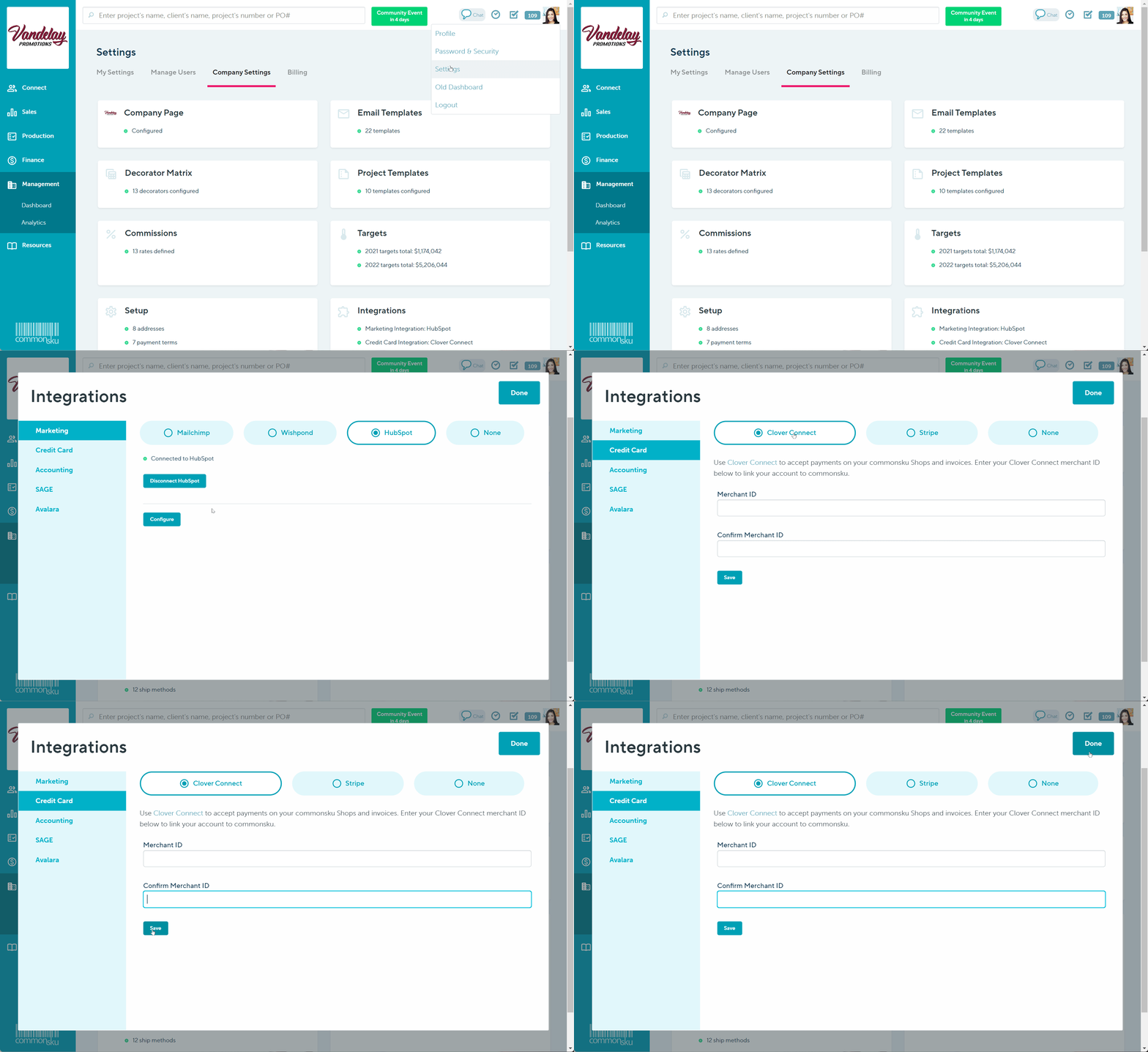
- Click your Profile icon (top right corner of commonsku) > Settings > Company Settings
- Click the Integrations section > payment
- Click to select the Clover Connect tab at the top of the pop-up window
- Enter your Fiserv (Clover Connect) merchant ID in the "merchant ID" and "confirm merchant ID" fields
- Click Save
Users need permission to Manage users, billing, and company settings to adjust credit card credentials.
Credit card payments in commonsku
Depending on your payment provider and configuration, clients can make payments directly through supported commonsku forms and Shops using credit card or ACH (bank transfer).
Payment options are available on:
Deposit Invoices
You can add the option to "Pay by credit card" each time you create a deposit invoice or set up a client's terms so they can always pay by credit card.
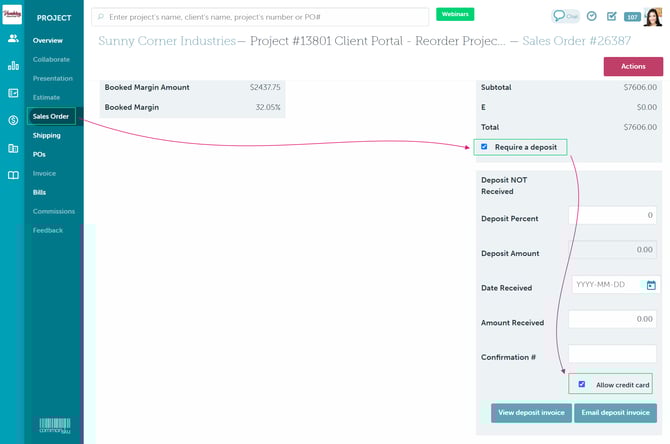
To set up payments each time you create a deposit invoice:
- From the sales order, select the box beside "'Allow credit card" in the deposit invoice's details
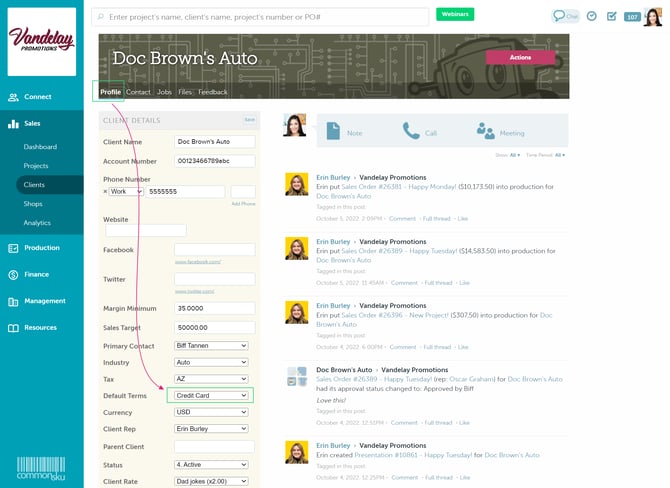
To set a client's default payment terms to credit card:
- On the client's page, click to Edit the client details
- Select Credit Card from the "Default Terms" drop-down
- Click Save
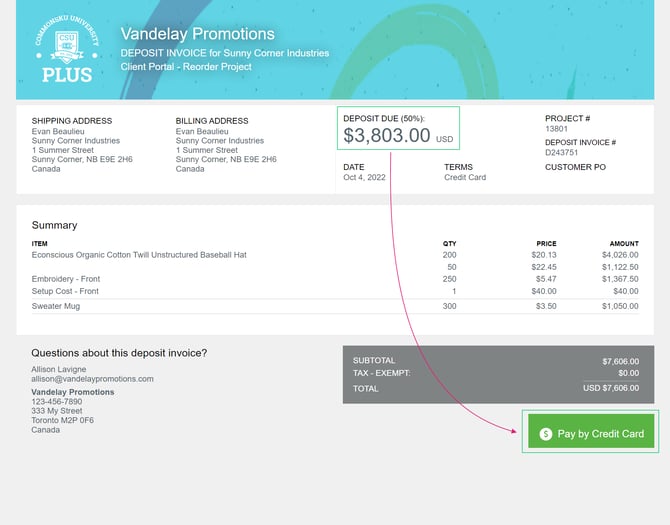
A "Pay by Credit Card" button will appear on the bottom of the client-facing deposit invoice once credit card payment has been enabled. Clicking the button will prompt your client to enter their credit card details and complete their payment.
Your client will receive a payment confirmation email that includes:
- the deposit invoice number and project name
- the payment amount in the relevant currency
[Back to top]
Invoices
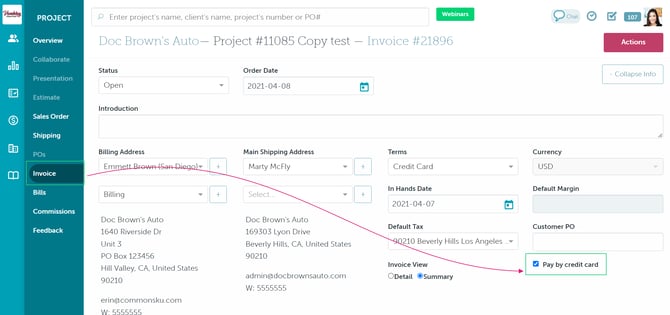
You can add the option to "Pay by credit card" each time you create an invoice or set up a client's terms so they can always pay by credit card.
To set up payments each time you create an invoice:
- From the invoice, select the box beside "'Pay by credit card"
To set a client's default payment terms to credit card:
- On the client's page, click to Edit the client details
- Select Credit Card from the "Default Terms" drop-down
- Click Save
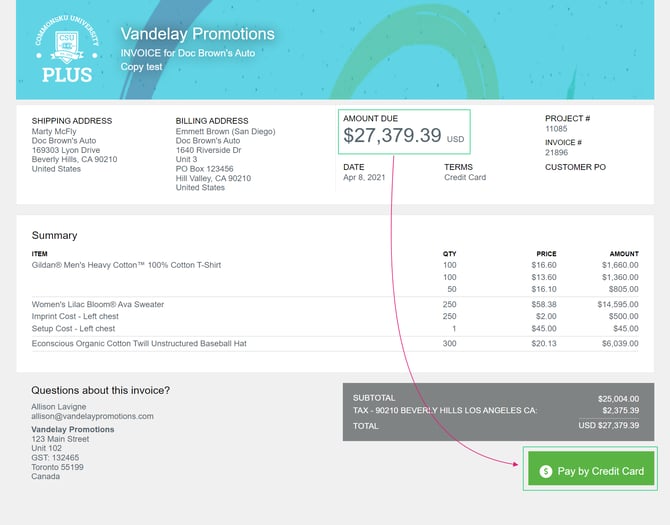
A "Pay by Credit Card" button will appear on the bottom of the client-facing invoice once credit card payment has been enabled. Clicking the button will prompt your client to enter their credit card details and complete their payment.
Your client will receive a payment confirmation email that includes:
- the invoice number and project name
- the payment amount in the relevant currency
Company Shops & Pop-Up Shops
You can enable credit card payment through your Company Shop and Pop-Up Shop settings.
Which details are passed to Stripe/CloverConnect?
commonsku passes the following information to the respective credit card providers after payment.
Payment information with commonsku Payments (Beta)
If you're using commonsku Payments, you can view and manage your payment activity directly within commonsku.
Go to Finance > Payments to access your commonsku Payments Dashboard and review information about your:
- Payments
- Transactions
- Refunds
- Disputes
- Risk Holds
- Payouts
You can use the Dashboard for an overview of your payment activity or open Transactions and Payouts to review more detailed payment and payout history.
For more information about managing payments, transactions, refunds, and payouts, see commonsku Payments.
Stripe
Payment on invoice:
- Project Number
- Client Name
- Amount (total)
- Description includes invoice number, project name
Payment in shop:
- Shop Number
- Client Name
- Shop Name
- Amount (no separate tax)
Clover Connect
Payment on invoice:
- Merchant ID
- Order date
- Transaction amount (total)
- Transaction amount (net)
- Tax amount
- Currency of transaction
- Project number
- Invoice number
- SKU
- Product name
- Quantity
- Unit price
- Contact first and last name
- Street address
- City
- Country
- Zip code/Postal code
- Email address
- Ship-to Country
- Ship-from Zip code/Postal code
Payment in shop:
- Merchant ID
- Transaction amount (total)
- Currency of transaction
- Contact first and last name
- Street address
- City
- Country
- Zip code/Postal code
- Email address
- Shop name
- Invoice number*
*As there is no invoice created at the time of payment in a shop, the invoice number will refer to the order’s reference ID.
Credit card fee
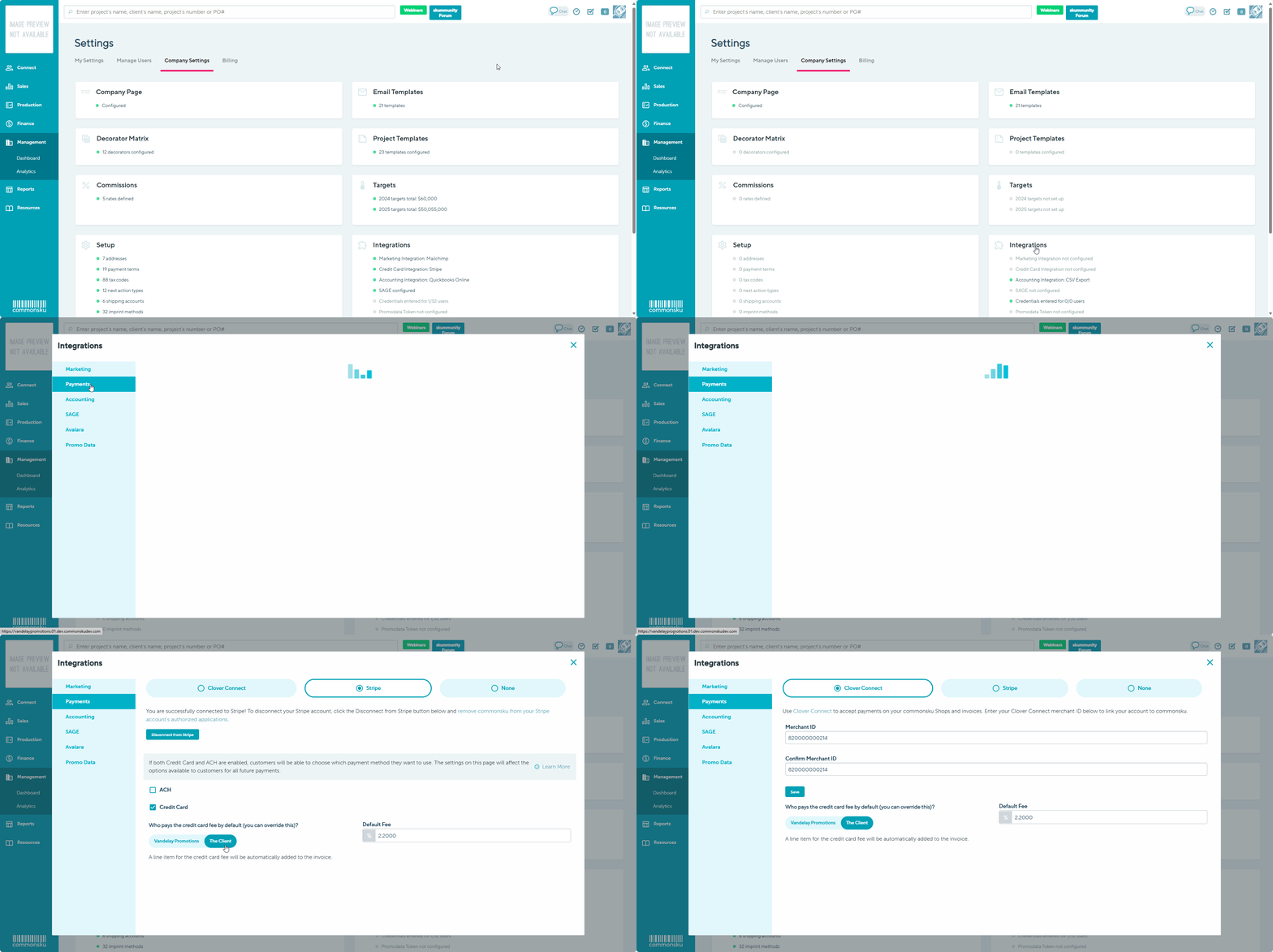
To add a credit fee automatically to the Invoice:
- Click your Profile icon (top right corner of commonsku) > Settings > Company Settings
- Click the Integrations section > payment
- Click to select the Clover Connect or Stripe tab at the top of the pop-up window
- Indicate who pays the credit card fee by default by clicking on either your company name or the client toggle button
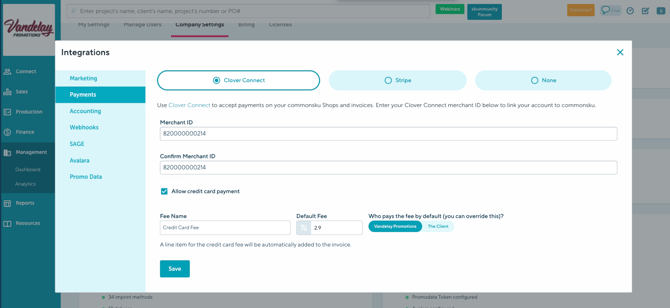
- You can also rename the Credit Card Fee (e.g. change it to Convenience Fee) if you need to.
- Include your default fee
The credit card fee is set to 2.9% by default. You can edit the default percentage as per the instructions above. The Credit Card fee amount will be visible on the client-facing/preview version of the invoice. However, once the Invoice is paid, the CCF will appear in the subtotal breakdown.
FAQ
- I don't see the option to use Clover Connect in my Admin Tab?
- What are the Credit Card fees charged by Stripe or Clover connect?
- Can I use a different payment method, like ACH or bank transfer?
- Why can't my client pay their invoice on their phone?
- Can a client's terms be something different, like Net 30, but still have the automatic option for them to pay by credit card?
- Who gets notified when a client pays by credit card or ACH?
- Does commonsku mark the invoices as Paid?
- What does it mean when I see Cancelled for an ACH transaction in Stripe?
- Is the credit card fee incorporated within the transaction fees charged by Stripe?
- Is it possible to remove the credit card fee from my invoice margin?
- How would the credit card fee appear when exporting to QBO?
- Why is my Credit Card fee not visible in QBO?
- Is the credit card fee taxable?
- Can I rename the Credit Card Fee to another name?
- Should I use Stripe or Fiserv with commonsku?
- Can shoppers pay using Google Pay, Apple Pay, or PayPal in a commonsku Shop?
- Can I use commonsku Payments if I already use Stripe or Fiserv?
-
What is the difference between commonsku Payments and Stripe or Fiserv?
- Does commonsku mark invoices as Paid Automatically?
- What are the processing fees for commonsku Payments?
- How are credit card fees added to an invoice?
I don't see the option to use Clover Connect in my Admin Tab?
Please reach out to support@commonsku.com. The Support Team will add it for you!
What are the Credit Card fees charged by Stripe or Clover connect?
Processing rates can vary by account. For information about the processing fees that apply to your account, contact your payment provider directly.
Can I use a different payment method, like ACH or bank transfer?
Yes commonsku now have ACH payments for our US Stripe account users. The feature is not included for our CloverConnect users.
Why can't my client pay their invoice on their phone?
Your client may need to adjust their mobile phone settings to allow for pop-ups to make live payments on commonsku invoices or deposit invoices.
Can a client's terms be something different, like Net 30, but still have the automatic option for them to pay by credit card?
A client's default payment terms need to be "Credit Card" to automatically add the option to "Pay by Credit Card" on their invoice or deposit invoice. If you'd like to use different terms but still allow the client to pay by credit card, you can either:
- select the box beside "'Pay by credit card" each time you create an invoice
- set the client's default terms to "Credit Card," that way to option is always available, then change the terms inside of the invoice itself
Who gets notified when a client pays by credit card or ACH?
Email notifications are sent to the person listed as the point of contact at the bottom of the invoice form and to your team's invoicing contact.
If you have admin access, you can:
- Change the invoice's point of contact by updating your Project Templates
- Designate an invoicing contact by editing their user profile and selecting the box beside "Invoicing Contact"
If you are using the Clover Connect integration, your client will also receive a payment notification email that includes:
- the invoice number and project name
- the payment amount in the relevant currency
The client will not receive a payment notification if you use the Stripe integration.
If the bottom of your invoices display the invoicing contact but you have not assigned anyone, the email notifications will go to the Order Rep of the project by default.
For ACH payments, we don't send a notification until the payment has been fulfilled. This may take between 1-3 days.
Does commonsku mark the invoices as Paid?
commonsku doesn't automatically mark invoices as Paid. The best practice is to:
- Email the invoice through commonsku
- Export the invoice to your accounting platform
- Receive payment inside of your accounting platform
- Update the commonsku invoice's status to Paid
If you're using the QuickBooks Online integration, your commonsku invoices will automatically update to Paid once payment has been entered against the invoice in QBO.
What does it mean when I see Cancelled for an ACH transaction in Stripe?
You will see "cancelled" on an ACH transaction in Stripe if someone clicks on the "Pay Invoice" button but decided to navigate away from the payment page for whatever reason. This means they have abandoned entering their details and did not finish payment.
Is the credit card fee incorporated within the transaction fees charged by Stripe?
No, the credit card fee (CCF) added to an invoice in commonsku is separate from the transaction fees charged by Stripe. So, you will need to ensure you build in enough buffer to cover both the CCF shown to the client and the Stripe fee deducted from the payment.
Let’s say your invoice total is $1,000, and you:
-
Add a 2.9% credit card fee, paid by the client
-
Stripe also charges 2.9% + $0.30 as their processing fee
What happens:
-
The client pays:
$1,000 + $29 (2.9% CCF) = $1,029 total -
Stripe deducts:
2.9% of $1,029 = $29.84
Plus $0.30 fixed fee = $30.14 total deducted -
You receive:
$1,029 – $30.14 = $998.86
Even though the client paid the CCF, the Stripe fee applies to the full $1,029, so you’ll still be slightly under unless you adjust your CCF higher to fully offset it.
Is it possible to remove the credit card fee from my invoice margin?
Yes credit card fees are excluded from the Invoice margins and commission calculations.
How would the credit card fee appear when exporting to QBO?
It would appear as a separate line under services.
Why is my Credit Card fee not visible in QBO?
commonsku will transfer the credit card fee to QBO only if the payment for the invoice was processed before the invoice was exported. If the payment occurs after the export, the credit card fee will not be displayed in QBO.
Is the credit card fee taxable?
If a client chooses to use a credit card, a flat percentage is added to the total they pay, which is not subject to tax.
For those states where the credit card fee is subject to tax, there are the following possible options:
- Distributor may want to add the credit card fee manually as a service item using Other Service.
- If Distributor knows the applicable tax rate, they can charge a bit more on the rate (for example, for a certain customer, put it at 3.3%) and remit the tax later to the IRS (you will need to keep track of that separately from your regular sales).
Can I rename the Credit Card Fee to another name?
Yes, You can rename the Credit Card fee in your company settings (e.g change it to Convenience Fee) under you Company settings> Integrations> Payments.
Where will the Customized name appear? The customized fee name displays in the Distributor View after the Invoice is paid. This name will also be exported to your Accounting when you export your paid Invoice.
Should I use Stripe or Fiserv with commonsku?
Both Stripe and Fiserv work with commonsku for processing online payments, and either option can be a great choice.
The best fit depends on factors such as your preferred payment experience, processing rates, business requirements, and whether you already have an existing relationship with one of the providers.
Since pricing, available features, onboarding processes, and support options can differ between providers, we recommend speaking with both Stripe and Fiserv directly. They can review your specific needs, explain their offerings, and help you determine which solution is the best fit for your business.
💡 Tip: If you're unsure which provider to choose, consider comparing their transaction fees, supported payment methods, funding timelines, and customer support options before making a decision.
Can shoppers pay using Google Pay, Apple Pay, or PayPal in a commonsku Shop?
It depends on the payment processor connected to your shop.
commonsku processes shop payments through either Stripe or Fiserv. Support for payment methods such as Google Pay, Apple Pay, and PayPal is determined by your payment processor and your account configuration—not by commonsku.
If you'd like to offer additional payment methods, check with your payment processor to confirm:
- Which payment methods are supported on your account.
- Whether they need to be enabled or configured before they become available to shoppers.
Once enabled by your payment processor, any supported payment methods will be available during checkout according to their configuration.
Can I use commonsku Payments if I already use Stripe or Fiserv?
Yes. You can apply for commonsku Payments (Beta) without immediately removing your existing Stripe or Fiserv integration.
However, only one payment provider can actively process payments for your account at a time. Once your commonsku Payments application is approved and you switch to commonsku Payments, it becomes your active payment provider.
What is the difference between commonsku Payments and Stripe or Fiserv?
commonsku Payments (Beta) is commonsku's built-in payment solution for accepting supported credit card and ACH payments directly through commonsku.
Stripe and Fiserv are third-party payment integrations that can also be connected to commonsku.
For information about applying for commonsku Payments, managing transactions and payouts, issuing refunds, and configuring payment settings, see commonsku Payments.
Does commonsku mark invoices as Paid Automatically?
This depends on your payment provider.
When a payment made through commonsku Payments (Beta) is successfully confirmed, the related invoice is updated automatically. ACH payments may take longer to confirm because processing depends on the client's bank.
If you're using another payment provider or accounting workflow, the invoice status may be updated differently. For example, with the QuickBooks Online integration, commonsku can update an invoice to Paid once the corresponding payment has been entered in QuickBooks Online.
What are the processing fees for commonsku Payments?
Your processing rate is established as part of your commonsku Payments application and account setup. For information about the rate that applies to your account, contact your commonsku representative or support@commonsku.com.
How are credit card fees added to an invoice?
The credit card fee setting in commonsku refers to the credit card fee you choose to charge your client, not the processing fee that Stripe or Fiserv charges your company.
If you select The Client to pay the fee, the charge is added to the amount the client pays at checkout. Once the payment is successful, commonsku adds the charge to the invoice totals. It does not appear as a regular product line item on the invoice before payment.
If you select The Company to pay the fee, the client is not charged the fee.
For example: If your invoice is $100 and you charge the client a 3% credit card fee, the client pays $103 at checkout. After the payment is successful, the $3 is reflected in the invoice totals.
The processing fees charged by Stripe or Fiserv are separate from this surcharge and are not added to the invoice as a product line item.